How to Make AI Videos: Complete Step-by-Step Guide
Introduction
Learning how to make AI videos no longer means simply typing a sentence into an AI video generator and hoping for a good result. The technology has evolved into a complete production workflow that can cover scripting, image generation, text-to-video, image-to-video, character consistency, voiceovers, lip sync, editing, captions, music, and even YouTube publishing.
The good news is that you do not need a camera, expensive production equipment, actors, or a traditional studio to get started.
The challenge is knowing which steps actually matter, which AI tools to use at each stage, and how to connect them into a workflow that produces something better than a collection of random AI-generated clips.
This guide explains how to make AI videos from beginning to end, whether you want to create YouTube videos, Shorts, cinematic scenes, faceless content, marketing videos, product demonstrations, educational content, or social media videos.
You will learn how to choose the right format, write the script, create AI video prompts, generate visuals, maintain consistent characters, add AI voiceovers, edit the final video, and publish it.
By the end of this guide, you will know exactly how to make AI videos from the first idea to the final published video.
How to Make AI Videos: The Complete Workflow
Before opening an AI video generator, it helps to understand the entire process.
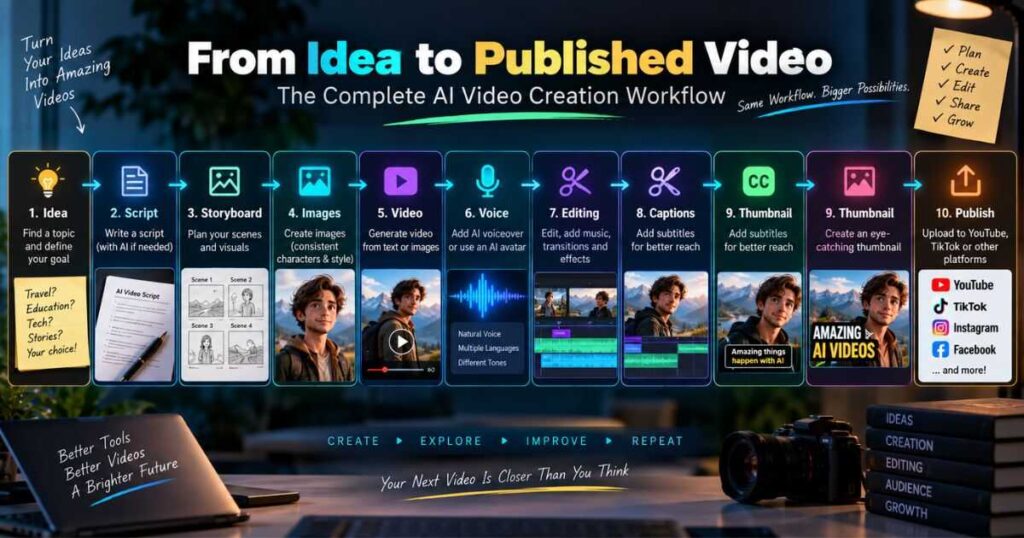
A professional AI video workflow usually looks like this:
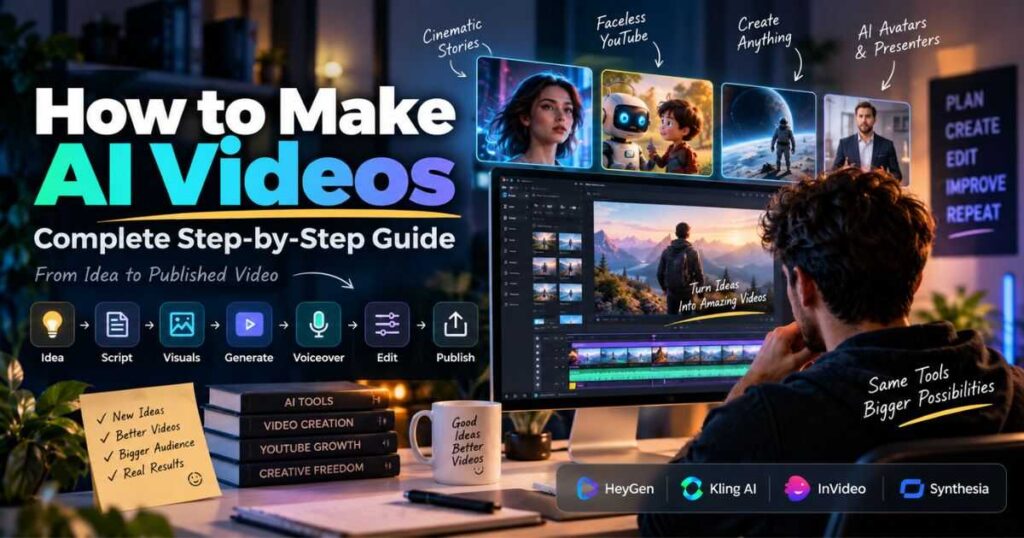
Idea → Script → Storyboard → Visuals → AI Video Generation → Voiceover → Music & Sound → Editing → Captions → Thumbnail → Publishing
You do not necessarily need a different tool for every step. Modern platforms increasingly combine several of these functions.
For example, Kling AI combines image and video generation with tools such as Motion Control and other creative workflows. HeyGen is particularly useful when the video requires an AI avatar or presenter. InVideo focuses heavily on turning ideas and scripts into complete videos, while Synthesia is particularly useful for presenter-led, educational, business, and training content.
The key is not finding one tool that does absolutely everything. It is building a workflow where each tool is used for what it does best.
The basic AI video workflow
| Stage | What you create | Typical AI tools |
| Idea | Topic and concept | ChatGPT, research tools |
| Script | Narration and scenes | AI writing tools |
| Storyboard | Shot-by-shot plan | AI storyboard tools |
| Images | Characters, backgrounds, products | AI image generators |
| Video | Animated scenes | Kling AI, Runway and others |
| Avatar | Talking presenter | HeyGen, Synthesia |
| Voice | Narration | AI voice tools |
| Editing | Final sequence | AI video editors |
| Captions | Subtitles | AI caption tools |
| Thumbnail | YouTube thumbnail | AI image tools |
| Publishing | Final video | YouTube, TikTok, Instagram |
The rest of this guide explains how to execute each stage properly.
This step-by-step process makes it much easier to learn how to make AI videos without wasting time on unnecessary tools or complicated workflows.
1. Decide What Kind of AI Video You Want to Make
The first step in how to make AI videos is deciding what you are actually producing.
Different video formats require completely different workflows.
That is why the best way to learn how to make AI videos is to choose the final video format before selecting your tools.
Common AI video types
Faceless YouTube videos
These usually combine a script, narration, stock footage or AI-generated visuals, B-roll, music, captions, and editing.
Cinematic AI videos
These depend more heavily on AI-generated images, text-to-video, image-to-video, camera movement, visual consistency, and detailed prompting.
AI avatar videos
These use a digital presenter who reads your script. Platforms such as HeyGen and Synthesia are particularly useful for this format.
AI Shorts
Short-form videos require a stronger hook, faster pacing, fewer scenes, and highly visual storytelling.
Product videos
These combine product images, AI-generated environments, camera movement, voiceovers, and promotional messaging.
Educational videos
These often work well with AI avatars, screen recordings, diagrams, narration, captions, and supporting visuals.
Choose the format before choosing the tool
This is an important rule.
Do not start by asking:
“Which AI video generator is the best?”
Instead ask:
“What kind of video am I trying to make?”
A cinematic storytelling video and a corporate training video have completely different requirements.
2. Start With a Strong Video Idea
AI can generate visuals extremely quickly, but it cannot compensate for a weak idea.
Before generating anything, define:
- Who is the video for?
- What problem does it solve?
- What should the viewer learn?
- What should the viewer feel?
- What action should the viewer take?
- Why should someone watch this instead of another video?
For YouTube, a useful concept can be expressed in one sentence:
This video helps [audience] achieve [result] without [major obstacle].
For example:
This video shows beginner creators how to make cinematic AI videos without filming themselves.
That single sentence gives you a direction for the script, visuals, and title.
When you know what you want to achieve, learning how to make AI videos becomes a much more structured process.
3. Write the Script Before Generating the Video
One of the biggest mistakes beginners make when learning how to make AI videos is generating visuals first and trying to invent a story afterward.
Reverse the process.
Write the script first.
If you are learning how to make AI videos for YouTube, this step also gives you a clear foundation for every scene that follows.
A simple YouTube structure is:
Hook
Grab attention immediately.
Problem
Explain what is difficult or frustrating.
Solution
Show the workflow or method.
Demonstration
Show examples or results.
Takeaway
Give the viewer a useful conclusion.
CTA
Tell the viewer what to do next.
For a short video, the script may only contain a few sentences.
For a long-form YouTube video, the script may contain several sections and dozens of individual shots.
Script-to-video tools
If you want the AI to handle more of the process automatically, platforms such as InVideo can turn a script or idea into a more complete video workflow.
You can learn more about the platform in the InVideo AI Review.
The advantage of this approach is speed.
The disadvantage is that fully automated workflows may give you less control over individual shots.
For maximum creative control, generate and manage your scenes separately.
4. Turn the Script Into a Shot List
A script tells you what is being said.
A shot list tells you what the viewer sees.
For example:
| Scene | Narration | Visual |
| 1 | “Most creators are using AI video generators incorrectly.” | Creator looking at multiple AI tools |
| 2 | “The problem isn’t the tool. It’s the workflow.” | Chaotic workflow |
| 3 | “Start with the script.” | Script appearing on screen |
| 4 | “Then create your reference image.” | Character image generated |
| 5 | “Finally, animate it.” | Image becoming video |
| 6 | “Now you have a repeatable process.” | Finished cinematic scene |
This step is extremely important for longer videos because it prevents you from generating unnecessary clips.
It also makes it easier to maintain visual continuity.
This is especially important when you want to learn how to make AI videos with multiple characters, locations, and scenes.
How to Make AI Videos With Consistent Characters
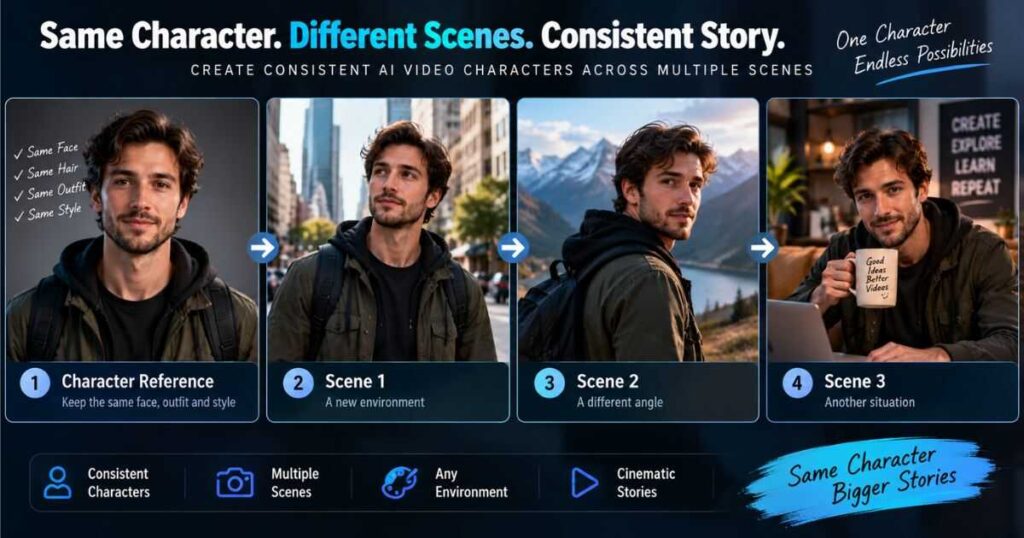
Character consistency is one of the hardest problems in AI video creation.
If you generate every scene independently, the same character may suddenly have:
- Different facial features
- Different clothing
- Different hairstyle
- Different age
- Different body proportions
- Different colors
- Different visual style
This can make an otherwise good video look artificial.
The solution: create a character reference first
Before generating your scenes, establish:
- Character appearance
- Age
- Clothing
- Hair
- Body type
- Facial characteristics
- Color palette
- Art style
- Environment
- Camera style
Then use the resulting reference image whenever possible.
For more advanced workflows, image-to-video and reference-based generation can help preserve the visual identity of the character.
Kling AI is particularly relevant here because its ecosystem includes image generation, image-to-video workflows, Motion Control, and other tools designed for more controlled AI video creation. Its current Canvas workflow also focuses on organizing larger projects and multiple scenes.
For a complete overview, read the Kling AI Review.
Try Kling AI:
If you want more control over cinematic scenes, image-to-video generation, and character-driven workflows, Try Kling AI and test the workflow with your own reference image.
How to Make AI Videos From Text
Text-to-video is one of the easiest ways to start creating AI videos, For beginners, it is one of the simplest ways to understand how to make AI videos from a written description.
The process is straightforward:
- Write a scene description.
- Choose a video model.
- Enter the prompt.
- Select the desired duration and settings.
- Generate the video.
- Review the result.
- Improve the prompt or regenerate.
But the quality of the result depends heavily on how you describe the scene.
A weak prompt might be:
A man walking in a city.
A more useful prompt could specify:
A cinematic medium shot of a young man in a dark jacket walking through a rainy downtown street at night, neon reflections on wet pavement, realistic facial details, shallow depth of field, slow tracking camera movement, natural body motion, dramatic cinematic lighting.
The second prompt gives the model considerably more information about:
- Subject
- Environment
- Time
- Lighting
- Camera
- Movement
- Visual style
- Realism
How to Write Better AI Video Prompts
A useful AI video prompt can be structured around seven elements:
1. Subject
Who or what is in the scene?
2. Action
What is happening?
3. Environment
Where does the action take place?
4. Camera
How should the camera move?
5. Lighting
What kind of lighting should be used?
6. Style
Should the scene look cinematic, documentary, realistic, animated, commercial, or something else?
7. Motion
How should the subject and environment move?
Prompt formula
[Subject] + [Action] + [Environment] + [Camera] + [Lighting] + [Style] + [Motion]
For example:
A professional chef preparing pasta in a modern restaurant kitchen, carefully tossing the pasta in a pan, warm practical lighting, cinematic close-up, slow handheld camera movement, realistic food textures, natural movement, commercial food photography style.
The goal is not to write the longest possible prompt.
The goal is to provide the right information.
Once you understand this structure, you can apply the same principles to almost any workflow for how to make AI videos.
How to Make AI Videos From Images
Image-to-video is often one of the most reliable ways to create controlled AI scenes.
Instead of asking the AI to invent both the image and movement simultaneously, you first create a strong still image and then animate it.
The workflow is:
Concept → Reference Image → Animation Prompt → Video
This gives you more control over:
- Character appearance
- Clothing
- Composition
- Environment
- Product placement
- Lighting
- Visual style
It is particularly useful when you need a character or product to remain visually consistent.
Example
First create:
A realistic young woman standing in a futuristic Tokyo street at night.
Then animate it with:
She slowly walks toward the camera while the camera tracks backward, neon signs flicker naturally in the background, light rain falls, realistic hair movement, cinematic depth of field.
This separates visual design from motion design.
For creators who want more control over how to make AI videos, separating these two stages can make the entire workflow more predictable.
Text-to-Video vs Image-to-Video
| Feature | Text-to-Video | Image-to-Video |
| Starting point | Text prompt | Existing image |
| Creative freedom | Very high | High |
| Character control | Moderate | Better |
| Composition control | Moderate | High |
| Consistency | Can vary | Usually easier |
| Best for | New scenes | Controlled scenes |
| Difficulty | Beginner-friendly | Beginner to intermediate |
Neither method is universally better.
Use text-to-video when you want the model to create the entire scene.
Use image-to-video when you already know exactly what the scene should look like.
How to Make AI Videos More Realistic
Realism does not come from simply adding “4K” or “ultra realistic” to every prompt.
Realistic AI video depends on several factors:
Natural movement
Avoid impossible or exaggerated body movements.
Realistic lighting
Specify believable light sources.
Camera behavior
Real cameras have physical movement, depth, focus changes, and limitations.
Environmental interaction
Clothing should react to wind. Water should behave like water. Shadows should respond to light.
Physics
Objects should interact naturally.
Facial expressions
Avoid asking for excessive or unnatural expressions unless the scene requires them.
Specific details
Describe meaningful visual details rather than filling the prompt with generic quality terms.
How to Control Camera Movement in AI Video
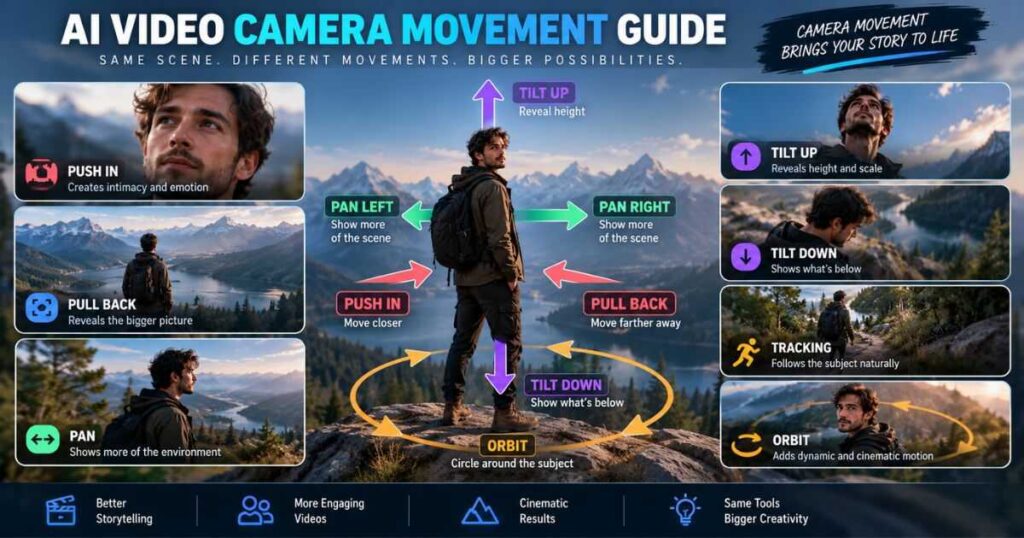
Camera movement can completely change the feeling of a scene.
Common camera movements include:
| Camera movement | Best use |
| Slow push-in | Emotional moments |
| Pull-back | Revealing a larger environment |
| Tracking shot | Following a character |
| Pan | Showing a wider environment |
| Tilt | Revealing height |
| Orbit | Product or character showcase |
| Handheld | Documentary realism |
| Static shot | Dialogue or controlled composition |
| Crane movement | Cinematic establishing shots |
If your AI generator supports dedicated motion controls, use them instead of relying entirely on vague language.
For example, Kling AI’s Motion Control is designed for more controlled animation and movement workflows.
You can also explore the Kling AI Motion Control guide for a deeper workflow.
How to Make AI Videos With Multiple Scenes
Longer AI videos should rarely be generated as one enormous prompt.
Instead, divide the project into individual shots.
For example:
Scene 1
Establish the location.
Scene 2
Introduce the character.
Scene 3
Show the character performing an action.
Scene 4
Move to a close-up.
Scene 5
Show the result.
Scene 6
Return to the wider environment.
This gives you far greater control over pacing and editing.
Keep these elements consistent
Across every scene, maintain:
- Character description
- Clothing
- Time of day
- Location
- Lighting style
- Color palette
- Camera style
- Visual style
This is especially important for storytelling videos.
For larger projects, a project-based workspace such as Kling Canvas can help organize prompts, assets, storyboards, and multiple creative elements in one place.
How to Add AI Voiceovers to Videos
Once the visuals are ready, you need narration if your video requires it.
A good AI voiceover should match:
- Audience
- Video style
- Age of narrator
- Tone
- Pace
- Emotion
For example:
Educational video: clear, calm, authoritative.
YouTube documentary: conversational and engaging.
Advertisement: energetic and persuasive.
Corporate training: professional and measured.
Do not generate the entire voiceover before checking the final script.
A small script change can affect timing throughout the entire video.
AI Avatars: When Should You Use Them?
Not every AI video needs an avatar.
Use an AI avatar when the presenter is part of the value.
Good examples include:
- Tutorials
- Training videos
- Corporate communication
- Educational content
- Product demonstrations
- Marketing presentations
HeyGen specializes in AI avatars, voice cloning, multilingual video creation, and presenter-led workflows.
You can explore the complete HeyGen Review before choosing it for this type of project.
Try HeyGen:
If your video needs a realistic AI presenter instead of cinematic generated scenes, Try HeyGen and create a test video from the same script.
When Should You Use Synthesia?
Synthesia is another strong option when the goal is presenter-led content rather than cinematic storytelling.
It can be particularly useful for:
- Employee training
- Educational content
- Business presentations
- Internal communications
- Product explainers
- Professional instructional videos
The important distinction is workflow.
If your objective is:
“Create a cinematic scene of a character walking through a futuristic city.”
A generative video platform is more appropriate.
If your objective is:
“Create a professional presenter explaining five steps.”
An avatar-focused platform may be more efficient.
You can explore the Synthesia Review for a deeper look at its capabilities.
Try Synthesia:
For professional presenter-based videos, Try Synthesia and test the same script with an AI presenter.
How to Edit AI-Generated Video
AI generation is not the final step.
Even excellent AI clips usually benefit from editing.
The editing stage should focus on:
- Removing weak generations
- Cutting unnecessary pauses
- Matching clips to narration
- Adjusting timing
- Adding transitions
- Adding music
- Adding sound effects
- Correcting audio levels
- Adding captions
- Improving pacing
Do not keep a bad AI clip simply because it took credits to generate.
The viewer does not care how many credits you spent.
They only see the final video.
AI Video Editors vs AI Video Generators
These terms are often confused.
AI video generator
Primarily creates new video content.
Examples include workflows based on text-to-video and image-to-video generation.
AI video editor
Primarily helps you assemble, modify, enhance, and finish existing footage.
Some platforms combine both functions.
For a broader comparison, see Videmint’s Best AI Video Editors guide.
How to Make AI Videos for YouTube
YouTube videos require more than visual quality.
You also need:
- A strong topic
- Search intent
- A compelling title
- An engaging opening
- Good pacing
- Clear narration
- Useful visuals
- Captions where appropriate
- A strong thumbnail
- A clear reason to continue watching
For faceless channels, the workflow can look like this:
Topic → Research → Script → Voice → Visuals → AI Video → Editing → Thumbnail → Upload
If you are building a faceless channel specifically, continue with the How to Make a Faceless YouTube Channel guide.
How to Make AI Videos for YouTube Shorts
Shorts require a different approach.
You have very little time to establish:
- What is happening?
- Why should the viewer care?
- What makes the video interesting?
A useful structure is:
0–2 seconds
Strong visual hook.
2–5 seconds
Introduce the problem or curiosity.
5–20 seconds
Deliver the main information.
Final seconds
Reveal, payoff, or CTA.
Avoid wasting the first few seconds with long introductions.
Instead of:
“Hi everyone, welcome back to the channel…”
Start with:
“You’re probably using AI video generators wrong.”
Then immediately demonstrate why.
How to Make AI Videos for Free
You can learn how to make AI videos for free, but “free” usually comes with limitations.
Free plans may restrict:
- Credits
- Video duration
- Resolution
- Watermark removal
- Generation speed
- Commercial usage
- Premium models
- Export options
The best approach is not to search for a completely free workflow at any cost.
Instead, use free credits to test your workflow before paying.
A practical free workflow
- Write the script with an AI writing tool.
- Generate a small number of reference images.
- Test several video generations.
- Compare results.
- Keep the best workflow.
- Upgrade only when the project requires more capacity.
This prevents wasting money on subscriptions you do not actually need.
Which AI Video Generator Should You Use?
There is no universal winner.
Your choice should depend on what you are creating.
| Goal | Suitable type of tool |
| Cinematic AI scenes | Kling AI / Runway-style generators |
| AI avatars | HeyGen / Synthesia |
| Script-to-video workflow | InVideo-style platforms |
| Faceless YouTube | Combination of several tools |
| Product videos | Image + video generation workflow |
| Training videos | AI avatar platforms |
| Creative storytelling | Generative video platforms |
| Professional editing | AI-assisted video editors |
For example, Kling AI is especially relevant when you need cinematic generation, image-to-video workflows, and motion control. Runway combines generation with broader creative and editing workflows.
If you want to compare Kling with other platforms, see the Kling AI Alternatives guide.
What Is the Best AI Video Workflow?
For most creators, the best workflow is hybrid rather than fully automated.
For example:
Workflow A — Cinematic YouTube
ChatGPT → Kling AI → AI voice → Video editor → YouTube
Workflow B — Faceless YouTube
Research → Script → InVideo → AI voice → Editing → Thumbnail → YouTube
Workflow C — AI Presenter
Script → HeyGen/Synthesia → Editing → Captions → YouTube
Workflow D — Advanced Production
Script → Storyboard → AI images → Kling/Runway → Voice → Editing → Sound design → Thumbnail
The more control you need, the more manual the workflow becomes.
The more speed you need, the more automation becomes valuable.
Common Mistakes When Making AI Videos
1. Using one huge prompt
More words do not automatically produce better results.
Use structured information that actually affects the shot.
2. Generating everything at once
Long videos are easier to control when divided into scenes.
3. Ignoring character consistency
Create references before generating multiple scenes.
4. Overusing cinematic keywords
Adding “cinematic, 8K, masterpiece, ultra realistic” repeatedly does not fix poor scene direction.
5. Keeping bad generations
Regenerate weak shots instead of forcing them into the final edit.
6. Ignoring audio
Good visuals with poor narration or sound design can still feel amateur.
7. Making every shot move
Not every scene needs dramatic camera movement.
A static shot can sometimes feel more professional.
8. Choosing tools before defining the workflow
The best AI video generator is the one that solves the specific production problem.
How to Make AI Videos More Efficient
The biggest productivity improvement comes from creating reusable systems.
Build templates for:
- Script structure
- Character descriptions
- Prompt structure
- Shot lists
- Voice settings
- Caption styles
- Thumbnail layouts
- Video intros
- Outro sections
For example, create a reusable character profile:
Character: 30-year-old male journalist
Appearance: short dark hair, brown eyes, light beard
Clothing: dark blue jacket, gray shirt
Style: photorealistic cinematic
Lighting: natural soft lighting
Camera: realistic documentary photography
Then reuse the same description throughout the project.
This is much more reliable than trying to reinvent the character every time.
How Much Does It Cost to Make an AI Video?
The answer depends on the workflow.
A simple video may require:
- AI writing
- AI voice
- AI video generation
- Editing
A cinematic project may additionally require:
- Multiple image generations
- Multiple video generations
- Regenerations
- Upscaling
- Music
- Sound effects
- Advanced editing
The hidden cost is often failed generations.
If a platform charges credits per generation, poor prompting can become expensive quickly.
That is why a good workflow should minimize unnecessary generations.
Think in terms of cost per finished minute
Do not only ask:
“How much does this AI tool cost per month?”
Ask:
“How many usable minutes can I realistically produce with that subscription?”
That gives you a much more meaningful comparison.
For pricing-focused research, Videmint’s individual pricing guides can help you compare plans before committing to a subscription.
Can AI Make a Complete Video Automatically?
Yes, some platforms can automate a large portion of the process.
But automation does not mean perfection.
An automated system can potentially handle:
- Script generation
- Scene selection
- Visual generation
- Voiceover
- Music
- Captions
- Basic editing
However, human review is still valuable for:
- Accuracy
- Storytelling
- Pacing
- Visual quality
- Brand consistency
- Factual errors
- Copyright considerations
- Final editing
The best workflow is usually AI-assisted rather than completely hands-off.
Frequently Asked Questions About How to Make AI Videos
How to Make AI Videos for Free?
Start with platforms that provide free credits or limited free plans. Use those credits to test your script, prompts, and visual workflow before paying for larger production capacity.
How do I make AI videos?
Start with an idea, write the script, divide it into scenes, create your visual assets, generate the video clips, add narration and sound, edit everything together, add captions, and export the final video.
How do you make an AI video from text?
Write a detailed scene description and enter it into a text-to-video model. Specify the subject, action, environment, camera movement, lighting, and visual style. Generate several versions and select the strongest result.
How do you make AI videos from images?
First create or upload a reference image, then use an image-to-video model to describe the movement you want. This approach gives you greater control over composition and character appearance.
Can AI create a complete YouTube video?
Yes. Some AI platforms can automate scripting, visuals, narration, and basic editing. However, reviewing and editing the output usually produces a much better final video.
Can I make AI videos without showing my face?
Absolutely. Faceless videos can use AI-generated visuals, screen recordings, stock footage, animations, AI voiceovers, or AI-generated characters instead of a real presenter.
What is the best AI video generator?
There is no single best option for every project. Cinematic generation, AI avatars, script-to-video automation, and professional editing require different capabilities.
How do I make AI videos look realistic?
Use realistic prompts, believable lighting, natural movement, appropriate camera behavior, consistent characters, and physically plausible environments. Good source images can also significantly improve image-to-video results.
How do I keep the same character in every AI video?
Create a detailed character reference and reuse the same reference image and character description across scenes. Avoid changing unnecessary details between generations.
How long should an AI video be?
There is no universal ideal length. The video should be long enough to satisfy the viewer’s intent without adding unnecessary scenes. Shorts may need only seconds, while educational or documentary videos may require much longer runtimes.
Do I need multiple AI video tools?
Not necessarily. A single platform may handle your entire workflow. However, combining specialized tools can provide better results when one platform is particularly strong at a specific task.
How to Make AI Videos: The Best Beginner Workflow
If everything above feels overwhelming, start with this simple workflow:
Step 1
Choose one clear video idea.
Step 2
Write a short script.
Step 3
Divide the script into scenes.
Step 4
Create one reference image for important characters.
Step 5
Generate your scenes using text-to-video or image-to-video.
Step 6
Create the voiceover.
Step 7
Put the clips and narration together.
Step 8
Add music and sound effects.
Step 9
Add captions.
Step 10
Create the thumbnail.
Step 11
Watch the complete video before publishing.
Step 12
Remove anything boring, repetitive, confusing, or visually weak.
That final step is often what separates an AI-generated video from a good video made with AI.
Final Verdict
Learning how to make AI videos is no longer about finding one magical AI generator.
The real advantage comes from understanding the complete production workflow.
Start with a strong idea. Write the script before generating visuals. Break the story into manageable scenes. Use reference images when consistency matters. Write prompts that describe the subject, action, environment, camera, lighting, and movement. Choose text-to-video when you want the model to create the scene and image-to-video when you need greater visual control.
Then add the human elements that make the result feel intentional: narration, pacing, editing, sound design, captions, and a strong thumbnail.
For cinematic projects, tools such as Kling AI and Runway can provide powerful generative workflows. For AI presenters, HeyGen and Synthesia are strong options. For automated script-to-video production, InVideo can simplify the process.
The most effective approach is not necessarily to choose one platform and use it for everything. How to Make AI Videos becomes much easier when you build a repeatable workflow and use each tool where it provides the most value.
Start small.
Create one short video.
Learn which parts of the process take the most time.
Improve the workflow.
Then scale.
That is how AI video creation becomes a repeatable production system rather than a collection of random generations.
Ready to start creating? Choose the workflow that matches your goal, test the tools before committing to a subscription, and build your first complete AI video from idea to final export.
Continue Learning
- Kling AI Review — Explore Kling AI’s video generation, image generation, models, Canvas, Motion Control, and overall capabilities.
- Kling AI Motion Control — Learn how to create more controlled character and camera movement.
- Kling AI Canvas Review — Learn how to organize multi-scene AI video projects.
- Kling AI Alternatives — Compare Kling AI with other AI video generators.
- Runway AI Review — Explore Runway’s generation, editing, and creative workflow.
- HeyGen Review — Learn more about AI avatars, voice cloning, and presenter-based video creation.
- InVideo AI Review — Explore an automated approach to script-to-video production.
- Synthesia Review — Explore AI presenter and business video workflows.
- Best AI Video Editors — Compare AI-assisted editing platforms for finishing generated videos.
- How to Make a Faceless YouTube Channel — Build a complete faceless YouTube workflow around AI video creation.
- How to Write AI Video Prompts That Actually Work — Learn proven techniques, examples, and templates for creating clearer, more effective AI video prompts.
- How to Create Consistent Characters With AI: AI Video Guide — Learn how to keep AI-generated characters consistent across scenes, shots, and videos.
- How to Make Realistic AI Videos: 7 Proven Tips — Learn simple techniques to create lifelike AI videos with natural motion, lighting, and cinematic results.
- AI Image to Video: How to Turn Images Into Videos — Learn how to transform still images into engaging AI-generated videos with the right tools, prompts, and techniques.