Kling AI Motion Control (2026): Create Realistic AI Character Animation
Artificial intelligence has transformed video creation over the past few years, but realistic character animation has remained one of the biggest challenges for creators. While text-to-video tools can generate impressive scenes, controlling exactly how a character moves has often required professional animation software, motion capture equipment, or hours of manual editing.
Kling AI Motion Control changes that workflow completely.
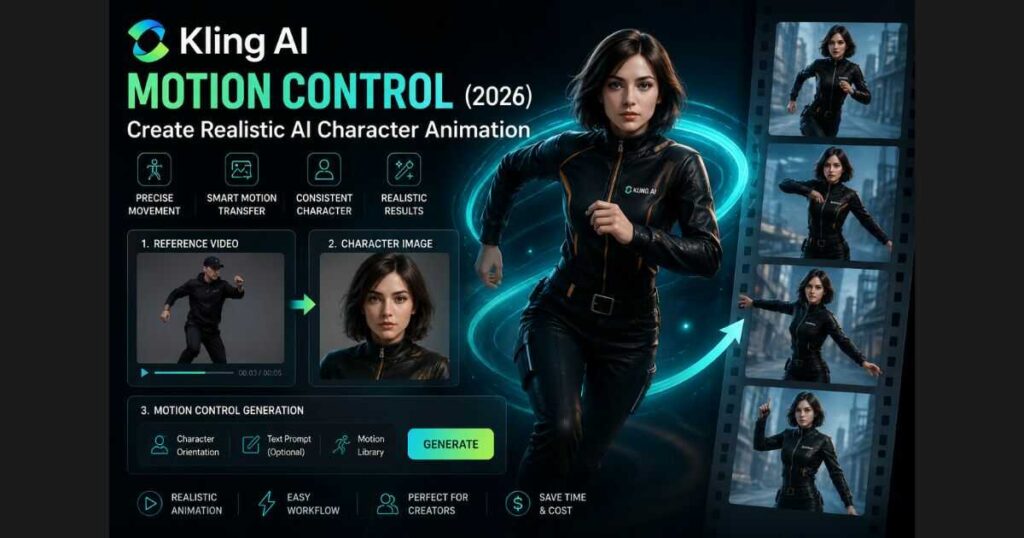
Instead of relying only on text prompts, Kling AI Motion Control allows you to transfer movements from a reference video to a character image, making it possible to generate natural, consistent, and believable animations with just a few inputs. Whether you’re creating cinematic short films, marketing videos, game trailers, or social media content, this feature gives creators much greater control over character motion than traditional AI video generation.
In the latest version of Kling AI, Motion Control has become one of the platform’s most advanced creative tools. It combines reference videos, character images, AI motion analysis, and intelligent animation into a streamlined workflow that is surprisingly beginner-friendly while still offering enough flexibility for experienced creators.
In this complete guide, you’ll learn:
- What Kling AI Motion Control is.
- How Motion Control actually works.
- How to animate characters using reference videos.
- The difference between Motion Control and standard Text to Video generation.
- Professional tips for achieving smoother and more realistic animations.
- Common mistakes beginners should avoid.
- Whether Motion Control is worth using in 2026.
By the end of this guide, you’ll understand exactly how to take advantage of one of Kling AI’s most powerful features.
🎬 Ready to Create AI Character Animations?
Want to transfer real human movements to your own AI characters? Try Kling AI Motion Control and start creating realistic character animations from reference videos and images.
👉 Try Kling AI Motion Control for Free
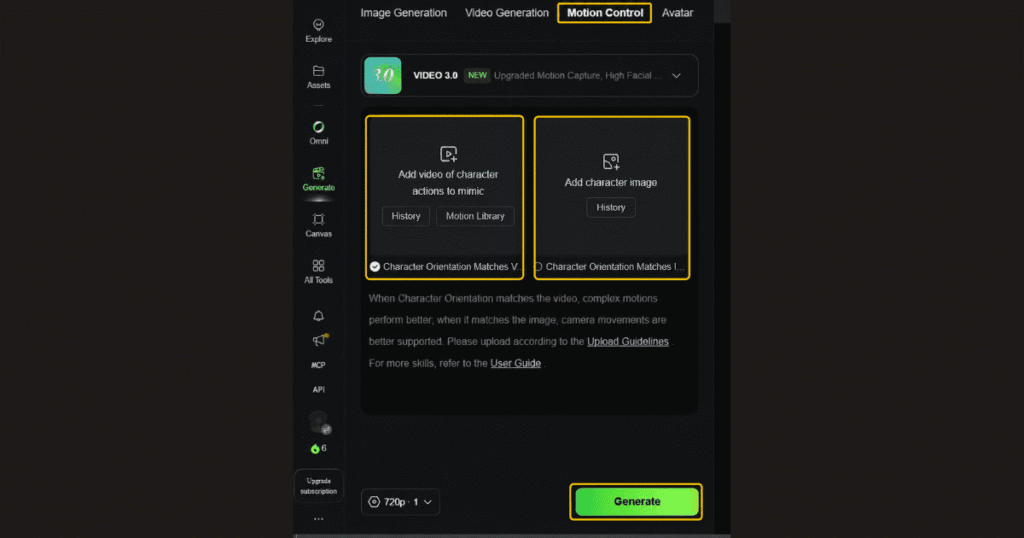
What Is Kling AI Motion Control?
Kling AI Motion Control is an advanced animation feature that allows creators to generate realistic character movements by combining two different inputs:
- A reference motion video.
- A character image.
The AI analyzes the movement patterns from the reference video and intelligently transfers those actions onto the uploaded character while preserving the character’s appearance.
Unlike traditional Text-to-Video generation, where AI decides almost everything based on a written prompt, Motion Control gives creators much greater control over body movement, timing, poses, and overall animation style.
This makes the feature particularly useful for:
- Character animation.
- AI influencers.
- Virtual presenters.
- Storytelling videos.
- Product demonstrations.
- Short films.
- Game cinematics.
- Social media content.
- Educational videos.
Rather than hoping the AI generates the perfect movement, you provide the movement yourself through a reference clip.
That extra level of control often produces much more consistent and professional-looking results.
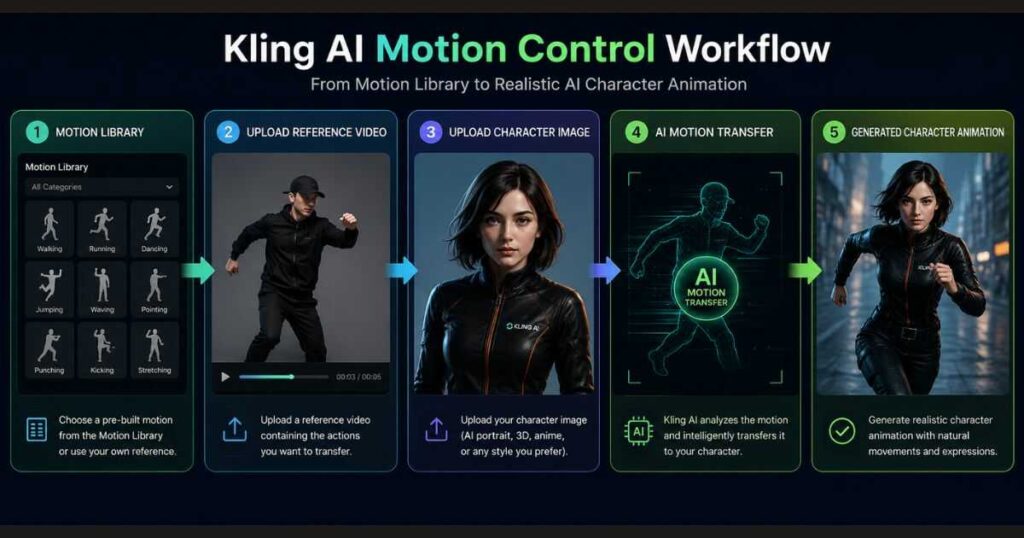
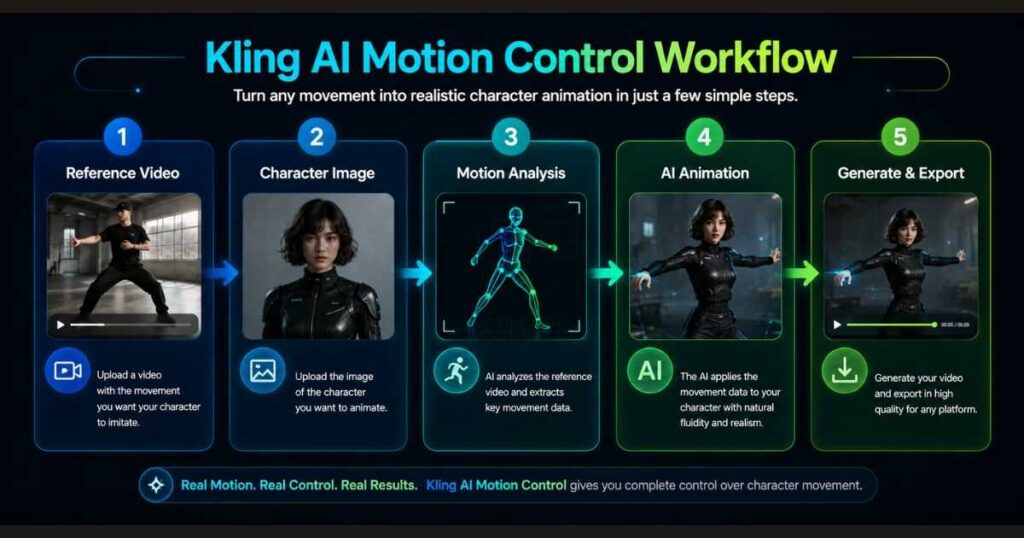
How Kling AI Motion Control Works
Although the technology behind Motion Control is highly advanced, the workflow itself is surprisingly simple.
In most cases, you’ll complete the process in just a few steps.
Step 1 — Upload a Reference Motion Video
Start by selecting a short video that contains the movement you want your AI character to imitate.
This could include:
- Walking.
- Dancing.
- Running.
- Hand gestures.
- Presentations.
- Facial expressions.
- Sports movements.
- Camera-facing talking animations.
The AI analyzes the motion—not the appearance of the original actor.
Step 2 — Upload Your Character Image
Next, upload the image of the character you want to animate.
The character can be:
- AI-generated.
- Anime.
- Realistic portrait.
- 3D character.
- Digital avatar.
- Cartoon illustration.
The better the image quality, the better the animation usually becomes.
Step 3 — Choose Motion Settings
Depending on the selected workflow, Kling AI Motion Control allows you to choose how closely the character should follow the reference motion.
The latest interface also includes options such as character orientation matching and additional motion behaviors, giving creators more precise control over the final animation.
Step 4 — Add an Optional Prompt
Although Motion Control already receives movement information from the reference video, adding a descriptive prompt can further improve the final output.
For example:
A confident businesswoman presenting on a futuristic stage with cinematic lighting, ultra realistic, shallow depth of field, smooth camera movement.
This helps the AI combine motion with visual style.
Step 5 — Generate Your Video
Finally, click Generate.
Kling AI processes:
- Character appearance.
- Motion data.
- Camera movement.
- Scene understanding.
- Prompt instructions.
The result is a realistic AI animation that closely follows the original movement while preserving your chosen character.
🚀 Start Creating with Kling AI Motion Control
Now that you understand how Motion Control works, why not test it yourself? Upload a character image, add a reference motion video, and see how Kling AI transforms your character into a realistic animated video.
👉 Try Kling AI and Create Your First AI Animation
Why Creators Prefer Kling AI Motion Control
One of the biggest reasons creators are switching to Kling AI Motion Control is the amount of creative control it provides.
Instead of generating random movements and hoping for the best, you can intentionally guide the animation using real human motion.
That means:
- Better consistency.
- More realistic body language.
- Natural timing.
- Improved storytelling.
- Professional-looking animations.
For creators producing YouTube videos, TikTok content, advertisements, educational presentations, or cinematic AI films, this level of control can dramatically improve the final result.
If you already use Kling AI for Text-to-Video projects, try experimenting with Motion Control on a simple character animation. Even a short reference clip can demonstrate how much additional control this feature offers over traditional AI video generation.
Advanced Kling AI Motion Control Features You Should Know
While the basic workflow is easy to learn, Kling AI Motion Control includes several advanced features that can dramatically improve the quality of your animations. Understanding these settings allows you to produce videos that look far more natural and professional.
Many beginners simply upload a reference video and click Generate, but experienced creators spend a little extra time configuring these options—and the difference is often obvious.
Character Orientation in Kling AI Motion Control
One of the first settings you’ll notice inside Kling AI Motion Control is Character Orientation.
This option determines how Kling AI interprets the relationship between your uploaded character image and the reference motion video.
Depending on your project, you’ll typically choose between two approaches:
Character Orientation Matches Video
This option works best when:
- Your uploaded character faces the same direction as the person in the reference video.
- The movement is complex.
- The video contains full-body actions.
- You want highly accurate motion transfer.
This setting generally produces the most realistic body movement because the AI doesn’t need to compensate for large orientation differences.
Character Orientation Matches Image
This option is useful when:
- Your character image has a different pose.
- Camera angles differ.
- You want the AI to preserve the composition of your uploaded image.
Although motion may become slightly less accurate in certain situations, it often creates better visual consistency with the original artwork.
Understanding when to use each option can significantly improve the final animation.
Motion Library Explained
Another useful feature inside Kling AI Motion Control is the Motion Library.
Instead of recording your own reference videos every time, Kling AI provides pre-built motion examples that creators can quickly apply.
These ready-made movements can include:
- Walking.
- Turning.
- Greeting gestures.
- Dancing.
- Talking animations.
- Presentations.
- Idle movements.
- Hand expressions.
For beginners, Motion Library is one of the easiest ways to start experimenting without preparing custom motion footage.
Best Use Cases for Kling AI Motion Control
One reason Kling AI Motion Control has become so popular is its versatility.
The same workflow can be applied across many creative industries.
Social Media Content
Creators on TikTok, Instagram Reels, and YouTube Shorts can generate realistic AI presenters without filming themselves every time.
Instead of repeating the same performance, simply reuse a high-quality motion reference while changing characters, backgrounds, or scenes.
AI Influencers
Virtual influencers continue growing rapidly.
With Kling AI Motion Control, creators can animate consistent AI personalities capable of:
- Walking.
- Speaking.
- Presenting products.
- Dancing.
- Creating lifestyle videos.
All while maintaining a consistent visual identity.
Educational Videos
Teachers and online educators can animate digital presenters for:
- Tutorials.
- Science lessons.
- History videos.
- Language learning.
- Corporate training.
Motion Control helps educational content feel more engaging than static slides.
Marketing Campaigns
Marketing teams can create product explainers featuring AI presenters without hiring actors for every campaign.
This significantly reduces production costs while maintaining professional visual quality.
Storytelling and Short Films
Independent filmmakers increasingly combine Kling AI Motion Control with Text-to-Video generation to produce cinematic sequences featuring believable character performances.
Instead of relying entirely on AI-generated movement, filmmakers gain much greater control over emotional scenes.
Motion Control vs Standard Text-to-Video
Many new users ask:
Should I use Text-to-Video or Motion Control?
The answer depends on your project.
| Motion Control | Text-to-Video |
| Uses reference motion | Uses prompt only |
| Greater movement accuracy | AI chooses movement |
| Better for characters | Better for scenes |
| More control | Faster workflow |
| Ideal for storytelling | Ideal for concept generation |
If realistic character animation is your goal, Kling AI Motion Control is usually the stronger choice.
If you simply need quick cinematic scenes, Text-to-Video may be sufficient.
Many professional creators actually combine both tools inside the same project.
If you’ve already experimented with Kling AI Text-to-Video, consider trying Motion Control on your next project. Comparing the two workflows side by side is one of the easiest ways to understand when each tool delivers the best results.
🎥 Ready to Test Motion Control?
If you want more control over character movement than standard Text-to-Video generation can provide, Kling AI Motion Control is worth exploring.
Create your first animation using a reference video and discover how much more realistic AI character movement can become.
👉 Explore Kling AI Motion Control Today
Common Mistakes Beginners Make
Even though Kling AI Motion Control is easy to use, several common mistakes can reduce animation quality.
Using Low-Quality Character Images
Blurry or compressed images make it harder for the AI to preserve facial details.
Always upload the highest-quality image available.
Choosing Long Reference Videos
Short, clean motion clips usually produce better animations.
Long videos often introduce unnecessary movement that can confuse the AI.
Ignoring Character Orientation
Many users leave this setting unchanged.
Selecting the correct orientation often produces noticeably smoother animations.
Overcomplicated Prompts
Motion Control already receives movement information from the reference video.
Instead of writing extremely long prompts, focus on:
- Environment.
- Lighting.
- Camera style.
- Mood.
Let the reference video define the motion.
Unrealistic Expectations
Motion Control is incredibly advanced, but no AI system is perfect.
Testing multiple reference videos and adjusting settings usually produces much better results than relying on a single generation.
Professional Tips for Better Kling AI Motion Control Results
Mastering Kling AI Motion Control isn’t just about understanding the interface—it’s about learning how to guide the AI in ways that produce consistent, realistic animations. Small adjustments in your workflow can often make a much bigger difference than changing prompts alone.
The following best practices are used by many experienced AI creators to achieve more natural-looking results.
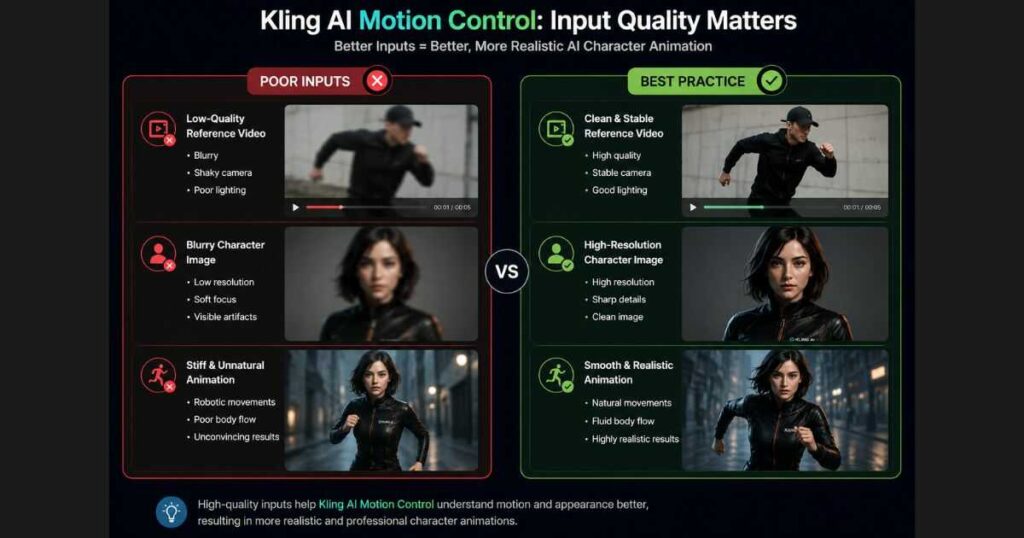
Use Clean Reference Videos
The quality of your reference video has a direct impact on the final animation.
For the best results, choose videos that feature:
- Stable camera movement.
- Good lighting.
- Clear body visibility.
- Smooth, natural actions.
- Minimal motion blur.
Videos with excessive camera shake or objects blocking the subject can make it harder for Kling AI Motion Control to accurately understand movement.
Keep Movements Natural
Although dramatic movements can look impressive, subtle actions often produce the most believable animations.
Good examples include:
- Walking naturally.
- Looking around.
- Sitting down.
- Turning slowly.
- Talking with realistic hand gestures.
- Smiling.
- Nodding.
These types of movements transfer extremely well inside Kling AI Motion Control.
Use High-Resolution Character Images
Your character image acts as the foundation of the entire animation.
Higher-quality images generally provide:
- Better facial consistency.
- Sharper clothing details.
- Cleaner edges.
- More realistic lighting.
- Improved overall quality.
Whenever possible, avoid heavily compressed images.
Match Character Style to Motion
One mistake many beginners make is combining completely different styles.
For example:
- A realistic motion reference with a highly stylized anime character.
- A cartoon character performing complex athletic movements.
- A fantasy creature copying ordinary human gestures.
While the AI can often produce interesting results, matching the character style to the reference motion usually creates much more convincing animations.
Best Prompt Ideas for Kling AI Motion Control
Although Motion Control relies primarily on reference videos, prompts still influence the visual appearance of the generated scene.
Here are a few examples.
Cinematic Scene
A confident explorer walking through an ancient temple at sunrise, cinematic lighting, volumetric fog, ultra realistic, dramatic shadows, 35mm film look.
Business Presentation
Professional businesswoman presenting on a modern technology stage, realistic facial expressions, studio lighting, shallow depth of field, corporate environment.
Fantasy Character
Elegant elf princess walking through an enchanted forest with magical glowing particles, cinematic fantasy lighting, ultra detailed.
Sci-Fi Environment
Futuristic soldier walking inside a cyberpunk city, neon reflections, cinematic camera movement, highly realistic textures.
Social Media Creator
Friendly content creator speaking directly to the camera inside a modern studio, soft lighting, realistic facial expressions, vibrant colors.
Notice that none of these prompts describe movement.
The reference video already provides that information.
Instead, focus your prompt on:
- Environment.
- Style.
- Lighting.
- Mood.
- Camera.
- Atmosphere.
If you already have a Kling AI account, try applying these prompt styles to the same reference video. Small prompt changes can dramatically alter the final look while keeping the character’s movement consistent.
Is Kling AI Motion Control Worth Using?
For creators who want greater control over AI-generated animations, the answer is generally yes.
Instead of hoping the AI generates the perfect movement from text alone, Kling AI Motion Control allows you to guide the animation using real human motion.
That additional level of control makes the feature particularly valuable for:
- YouTubers.
- Filmmakers.
- AI influencers.
- Marketing teams.
- Educators.
- Small businesses.
- Content agencies.
- Independent creators.
Although there is still a learning curve, most users can achieve impressive results after just a few practice sessions.
As Kling AI continues evolving, Motion Control is likely to become an even more important part of AI-assisted video production.
Frequently Asked Questions
Is Kling AI Motion Control free?
Availability depends on your current Kling AI plan. Some accounts can test Motion Control with available credits, while advanced usage may require additional credits or a paid subscription.
Can I upload my own motion videos?
Yes.
One of the biggest strengths of Kling AI Motion Control is the ability to upload your own reference videos and transfer those movements to your chosen character.
Does Motion Control work with AI-generated characters?
Absolutely.
Many creators combine AI-generated portraits with Motion Control to create realistic presenters, virtual influencers, and animated storytelling characters.
Is Motion Control better than Text-to-Video?
Neither tool replaces the other.
Text-to-Video is excellent for generating complete scenes from prompts.
Kling AI Motion Control is better when you need precise control over character movement and body language.
Many creators use both tools together for the best results.
Continue Learning Kling AI
Expand your skills with these in-depth guides:
- Kling AI Review (2026): A complete overview of features, pricing, strengths, and weaknesses.
- Kling AI Free: Discover what you can create without paying and how to maximize free credits.
- Kling AI Text to Video: Learn to generate cinematic AI videos from detailed prompts.
- Best Kling AI Prompts: Improve video quality with prompt engineering techniques.
- Kling AI vs Runway: Compare two leading AI video generation platforms.
- Best Kling AI Alternatives: Explore other AI video tools for different creative workflows.
- Kling AI Canvas Review — Discover how Kling Canvas helps organize multi-scene AI projects with templates, storyboards, and a streamlined creative workflow.
- Kling AI API Review — Learn how to integrate Kling AI into your applications using the official API, explore supported models, pricing, authentication, and developer tools.
If you’re already comfortable with Kling AI’s core tools, Motion Control is a natural next step. Spending a little time experimenting with reference videos and character animations can unlock creative possibilities that go far beyond traditional text-to-video generation.
Advanced FAQs About Kling AI Motion Control
Even after understanding the basics, many creators still have questions about how Kling AI Motion Control performs in real-world projects. Below are answers to some of the most common questions.
Can I Use Kling AI Motion Control for Commercial Projects?
Yes.
Many creators use Kling AI Motion Control for commercial work, including:
- Marketing campaigns.
- Product advertisements.
- Educational courses.
- YouTube channels.
- Social media content.
- AI influencers.
- Business presentations.
However, always review Kling AI’s latest commercial usage policy and licensing terms before publishing client work or monetized content.
What Makes Kling AI Motion Control Different From Traditional Animation?
Traditional animation often requires:
- Motion capture equipment.
- Professional animators.
- Keyframe editing.
- Character rigging.
- Advanced video editing software.
With Kling AI Motion Control, much of that complexity is replaced by AI.
Instead of manually animating every movement, you simply provide:
- A reference motion.
- A character image.
- An optional prompt.
The AI handles the animation process automatically, allowing creators to focus more on storytelling and creativity rather than technical production.
Does Kling AI Motion Control Work for Beginners?
Absolutely.
Although the feature offers advanced capabilities, the workflow is surprisingly accessible.
If you can:
- Upload a video.
- Upload an image.
- Write a simple prompt.
you already have everything needed to begin creating AI-powered character animations.
Beginners may not achieve perfect results immediately, but after experimenting with a few reference videos, the learning curve becomes much easier.
How Long Does Video Generation Take?
Generation time depends on several factors:
- Video length.
- Resolution.
- Server load.
- Available credits.
- Subscription plan.
In most cases, shorter animations render faster, while complex scenes or high-demand periods may require additional processing time.
Can Motion Control Replace Professional Video Production?
Not entirely.
Professional filmmaking still offers advantages such as:
- Full creative control.
- Real actors.
- Practical effects.
- Complex camera movements.
- Large-scale productions.
However, Kling AI Motion Control dramatically lowers the barrier to creating high-quality animated content.
For many creators, startups, educators, and marketers, it provides more than enough quality without requiring expensive equipment or large production teams.
✨ Bring Your AI Characters to Life
You’ve now learned how Kling AI Motion Control works, how to choose the right reference video, and how to create more realistic animations.
The next step is to try it yourself.
👉 Start Creating with Kling AI Today
Final Thoughts
Kling AI Motion Control represents one of the biggest advances in AI character animation available to creators in 2026. By combining reference videos with high-quality character images, it gives users a level of creative control that traditional text-only video generation simply cannot match.
Whether you’re producing cinematic short films, educational content, marketing campaigns, or social media videos, Kling AI Motion Control makes it much easier to create believable animations without expensive motion capture equipment or complex editing software.
The best way to improve your results is through experimentation. Test different reference videos, character images, prompts, and motion settings to discover which combinations work best for your projects. With a little practice, you’ll quickly develop a workflow that produces smooth, professional-looking animations.
If you’ve already explored Kling AI’s core features, Motion Control is one of the best tools to experiment with next. Start with a simple reference video, test different character images, and gradually refine your workflow. Every generation teaches you something new, and with consistent practice, you’ll discover how powerful AI-assisted character animation can become.