
Is InVideo AI Free? Plans, Limits & What You Get
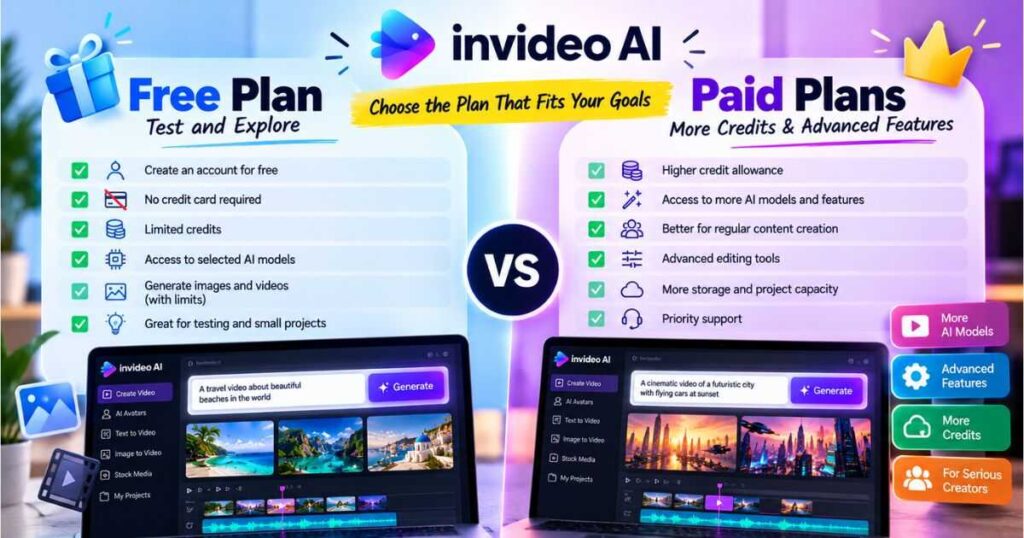
If you’re wondering Is InVideo AI Free, the short answer is yes. InVideo AI offers a free plan that lets you explore its AI-powered video creation tools without entering your credit card details. However, free access comes with limits, and it does not mean you can generate unlimited videos or use every model without restrictions.
Understanding Is InVideo AI Free starts with looking beyond the $0 starting price to the available credits, generation limits, and features included in the free plan.
The important question is whether the free plan gives you enough room to create the videos you actually need. If you want to test an AI video generator, experiment with different models, or make your first faceless YouTube video, the free plan can be a useful starting point. If you plan to publish videos regularly, you will need to pay closer attention to credits, generation costs, and the features included in paid plans.
In this guide, we’ll explain what you get for free, how InVideo AI credits work, what happens when your credits run out, and when upgrading makes sense. We’ll also cover YouTube use, watermarks, and the practical differences between free and paid access.
Want to test the platform yourself? You can start with the free plan and decide whether its workflow suits your needs before committing to a subscription.
Is InVideo AI Free in 2026?
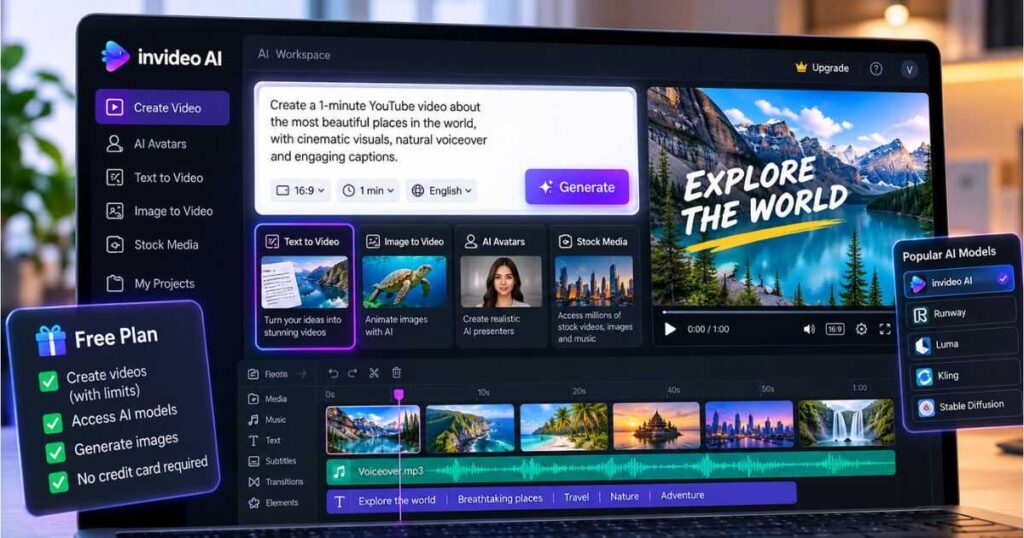
Yes. According to InVideo’s Help Center, you can use InVideo AI for free without entering credit card details. The free plan provides a limited credit allowance that you can use to explore supported AI features, including image generation through the Agents & Models workflow.
The free quota resets weekly on Monday at 12:00 a.m. UTC, according to InVideo’s published documentation. This gives you another opportunity to experiment when the next weekly allowance becomes available.
However, the free plan is intended for exploring the platform rather than supporting unlimited content production. The amount you can create depends on the credits available to your account and the models or features you choose.
Here’s the basic breakdown:
| Feature | InVideo AI Free Plan |
|---|---|
| Starting cost | $0 |
| Credit card required | No |
| Access to AI models | Limited by available credits and access |
| AI image generation | Available with limits |
| AI video creation | Limited |
| Credit allowance | Limited weekly quota |
| Quota reset | Monday at 12:00 a.m. UTC |
| Unlimited AI generations | No |
| Best suited for | Testing and occasional experimentation |
The exact models and generation options available to an individual account may vary. Check the credit cost shown in your account before starting a generation, especially when testing advanced models.
What Do You Get With the InVideo AI Free Plan?
The main benefit of the free plan is that you can experience the platform before spending money. Rather than relying on promotional videos or screenshots, you can try the workflow and see whether it fits the type of content you want to produce.
1. Limited Access to AI Models
InVideo AI brings different AI-powered creation tools into one platform. Depending on the feature and model available to your account, you can experiment with generating visual content and building video projects.
This is useful if you are comparing AI tools and want to evaluate the interface, output quality, and amount of manual work required.
Keep in mind that access to the platform does not guarantee unlimited access to every model. Model availability, generation settings, and credit costs can differ.
2. AI Image Generation
InVideo’s official documentation confirms that free users can generate images through the Agents & Models workflow.
You can select an available image model, describe the image you want, adjust the available settings, and check the credit cost before generating it. This can help you experiment with visual styles or create reference images for a video project.
For example, if you are planning a faceless YouTube channel about history, you could test whether the available image models can produce visuals that match your topic and preferred style.
3. Video Creation Experiments
The free plan can help you explore video creation before paying for a larger credit allowance. You can use your available credits to test supported video-generation features and determine whether the output is suitable for your intended project.
A good test is to create something similar to the content you would actually publish. If you want to make educational videos, test an educational concept. If you want to produce short social media videos, try a short-form idea.
That gives you a more useful evaluation than generating a random clip with no connection to your goals.
4. Social Media Sharing
InVideo’s Help Center says free users can use and share videos on social media. However, you should check the current restrictions that apply to your account and the specific content you create before relying on the free plan for a commercial publishing workflow.
If you are researching Is InVideo AI Free before signing up, test these features with a project similar to the videos you plan to publish.
Start Creating With InVideo AI →
How Do InVideo AI Free Credits Work?
Credits are one of the most important things to understand before using InVideo AI. They determine how much AI-powered work you can perform within your available allowance.
Not every generation costs the same number of credits. The amount can depend on the model, generation method, video duration, resolution, audio options, and other settings.
For that reason, the number of credits available to you is only part of the picture. You also need to understand how quickly your chosen workflow consumes them.
Why Credit Costs Matter
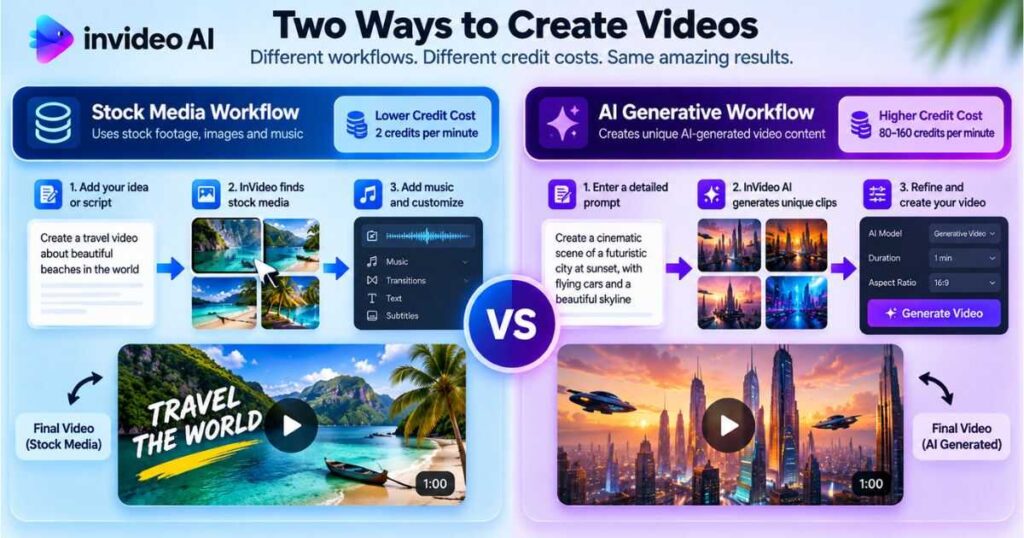
Imagine you want to create a one-minute video. A workflow that relies mainly on stock footage can have a very different credit cost from one that generates realistic video clips using advanced AI models.
InVideo’s documented Autopilot options illustrate this difference:
| Autopilot Quality | General Approach | Documented Credit Cost |
|---|---|---|
| Basic | Uses stock media rather than generative media | 2 credits per minute |
| Pro | Generative video with more realistic motion and performance | 80 credits per minute |
| Ultra | Higher-quality generative video option | 160 credits per minute |
These figures apply specifically to the Autopilot quality options documented by InVideo. They should not be treated as universal prices for every model or workflow within the platform. Other generation modes may use different credit calculations.
The practical lesson is simple: a video’s credit cost depends on how you create it, not just how long it is.
Before generating content, check the estimated cost displayed by InVideo. This is particularly important when experimenting with several models or creating multiple versions of the same scene.
Do Downloads and Exports Use Credits?
According to InVideo’s Help Center, exporting or downloading content does not itself consume AI credits. The credits are associated with AI work and generation rather than the act of downloading.
That distinction matters when budgeting for a project. Generating new media can consume credits, while manually refining a timeline is a different activity.
InVideo also states that manual timeline editing in its Editor does not consume AI credits. You can use the timeline to arrange clips, trim footage, and refine a cut without paying a credit charge for those manual editing actions.
When deciding Is InVideo AI Free enough for your needs, compare the credit cost of each workflow instead of counting only the number of videos you can generate.
What Happens When Your InVideo AI Free Credits Run Out?
Once you have used your available free quota, you cannot continue generating content indefinitely under the same allowance.
You generally have two options:
- Wait for the next reset. The documented free quota resets weekly on Monday at 12:00 a.m. UTC.
- Upgrade to a paid plan. A paid subscription can provide a larger credit allocation and access to additional features, depending on the selected plan.
If you only want to experiment occasionally, waiting for the next reset may be enough. If you need to produce videos on a schedule, the free allowance may become restrictive.
For example, a creator who is testing one video idea may be comfortable with limited credits. A creator who needs to generate multiple scenes, compare different visual styles, and revise several clips may use the allowance much faster.
The best approach is to track your actual usage during the testing period. Notice which tasks consume the most credits, how many generations you need to get an acceptable result, and whether the output justifies the time saved.
Explore InVideo AI and Test Your Workflow →
Is InVideo AI Free Without a Credit Card?
Yes. InVideo’s Help Center explicitly states that you can access the free plan without entering card details.
This makes it easier to evaluate the platform before committing to a paid subscription. You can explore the interface and test available features without starting by providing payment information.
Still, you should distinguish between free access and a paid subscription. The free plan has a limited quota, and advanced generation options may use credits quickly. Not having to enter a card does not mean all features are included or that unlimited production is available.
If you are comparing tools, test the same type of project in each one. For example, create a short explainer video, review the script and visuals, listen to the voiceover, and estimate how much editing is needed.
That will help you decide whether InVideo AI saves enough time to justify a subscription.
For beginners, Is InVideo AI Free without a credit card makes it easier to test the platform before deciding whether a paid subscription is worthwhile.
Is InVideo AI Free for YouTube?
You can explore InVideo AI’s video creation features on the free plan, but that does not automatically make it a complete, unlimited solution for running a YouTube channel.
Whether the free plan is enough depends on your publishing schedule, the type of videos you make, and the amount of AI generation your workflow requires.
For Beginners Testing a Faceless YouTube Channel
The free plan can be useful if you are still deciding what kind of channel to create. You can test a video idea, explore the available workflow, and evaluate the output before investing in a paid tool.
For example, you might create a short educational video and review:
- Whether the script follows your instructions.
- Whether the visuals match the subject.
- Whether the voiceover sounds appropriate.
- Whether the pacing feels natural.
- How much manual editing is required.
- How many credits the process consumes.
This experiment helps you determine whether the tool is suitable for your production style.
If you need help building your channel beyond the software itself, read our guide to how to make a faceless YouTube channel.
For Creators Publishing Regularly
Regular publishing creates different demands. You may need to generate additional scenes, test alternative visuals, revise scripts, and create multiple versions before a video is ready.
A limited weekly quota may not support that level of production consistently. In that case, a paid plan may be more practical because it can offer more credits and broader access, depending on the current plan.
However, do not upgrade simply because you want to start a YouTube channel. First, create a sample video and estimate how much AI generation your planned workflow actually requires.
Also, check the current terms governing commercial use and the assets included in your chosen plan. Free access alone should not be treated as a guarantee that every output is suitable for every commercial purpose.
If your goal is a faceless YouTube channel, Is InVideo AI Free can help you test your production workflow before committing to recurring software costs.
Try InVideo AI for Your First Video →
Does InVideo AI Add a Watermark to Free Videos?
Watermarks are an important consideration if you plan to publish videos publicly. However, watermark rules and export restrictions can depend on the current plan and the specific feature you use.
Before creating a large batch of content, check the export conditions displayed by InVideo and confirm whether your account can download the finished video in the format and quality you need.
Do not assume that being able to generate a video means you can export it without restrictions. Generation, downloading, stock-media access, and commercial-use rights are separate considerations.
If your goal is to publish polished YouTube videos, test the entire process—not just the generation stage. Confirm that you can obtain the final file you need and review any branding or licensing conditions before building your workflow around the free plan.
Can You Use InVideo AI Videos Commercially?
The answer depends on the applicable terms, the assets used, and any restrictions attached to your plan or the underlying model.
If you intend to monetize YouTube videos, create advertisements for clients, or publish content for a business, review the current InVideo terms and the licensing rules for the models and media involved.
Pay particular attention to stock footage, music, voice assets, and generated media. The rules governing one asset do not necessarily apply to every other asset in the same project.
For a commercial project, confirm the following before publishing:
- Your plan permits the intended use.
- Any stock media or third-party assets are covered by the relevant license.
- The content does not violate the rights of another person or organization.
- You meet the applicable platform disclosure and content policies.
- Your final export meets the requirements of the platform where you will publish it.
These checks are especially important when producing videos for clients or using AI-generated material in advertising.
InVideo AI Free vs. Paid Plans: What Is the Difference?
The main difference is not simply whether you can create a video. It is how much you can produce, which features and models are available, and whether the plan supports your intended workflow.
| Factor | Free Plan | Paid Plans |
|---|---|---|
| Upfront cost | $0 | Subscription fee |
| Credit allowance | Limited weekly quota | Plan-dependent allocation |
| AI generation | Limited by available credits and access | More capacity, depending on plan |
| Model availability | Limited | Varies by subscription |
| Regular production | May be restrictive | Better suited to sustained use when the allowance fits |
| Manual timeline editing | Available features may vary | Full timeline editor is listed on current paid plans |
| Best use case | Testing and occasional experiments | More frequent creation and larger projects |
The best way to decide Is InVideo AI Free or a paid subscription is to match the available credits and features to your actual monthly workload.
InVideo’s current pricing page lists paid tiers such as Starter, Plus, and Max. The included credits, supported models, storage, seat allowances, and other features differ by plan.
Pricing can also vary according to billing period, region, and the offer shown at checkout. Promotions may display a discounted annual price, so check whether the amount is billed monthly or charged upfront for an annual subscription.
For the latest prices and included features, see our dedicated InVideo AI Pricing guide and confirm the details on the official InVideo pricing page.
Which Paid Plan Should You Choose?
There is no single best plan for every creator. The right choice depends on how much you generate and which features your projects require.
- Starter: Consider it if you are moving beyond occasional testing and need a modest amount of monthly generation.
- Plus: Consider it if you create more regularly and need a larger credit allocation or broader model access.
- Max: Consider it if your workload is heavier and the included credits and features match your production requirements.
These are general starting points, not guarantees that a particular plan will cover a fixed number of finished videos. The actual output depends on the models, settings, and revisions you use.
Before paying, estimate your expected monthly workload and compare it with the plan’s current credit allowance. If you are unsure, begin with a smaller commitment rather than paying for capacity you may not use.
Compare Your Options and Try InVideo AI →
Is InVideo AI Free Worth It?
For testing the platform, yes. The free plan gives you a way to explore supported features and decide whether InVideo AI fits your creative process without entering card details.
Its value depends on what you expect from it.
| Your Situation | Is the Free Plan Worth Trying? | Why |
|---|---|---|
| You want to explore AI video creation | Yes | You can test the workflow before paying |
| You are comparing several AI tools | Yes | You can evaluate the interface and output |
| You want to experiment with image generation | Yes | Limited image generation is available |
| You publish videos occasionally | Possibly | Your quota may cover some experimentation |
| You need frequent, repeatable production | May be restrictive | You may need more credits |
| You depend on advanced models for client work | Test carefully | Availability, cost, and licensing matter |
The most useful way to evaluate the free plan is to measure what you get from it. Can you produce an acceptable result? How much time does it save? How many attempts are required? Are the available models good enough for your content?
If the free plan helps you answer these questions, it has served its purpose—even if you eventually decide that a paid plan is necessary.
Ultimately, Is InVideo AI Free worth trying depends on whether the free allowance lets you create a useful sample video and evaluate the results.
How to Get the Most Out of InVideo AI Free
You can make your limited credits go further by planning your experiments before generating content.
1. Start With a Clear Prompt
A vague prompt may lead to output that requires several revisions. Describe the subject, style, intended audience, format, and desired result as clearly as possible.
For example, instead of asking for “a video about space,” specify that you want a short educational video about Saturn, with a clear opening, realistic space visuals, concise narration, and a vertical format for social media.
A more focused brief can help you evaluate the output without spending your available credits on repeated attempts.
2. Check the Credit Cost Before Generating
Use the credit estimate shown in the interface whenever available. If a model is significantly more expensive than another option, decide whether the difference in quality is worth it for your project.
Do not assume that all models or resolutions have the same cost.
3. Test One Representative Project
Rather than creating many unrelated experiments, choose one video that resembles the content you intend to publish. This makes it easier to judge the platform’s usefulness and estimate the credits required for your actual workflow.
4. Edit Manually Where Appropriate
Manual timeline editing in InVideo Editor does not consume AI credits, according to the Help Center. Once you have generated the media you need, use available manual editing tools to refine timing, trim clips, and arrange the sequence.
This can help you avoid generating new material for changes that can be handled through editing.
5. Keep Track of Your Usage
Review your account’s usage information so you can understand where credits are being spent. If you repeatedly use an expensive model for a task that a simpler workflow can handle, changing your approach may improve efficiency.
Test Your Video Workflow With InVideo AI →
Is InVideo AI Free? Frequently Asked Questions
Is InVideo AI completely free?
No. InVideo AI has a free plan, but it includes a limited credit quota and does not provide unlimited access to every model or feature. Paid plans offer different allowances and capabilities.
Does InVideo AI Free require a credit card?
No. InVideo’s Help Center states that you can use the free plan without entering credit card details.
How often do InVideo AI free credits reset?
InVideo’s published documentation states that the free quota resets weekly on Monday at 12:00 a.m. UTC. Check your account for the current allowance and usage.
Can I create YouTube videos with InVideo AI Free?
You can test supported video creation features, but the limited quota may not be enough for a consistent publishing schedule. Check the applicable export, licensing, and usage conditions before relying on the free plan for monetized content.
Do InVideo AI credits roll over?
Paid-plan credits reset monthly, and unused plan credits do not roll over into the next month, according to InVideo’s Help Center. The free plan follows its own weekly quota reset. Check the terms for any separately purchased credits, as their validity may differ.
Does downloading a video consume credits?
InVideo’s current documentation says that exporting or downloading content does not consume AI credits. AI generation and other credit-using activities are separate from downloading.
Is InVideo AI Free better than paying for a subscription?
That depends on your workload. The free plan is useful for testing, while a paid plan may be more practical if you regularly generate content or need additional models and credits. Compare the current plan details with your expected usage before upgrading.
Before choosing a plan, use your own project to determine whether Is InVideo AI Free provides enough generation capacity for your needs.
Final Verdict: Is InVideo AI Free Worth Trying?
So, Is InVideo AI Free? Yes. Is InVideo AI Free enough to create useful videos? It can be, especially if you are a beginner who wants to explore AI video creation without entering credit card details. The free plan lets you test supported features, experiment with image and video generation, and decide whether InVideo AI suits your projects.
However, when asking Is InVideo AI Free without limitations?, the answer is no. Your available credits, supported models, and generation settings determine how much you can create. If you only want to experiment or produce an initial sample, the free plan is a sensible starting point. If you plan to publish videos consistently, compare the paid plans and estimate your monthly credit requirements before upgrading.
My recommendation is to test one real project before paying. Evaluate the video quality, editing effort, credit consumption, and final export. This will help you determine whether the free plan meets your needs or whether a paid subscription offers better value.
Ultimately, Is InVideo AI Free worth trying before you pay? Yes, if you want to evaluate the platform with minimal financial commitment. Start with a project you genuinely want to create, check how many credits it requires, and upgrade only if the additional capacity and features justify the cost.
Ready to see what you can create?
Continue Learning
Want to learn more before choosing an AI video tool? Explore these related Videmint guides:
- InVideo AI Review — Explore the platform’s features, strengths, and limitations.
- InVideo AI Pricing — Compare paid plans, credits, and subscription costs.
- InVideo Alternatives — Compare other AI video tools and find an option that fits your workflow.
- How to Make a Faceless YouTube Channel — Learn how to plan and launch a channel without appearing on camera.