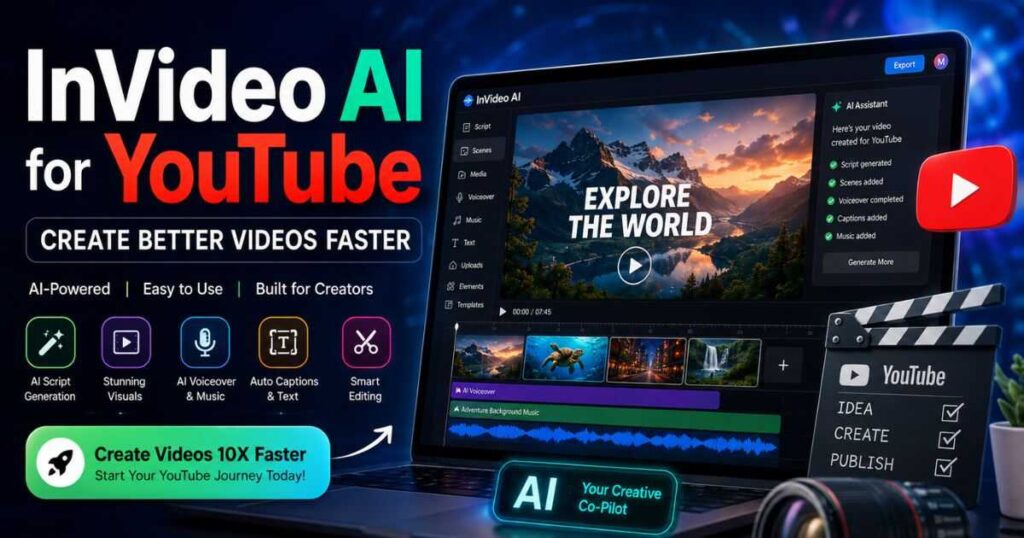
InVideo AI for YouTube: Create Better Videos Faster
Creating and maintaining a successful YouTube channel requires much more than simply publishing videos. Every piece of content can involve researching a topic, writing a script, recording or generating narration, finding suitable visuals, editing scenes, adding captions and music, and preparing the final video for publication. For creators who want to publish consistently—especially those running faceless YouTube channels—this production process can quickly become one of the biggest challenges.
InVideo AI for YouTube aims to simplify that process by bringing many of these tasks into an AI-assisted video creation workflow. Instead of starting from a blank editing timeline and assembling every element manually, you can begin with an idea or script and use InVideo AI to build a complete video project that can then be reviewed, edited, and refined.
But faster production does not automatically mean better content. The quality of the topic, research, script, visuals, pacing, and final editing still determines whether viewers will click and keep watching. In this guide, you’ll learn how InVideo AI for YouTube works, what types of videos you can create with it, how to use it effectively for faceless and long-form channels, and where it fits compared with other AI video tools.
🚀 Ready to Create Your First YouTube Video?
The easiest way to understand what InVideo AI for YouTube can actually do is to test it with a real video idea.
Start Creating With InVideo AI →
What Is InVideo AI for YouTube?
InVideo AI for YouTube is an AI-powered video creation platform that helps turn ideas, prompts, or scripts into complete video projects.
Rather than starting with a blank editing timeline, you can describe what you want to create and let the platform handle much of the initial production.
For example, imagine creating a video titled:
10 AI Tools That Can Save Small Businesses Hours Every Week
A traditional workflow could involve:
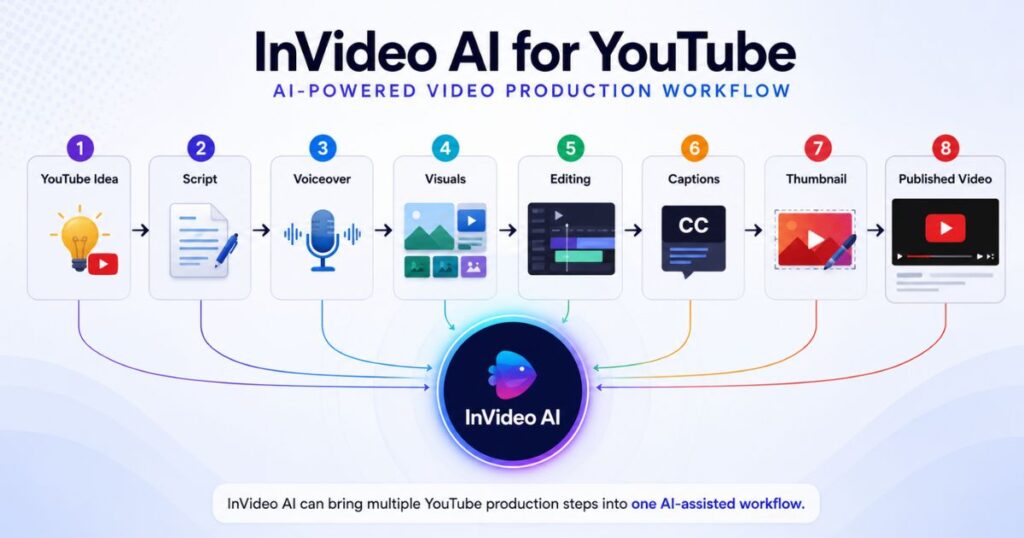
Research → Script → Voiceover → Visuals → Editing → Captions → Music → Export
With InVideo AI for YouTube, many of these steps can be brought into a single AI-assisted workflow.
You can provide a topic or your own script, choose relevant preferences, generate the video, and then make changes using additional instructions. The current platform also supports conversational AI agents and access to a large selection of video, image, and audio models.
This makes InVideo AI different from a tool designed only to generate individual short video clips.
It is designed to help with the larger production process.
That distinction is particularly useful for YouTube creators.
Why Use InVideo AI for YouTube?
The biggest advantage of InVideo AI for YouTube is not simply its ability to generate video.
The real advantage is workflow efficiency.
A creator can otherwise end up using separate applications for:
- Scriptwriting
- Voice generation
- Stock footage
- AI-generated footage
- Music
- Captions
- Editing
- Video translation
Managing several tools can increase both the production time and the number of subscriptions required.
An AI-assisted workflow can bring more of those tasks together.
A typical process can look like:
YouTube Idea → Prompt or Script → AI Video → Review → Editing → Thumbnail → Publish
That can be particularly useful when publishing consistently matters.
The platform can also work with an existing script rather than forcing every video to begin with AI-generated writing. InVideo’s current workflow allows a creator to select Use my script and specify preferences such as media type, background music, subtitle style, and language.
This gives you more control over the creative process.
The goal is not to eliminate human involvement.
The goal is to reduce repetitive production work so more time can go toward research, storytelling, thumbnails, titles, and audience strategy.
Who Should Use InVideo AI for YouTube?
InVideo AI for YouTube is not equally useful for every type of creator.
Its biggest advantages appear when the content can be produced primarily through narration, visuals, screen recordings, AI-generated scenes, stock media, and editing.
Faceless YouTube Creators
Faceless channels are one of the clearest use cases.
A faceless video does not require a camera or on-screen presenter. Instead, it can combine:
- Narration
- Stock footage
- AI-generated visuals
- Screenshots
- Screen recordings
- Captions
- Music
- Text overlays
InVideo AI is designed to support this kind of production, and its dedicated faceless video workflow can generate scripts, media, voiceover, music, and sound effects from a prompt.
However, faceless does not mean automatic.
A successful faceless channel still needs:
Good topic selection + useful information + strong scripting + relevant visuals + good pacing
AI can help with production, but the editorial decisions remain important.
Beginners
InVideo AI for YouTube can also be useful for beginners who do not want to spend weeks learning professional video-editing software before publishing their first video.
The AI-assisted approach can provide a starting point instead of a completely empty timeline.
This does not mean there is no learning curve.
You still need to understand:
- YouTube titles
- Thumbnails
- Audience retention
- Storytelling
- Search intent
- Video structure
- Pacing
The difference is that less time may be required for repetitive technical production.
Content Marketers and Affiliate Creators
YouTube can also turn existing written content into a video production pipeline.
For example, a software review can become:
Research → Article → Video Script → InVideo AI → Final Editing → YouTube
The article should not simply be copied word for word.
Instead, its most useful information can be adapted into a video structure with a strong opening, concise explanations, examples, and a clear conclusion.
This is particularly useful for creators producing content around software, AI tools, business, productivity, education, and other information-heavy topics.
High-Volume Creators
For creators publishing several videos per month, production speed can become a major constraint.
Reducing repetitive work can create more time for:
- Finding better topics
- Researching competitors
- Improving hooks
- Testing thumbnails
- Writing stronger scripts
- Analyzing retention
- Building a content strategy
This is where InVideo AI for YouTube can become more valuable than simply having another AI video generator.
The objective is not to publish as many videos as possible.
The objective is to create a repeatable production system without allowing quality to collapse.
What Can You Create With InVideo AI for YouTube?
InVideo AI for YouTube can be used for a wide range of YouTube formats.
| YouTube Content Type | How InVideo AI Can Help |
| Faceless videos | Narration, visuals, scenes, captions, and editing |
| Explainer videos | Script, supporting visuals, narration, and structure |
| Educational videos | Structured explanations and visual storytelling |
| Product reviews | Product-focused scenes, narration, and supporting media |
| List videos | Separate sections and scenes for each item |
| Technology videos | Software visuals, screen recordings, and narration |
| Tutorials | Step-by-step explanations and supporting footage |
| Marketing videos | Product presentations and promotional content |
| YouTube Shorts | Short scripts, captions, visuals, and fast-paced scenes |
| Affiliate videos | Product explanations, comparisons, and recommendations |
The important question is not whether the platform can create a certain format.
The better question is whether it can help create that format well.
A ten-minute AI-generated video can technically exist without being worth watching.
The quality of the idea, script, visuals, pacing, and editing still matters.
How to Use InVideo AI for YouTube
The best results usually come from treating AI as a production assistant rather than giving it a vague instruction and immediately publishing the result.
A practical workflow is:
Idea → Brief → Script → Generation → Review → Editing → Final Check → Publish
Here is how each stage works.
Step 1: Choose a Specific YouTube Topic
Start with a clear topic.
Instead of:
“AI video tools”
use:
“7 AI Video Tools for Faceless YouTube Channels”
The second idea gives the video a much clearer purpose.
Before generating anything, determine:
- Who is the target viewer?
- What problem does the video solve?
- What should the viewer learn?
- What makes the topic worth clicking?
- How long should the video be?
- What tone should the narration use?
The better the brief, the easier it becomes to judge the generated video.
Step 2: Write or Prepare the Script
You can allow AI to help develop the script, or start with your own script.
If the topic requires expertise, personal experience, or detailed research, writing or heavily reviewing the script yourself is often the safer approach.
A useful YouTube structure is:
Hook → Problem → Main Points → Examples → Conclusion → CTA
Avoid filler.
Every section should either answer a question, create curiosity, provide evidence, or move the story forward.
Step 3: Give InVideo AI a Specific Prompt
A strong prompt should communicate the most important creative requirements.
For example:
Create a 7-minute YouTube video for beginners who want to start a faceless channel. Explain five common mistakes, use a conversational tone, open with a strong hook, keep each section concise, use relevant visuals instead of generic footage, and end with practical next steps.
This tells InVideo AI for YouTube:
- The audience
- The topic
- The duration
- The tone
- The structure
- The visual direction
- The desired outcome
You can then refine the generated result rather than trying to describe every scene manually.
Step 4: Review the Script Before the Visuals
One of the easiest mistakes is becoming impressed by the visuals before checking the narration.
Start with the script.
Ask:
- Does the opening create curiosity?
- Does the video get to the point quickly?
- Is every section useful?
- Are there unnecessary sentences?
- Does the narration sound natural?
- Are the claims accurate?
- Does the conclusion provide a useful next step?
If the script is weak, better footage will not fix the video.
The viewer needs a reason to keep watching before the visuals can make much difference.
Make the Opening Count
A YouTube introduction should quickly establish:
What is this video about?
Why should the viewer care?
Why should they continue watching?
Avoid spending the first 20 seconds introducing the channel.
Start with the viewer’s problem or desired result.
For example:
“Most new faceless channels don’t fail because creating videos is too difficult. They fail because their videos give viewers no reason to keep watching.”
That immediately creates a problem the video can address.
Step 5: Check Every Scene
After reviewing the script, move through the video scene by scene.
This is one of the most important stages when using InVideo AI for YouTube.
Ask:
Does this visual actually support what the narrator is saying?
If the narration discusses an AI video generator but the screen shows an unrelated person typing on a laptop, the video may immediately feel generic.
Look for:
- Irrelevant stock footage
- Repeated clips
- Weak visual choices
- Awkward transitions
- Excessive text
- Scenes that last too long
- Visuals that contradict the narration
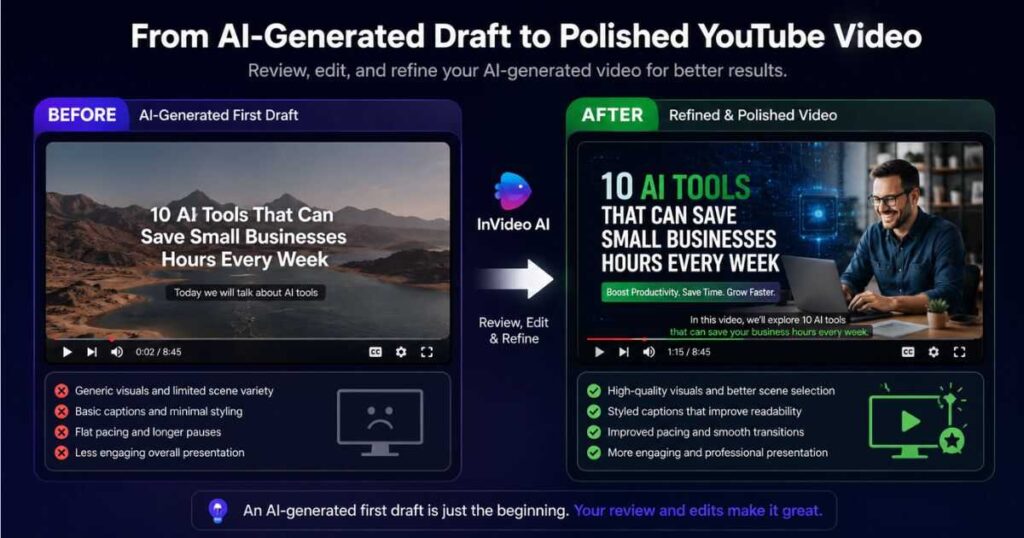
Replace the scenes that hurt the video instead of rebuilding everything.
The objective is not to edit every second.
It is to improve the parts that matter most.
Step 6: Improve the Voiceover
A technically correct AI voice can still sound unnatural.
Listen for:
- Incorrect pronunciation
- Strange pauses
- Unnatural emphasis
- Long sentences
- Repetitive delivery
- A tone that does not fit the subject
The easiest solution is often to improve the writing.
Compare:
“In conclusion, artificial intelligence provides numerous advantages for individuals seeking to produce video content.”
with:
“The bottom line? AI can save you a lot of production time—but only if you use it strategically.”
The second version sounds more natural when spoken.
That matters because viewers experience the script through the voice, not as an article on a page.
Step 7: Improve Captions and On-Screen Text
Captions can be especially useful for mobile viewers and Shorts.
However, more text does not automatically make a video better.
Keep captions:
- Easy to read
- Properly timed
- Consistent
- Large enough for mobile screens
- Short enough to scan
Use on-screen text to emphasize important information instead of displaying giant blocks of the narration.
For example:
Narration:
“The biggest mistake is choosing a tool before identifying your workflow.”
On-screen text:
Don’t choose the tool first.
That creates visual emphasis without cluttering the screen.
Step 8: Control the Pacing
Pacing can make the difference between a video that feels professional and one that feels obviously AI-generated.
If the video moves too slowly, viewers may leave.
If everything changes too quickly, the video can become exhausting.
The current InVideo workflow allows editing instructions through its AI editing interface, including commands that can change pacing.
That makes it possible to refine the video without manually rebuilding every scene.
For example, a section that feels slow could be tightened rather than completely recreated.
The key is to make every visual change meaningful.
Step 9: Add Better Visuals Where They Matter
Not every scene needs an expensive AI-generated shot.
A useful combination might include:
- Stock footage
- Screenshots
- Screen recordings
- AI-generated scenes
- Charts
- Product images
- Text overlays
For more cinematic moments, InVideo also provides access to generative models such as Veo and other video models from within its platform.
This can be useful when a stock clip cannot communicate the idea effectively.
The goal is not to use AI-generated footage simply because it exists.
Use it when it improves the story.
🚀 Turn Your Idea Into a Real YouTube Video
The best way to evaluate InVideo AI for YouTube is to create a real project rather than judging the platform from a demonstration.
Create Your Next YouTube Video With InVideo AI →
InVideo AI for YouTube and Faceless Channels
InVideo AI for YouTube is particularly interesting for faceless channels because the creator does not need to appear on camera.
A typical faceless production process can combine:
Research → Script → Voiceover → Visuals → Editing → Captions → Thumbnail → Publish
Several of these stages can be assisted by AI.
That does not mean the creator disappears from the process.
The creator still needs to decide:
- Which topics are worth covering
- What angle makes the video different
- Which information is accurate
- What the audience actually wants
- Which visuals are relevant
- What should be removed
- How the final video should feel
The strongest model is therefore:
Human strategy + AI-assisted production + human review
rather than:
AI generates everything → Publish
That distinction is especially important for channels competing in crowded niches.
What Makes a Faceless YouTube Video Feel Professional?
Professional-looking faceless content is usually created through consistency.
A channel should have a recognizable:
- Narration style
- Editing rhythm
- Visual language
- Thumbnail style
- Color or typography system
- Storytelling approach
The viewer should feel that every video belongs to the same channel.
This is something AI can assist with, but consistency still needs to be intentionally designed.
A generic AI voice combined with unrelated stock clips can make even a technically correct video feel disposable.
Strong scripting and visual direction can make the same production technology feel much more professional.
🚀 Build a Faceless YouTube Workflow
If faceless content is your goal, InVideo AI for YouTube can help reduce the amount of manual production required.
Try InVideo AI for Faceless YouTube →
InVideo AI for YouTube Shorts
YouTube Shorts require a different structure from long-form videos.
There is less time to establish context, which means the opening needs to create immediate interest.
A simple structure is:
Hook → Value → Payoff → Next Action
For example, instead of:
“Today we’re going to discuss five AI video tools…”
a stronger opening might be:
“You’re probably using AI video generators the wrong way.”
Then explain why.
InVideo AI for YouTube can help create Shorts through short scripts, visuals, captions, narration, and editing.
But a good Short should not simply be a random 30-second section removed from a longer video.
The format needs its own pacing and structure.
| Long-Form YouTube | YouTube Shorts | |
| Primary goal | Depth and watch time | Immediate attention |
| Structure | Hook → Development → Payoff | Hook → Value → Payoff |
| Pacing | Flexible | Usually faster |
| Script | Detailed | Highly compressed |
| Visual changes | Moderate | Often more frequent |
| Editing | Story-driven | Attention-driven |
InVideo AI for YouTube Long-Form Videos
Long-form content provides more room to explain an idea, but additional length should not mean additional filler.
A practical structure might be:
1. Hook
Introduce the problem or promise.
2. Context
Give viewers the information they need to understand the topic.
3. Main Sections
Deliver the core information in a logical order.
4. Examples
Show how the information applies in practice.
5. Conclusion
Summarize the key takeaway and provide a useful next step.
For example, a seven-minute software tutorial could follow:
0:00–0:20 — Hook
0:20–1:00 — What the tool does
1:00–4:30 — Step-by-step tutorial
4:30–6:00 — Common mistakes
6:00–7:00 — Final recommendation
This structure gives InVideo AI for YouTube clearer instructions and makes the final editing process easier.
InVideo AI for YouTube Automation: Is It a Good Idea?
InVideo AI for YouTube can support an automation-style workflow, but automation should not mean removing quality control.
A poor automation workflow looks like:
Topic → AI Script → AI Video → Publish
A stronger workflow looks like:
Research → Topic Selection → Script → AI Production → Human Review → Thumbnail → Publish → Analytics
The second approach takes more effort, but it also gives the channel a better chance of producing content viewers actually want.
AI is most useful when it handles repetitive work while humans remain responsible for decisions that require judgment.
This includes:
- Topic selection
- Research
- Fact checking
- Storytelling
- Titles
- Thumbnails
- Final editing
- Audience analysis
- Original opinions and conclusions
The result is not completely automated YouTube.
It is AI-assisted YouTube production.
That is a much more useful way to think about automation.
What Types of YouTube Channels Work Best With InVideo AI?
The strongest use cases are channels where information, narration, explanation, or storytelling are more important than filming a physical presenter.
Educational Channels
Examples include:
- Tutorials
- Software guides
- Technology explainers
- Business education
- Productivity content
- How-to videos
These formats can work well with narration and supporting visuals.
Technology Channels
Software and AI content can be particularly suitable because screenshots, screen recordings, interface demonstrations, and narrated explanations can carry much of the video.
List and Explainer Channels
Formats such as:
- 7 Best AI Video Tools
- 5 Mistakes Beginners Make
- How AI Video Generation Works
- Best Tools for YouTube Creators
have naturally structured sections that can be translated into scenes.
Product and Affiliate Channels
Software reviews, comparisons, tutorials, and product explainers can also benefit from an AI-assisted workflow.
The important thing is to provide real value.
A video that simply repeats a product’s marketing claims will struggle to stand out.
When Is InVideo AI for YouTube Not the Best Choice?
InVideo AI for YouTube is not necessarily the ideal solution for every type of channel.
If the channel depends heavily on personal presence, such as:
- Vlogs
- Personal interviews
- Travel footage
- Live commentary
- Physical demonstrations
- Personality-driven content
then filming and traditional editing may remain central to the workflow.
The same applies to channels where highly customized cinematic shots are the main product.
In that situation, specialized AI video generators may provide more creative control.
For example, Kling AI can be useful when cinematic AI-generated footage is the primary requirement. If that is your goal, exploring a detailed [Kling AI Review] can help you understand where it fits.
For advanced AI video generation and creative editing, [Runway AI Review] can also be useful.
If the main requirement is an AI presenter or digital avatar, [HeyGen AI Avatars] is a more relevant direction.
The right choice depends on the type of video being created.
InVideo AI vs Traditional Video Editing
Traditional video editing still has a major advantage:
precise control.
An experienced editor can decide exactly:
- Which frame appears
- When a cut happens
- How long a scene remains
- Where text appears
- How music changes
- Which transition is used
- How the story builds
The downside is time.
Building every video manually can become difficult when publishing consistently.
This is where InVideo AI for YouTube takes a different approach.
Instead of replacing editing entirely, it can reduce the amount of repetitive work required to reach a strong first version.
The most practical model is therefore:
AI for speed + human judgment for quality
rather than:
AI instead of editing
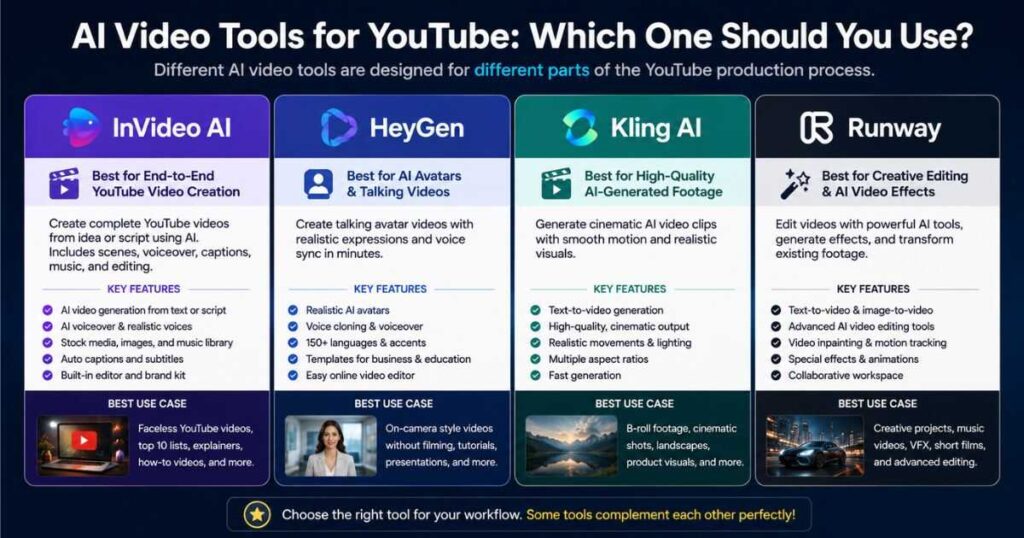
InVideo AI vs HeyGen vs Kling AI vs Runway
Choosing the right tool depends on what the video actually needs.
| Tool | Best suited for |
| InVideo AI | Complete AI-assisted YouTube video production |
| HeyGen | AI avatars, presenters, and talking-head style videos |
| Kling AI | Cinematic AI-generated scenes |
| Runway | Advanced AI video generation and creative editing |
Choose InVideo AI
Choose InVideo AI for YouTube when the priority is turning an idea or script into a more complete video production with narration, visuals, captions, music, and editing.
Choose HeyGen
Choose HeyGen when the central feature of the video is an AI presenter or digital avatar.
Choose Kling AI
Choose Kling AI when cinematic AI-generated scenes are the most important part of the project.
Choose Runway
Choose Runway when advanced visual generation and creative editing control are more important than having the entire production process handled in one workflow.
These tools do not always need to be competitors.
A creator can use InVideo AI for YouTube for the overall production and bring specialized AI-generated scenes into the project when necessary.
How Much Does It Cost to Produce a YouTube Video With InVideo AI?
The subscription price is only part of the equation.
The real question for a YouTube creator is:
How much does one finished video cost to produce?
That depends on the workflow.
A project using stock media can consume resources differently from one relying heavily on generative AI.
The current InVideo platform provides access to multiple AI models, and credit consumption varies according to the model, resolution, and duration. The platform’s current documentation also distinguishes between generation quality levels such as Basic, Pro, and Ultra in Autopilot, with different credit costs.
This means two videos of the same length can potentially have very different production costs.
Track these numbers when testing the platform:
| Metric | What to Track |
| Credits | Credits consumed by the project |
| Production time | Total time from idea to finished video |
| Editing time | Manual work required after generation |
| Final cost | Subscription and additional production expenses |
After several videos, it becomes much easier to determine whether InVideo AI for YouTube actually saves enough time to justify the cost.
For current plans and credits, check the latest [InVideo AI Pricing] information before choosing a subscription.
If you want to test the platform first, [Is InVideo AI Free?] can help clarify what is available before paying.
How to Get Better Results From InVideo AI for YouTube
The quality of the final video depends heavily on the instructions and decisions surrounding the AI generation.
Start With the Viewer
Before writing the prompt, answer:
Who is watching?
What problem are they trying to solve?
Why should they click?
What should they know by the end?
This gives the video a clear purpose.
Make the Hook Specific
Instead of:
“Today we’re going to talk about AI video tools.”
Try:
“These five AI tools can remove hours of work from your YouTube production.”
The second opening gives the viewer a reason to continue.
Use Relevant Visuals
A visual should support the narration.
If the narrator explains a software feature, show the software.
If the narrator describes a cinematic AI scene, show a relevant example.
If the narrator explains a process, visualize the process.
Generic footage should not become the default solution for every sentence.
Edit the Weakest Parts
Do not spend equal time on every scene.
Focus on:
- The opening
- Slow sections
- Repetitive visuals
- Incorrect footage
- Awkward narration
- Confusing explanations
- Weak transitions
This produces a better result with less work.
🚀 Improve Your YouTube Production Workflow
If reducing repetitive video-production work is the main goal, InVideo AI for YouTube is worth testing on a real project.
Don’t Publish the First AI-Generated Draft
One of the biggest mistakes with AI video production is assuming that generation equals completion.
It doesn’t.
Watch the entire video before publishing.
Check for:
- Incorrect information
- Repeated footage
- Poor pronunciation
- Strange pauses
- Weak transitions
- Irrelevant visuals
- Slow sections
- Caption errors
- Audio problems
- A weak opening
Then make the necessary corrections.
The current InVideo workflow is built around iterative creation and editing rather than requiring every project to be accepted exactly as first generated. Its AI agents can work through follow-up instructions, while editing tools allow changes to elements such as scenes, voiceovers, accents, and pacing.
That iterative process is one of the most important parts of using InVideo AI for YouTube effectively.
Thumbnails Still Matter
Even an excellent video can receive very few clicks if the thumbnail does not communicate a compelling reason to watch.
Think about the thumbnail separately from the video.
A weak approach might be:
Title:
How to Use InVideo AI for YouTube
Thumbnail:
A screenshot of the dashboard with several lines of tiny text.
A stronger concept might focus on one clear promise or curiosity gap.
The exact title and thumbnail depend on the audience and topic, but the principle is simple:
The thumbnail earns the click.
The video earns the watch.
AI video production does not change that fundamental YouTube principle.
A Practical InVideo AI for YouTube Workflow
If you want to test InVideo AI for YouTube properly, start with one complete video.
Step 1: Choose One Specific Topic
Avoid starting with an extremely broad subject.
Instead of:
AI video tools
choose:
7 AI Video Tools for Faceless YouTube Channels
Step 2: Define the Audience
Decide whether the video is aimed at:
- Beginners
- Experienced creators
- Businesses
- Affiliate marketers
- Faceless channel owners
Step 3: Build the Script
Use:
Hook → Problem → Main Points → Examples → Conclusion → CTA
Step 4: Generate the Video
Provide the topic, script, audience, tone, visual requirements, and desired format.
Step 5: Review the Scenes
Replace visuals that do not support the narration.
Step 6: Improve the Voiceover
Fix pronunciation, unnatural wording, pacing, and tone.
Step 7: Improve Captions
Make captions readable and useful rather than overwhelming.
Step 8: Check the Opening
Ask:
Would I continue watching this if I had never heard of the channel?
If not, rewrite the opening.
Step 9: Create the Thumbnail
Focus on one clear idea.
Step 10: Watch the Entire Video
Look for problems that are easy to miss while editing individual scenes.
Step 11: Publish and Analyze
After publishing, monitor:
- Click-through rate
- Average view duration
- Audience retention
- Traffic sources
- Viewer comments
Then use those results to improve the next video.
🚀 Create Your First Complete YouTube Video
Instead of testing InVideo AI for YouTube with a random experiment, use an actual topic you intend to publish.
Start Creating With InVideo AI →
Is InVideo AI Good for YouTube Automation?
Yes, InVideo AI for YouTube can be a useful part of an automation workflow.
But it should not be confused with a system that can run a successful channel without human involvement.
A sustainable workflow looks more like:
Research → Strategy → Script → AI Production → Human Review → Thumbnail → Publish → Analyze
That approach allows AI to handle repetitive production while human judgment remains responsible for the things that influence the channel’s long-term quality.
This is especially important when creating content in competitive niches.
A channel filled with generic AI-generated videos may be easy to produce, but easy production does not automatically create an audience.
The competitive advantage comes from the idea, information, presentation, and consistency.
Is InVideo AI Worth It for YouTube?
For the right creator, InVideo AI for YouTube can be a very practical solution.
It is particularly attractive when the goal is to reduce the time between a video idea and a usable finished project.
It can be useful for:
- Faceless YouTube channels
- Educational content
- Software tutorials
- Technology videos
- Explainer videos
- Product reviews
- Affiliate content
- YouTube Shorts
- Marketing videos
- High-volume content production
Its biggest advantage is workflow efficiency.
Its biggest limitation is also important:
AI-generated content still needs human direction.
If the topic is weak, the script is generic, the visuals are irrelevant, and the thumbnail is poor, faster production will simply produce poor videos faster.
The best results come from using AI where it is strongest and keeping humans responsible for the decisions that require judgment.
🚀 Ready to Test InVideo AI?
The most useful test is simple: create one real YouTube video and measure the complete workflow from idea to finished export.
Final Verdict: Is InVideo AI for YouTube Worth Using?
So, is InVideo AI for YouTube worth using?
For creators who want to produce YouTube videos faster without managing a large collection of separate production tools, yes, it is worth testing.
The platform can help bring together several stages of video production, from the initial idea or script through visuals, narration, captions, music, and editing. Its current AI-agent approach also allows creators to refine projects through ongoing instructions instead of treating the first generation as the final result.
But the strongest reason to use InVideo AI for YouTube is not that it can create a video with one prompt.
The real benefit is reducing repetitive production work.
A strong workflow looks like:
Idea → Research → Script → InVideo AI → Human Review → Editing → Thumbnail → Publish → Analyze
That approach gives you the speed of AI without giving up the creative decisions that make a YouTube channel valuable.
If your priority is producing complete videos efficiently, InVideo AI is a strong option to consider.
If your priority is highly cinematic AI-generated footage, Kling AI or Runway may be more appropriate.
If your priority is an AI presenter, HeyGen may be the better fit.
The right choice depends on what your videos actually need.
Ultimately, the best way to decide whether InVideo AI for YouTube belongs in your workflow is to create a real video, measure how much time it saves, evaluate the quality of the final result, and compare that with the cost of the platform.
🚀 Start Creating Your Next YouTube Video
If you are ready to see how much of your production workflow can be handled with AI, start with one real project and evaluate the result for yourself.
Start Creating With InVideo AI →
Frequently Asked Questions About InVideo AI for YouTube
Can InVideo AI create YouTube videos?
Yes. InVideo AI for YouTube can create complete video projects from prompts or scripts, including elements such as narration, visuals, subtitles, music, and other production components.
Is InVideo AI good for faceless YouTube channels?
Yes. InVideo AI for YouTube is particularly suitable for faceless formats because videos can be created around narration, stock media, AI-generated visuals, captions, and other elements without requiring the creator to appear on camera.
Can InVideo AI create YouTube Shorts?
Yes. InVideo provides tools for creating short-form vertical videos as well as longer YouTube content.
Can I use my own script with InVideo AI?
Yes. You can provide your own script and configure elements such as media type, subtitles, music, and language before generating the video.
Is InVideo AI good for YouTube automation?
It can be useful for reducing repetitive production work, but a successful automation workflow should still include human research, scripting, quality control, thumbnail creation, and performance analysis.
Is InVideo AI better than traditional video editing?
Not in every situation. Traditional editing provides more precise manual control, while InVideo AI for YouTube focuses on reducing the time required to create and refine a complete video. The better choice depends on the complexity of the project and the level of control required.
Can InVideo AI generate cinematic AI video?
Yes. InVideo provides access to multiple generative video models, including models such as Google’s Veo, allowing creators to generate AI video clips from prompts.
Is InVideo AI free?
InVideo offers a free option, although available features, exports, watermarks, and usage limits can vary by plan. Check the current [Is InVideo AI Free?] guide for the latest details before choosing a plan.
Continue Learning
If you want to build a more complete AI-powered YouTube workflow, the following guides can help with specific parts of the process:
- [InVideo AI Review] — Learn more about the platform’s features, strengths, limitations, and overall performance.
- [How to Use InVideo AI] — Follow a more detailed walkthrough of the platform and its workflow.
- [InVideo AI Pricing] — Compare plans, credits, and the potential cost of producing videos regularly.
- [Is InVideo AI Free?] — Find out what you can test before committing to a paid plan.
- [Kling AI Review] — Explore Kling AI if cinematic AI-generated footage is your priority.
- [Best Kling AI Prompts] — Learn how to create stronger prompts for cinematic AI scenes.
- [HeyGen AI Avatars] — Explore AI presenters and avatar-based video creation.
- Faceless YouTube Channel Ideas: 15 Niches to Try — Discover profitable niches and practical formats for building a successful faceless YouTube channel.
- How to Start a Faceless YouTube Channel in 2026: A step-by-step guide to building a profitable, automated channel using modern AI tools.
- Synthesia AI Review: Is It Worth It in 2026? — Explore its features, pricing, AI avatars, and video creation capabilities.
- Synthesia Pricing (2026): Plans, Costs & Features – A complete breakdown of Synthesia AI plans, pricing, features, and video limits.
The goal is not to use every AI video tool available.
The goal is to build a workflow that helps you create better videos faster while giving viewers a reason to keep watching.