AI Movie Generator: How to Create Cinematic AI Videos
Creating a cinematic video used to require cameras, actors, locations, lighting equipment, editing software, and hours of post-production. Today, an AI Movie Generator can turn a simple idea, script, image, or collection of references into moving scenes that look surprisingly close to professionally produced footage.
But generating a beautiful AI clip is only one part of the process. If you want to create AI generated movies that feel like a coherent story, you need more than a powerful model. You need consistent characters, purposeful camera movement, strong prompts, suitable reference images, good sound, and an editing workflow that connects individual clips into a finished film.
This guide explains how an AI Movie Generator works, how to create cinematic AI videos step by step, which tools are useful for different stages of production, and how to avoid the most common problems that make AI-generated movies look artificial.
What Is an AI Movie Generator?
An AI Movie Generator is an AI-powered video creation system that can generate moving scenes from instructions such as text prompts, images, reference media, or scripts.
Instead of manually filming a scene, you can describe what should happen:
“A lone explorer walks through an abandoned futuristic city at sunrise. Dust moves through the streets as the camera slowly tracks backward.”
The AI model interprets the description and generates a video sequence.
Modern AI video systems can also work from existing images. An image-to-video workflow can preserve the composition of a reference image while generating movement, camera motion, and environmental changes. Runway, for example, describes its image-to-video workflow as using the input image to establish the composition, subject, lighting, and style while the prompt focuses primarily on motion and camera behavior.
The important distinction is that an AI Movie Generator does not necessarily create an entire feature-length movie with one click. In most practical workflows, you generate individual shots, refine them, and then edit those shots together.
That approach gives you much greater creative control.
How an AI Movie Generator Creates Cinematic Scenes
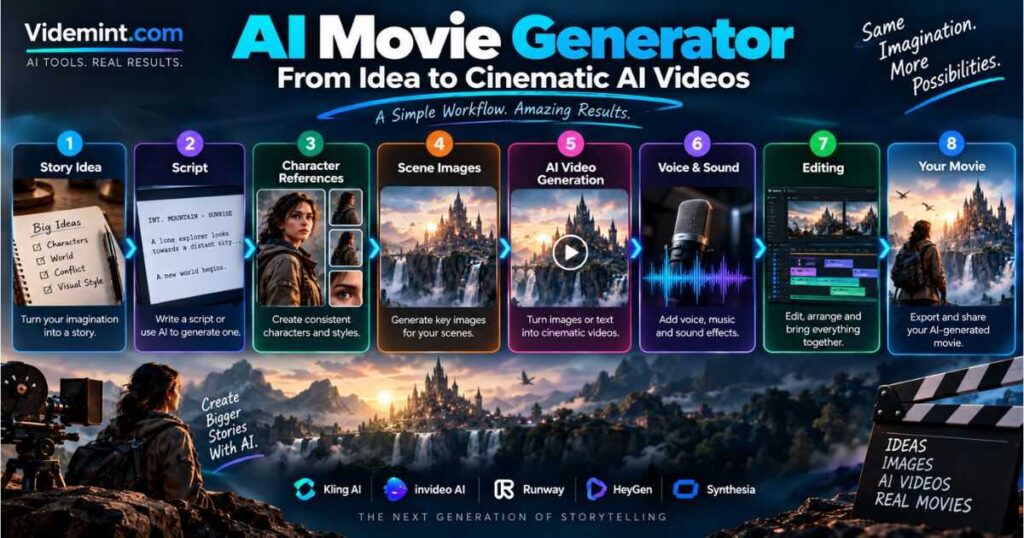
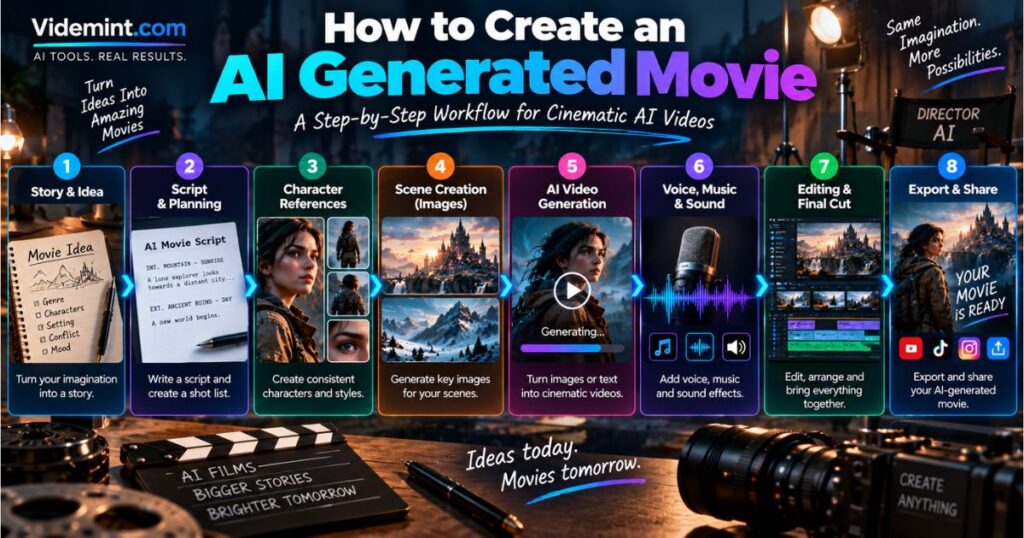
Most AI-generated movies follow a pipeline that looks like this:
| Stage | What You Create | Purpose |
|---|---|---|
| Story | Concept and plot | Establish the narrative |
| Script | Dialogue and action | Define what happens |
| Shot list | Individual scenes and shots | Plan production |
| References | Characters, locations, objects | Maintain visual consistency |
| Images | Keyframes or scene designs | Establish visual composition |
| Video | Animated clips | Bring scenes to life |
| Voice | Dialogue or narration | Add storytelling |
| Sound | Music and effects | Increase immersion |
| Editing | Final sequence | Turn clips into a movie |
This workflow is much more reliable than asking an AI Movie Generator to invent everything simultaneously.
For example, instead of generating a five-minute fantasy movie in one request, create 20–40 individual shots. Each shot can have its own prompt, camera direction, duration, and reference material.
This also makes it easier to replace one bad generation without rebuilding the entire project.
Step 1: Start With a Simple Movie Concept
Before opening an AI Movie Generator, decide what the movie is actually about.
A strong concept does not need to be complicated.
For example:
Concept:
A scientist discovers a hidden underground city beneath an abandoned desert.
Main character:
A young scientist wearing a weathered expedition jacket.
Setting:
A vast underground civilization illuminated by blue bioluminescent plants.
Conflict:
The city is beginning to collapse.
Visual style:
Cinematic science fiction with realistic lighting and atmospheric depth.
This information becomes the foundation for every scene.
Avoid changing the character’s appearance, clothing, age, or visual style halfway through the project. AI systems are becoming better at consistency, but they still benefit from carefully controlled references.
Step 2: Turn the Story Into a Shot List
A movie is not just a collection of pretty AI clips.
Every shot should have a purpose.
A simple shot list might look like this:
| Shot | Description | Camera |
|---|---|---|
| 1 | Explorer approaches abandoned entrance | Wide tracking shot |
| 2 | Explorer discovers hidden doorway | Slow push-in |
| 3 | Door opens into underground city | Crane movement |
| 4 | Character walks through glowing streets | Follow shot |
| 5 | Strange creature appears | Slow reveal |
| 6 | Character runs as city collapses | Handheld tracking |
| 7 | Character reaches escape tunnel | Wide establishing shot |
This makes an AI Movie Generator much easier to control because every generation has a specific objective.
It also prevents a common problem: generating random clips that look impressive individually but do not connect into a meaningful sequence.
Step 3: Create Consistent Characters
Character consistency is one of the biggest challenges when creating AI generated movies.
Without reference images, an AI model may change a character’s face, hairstyle, clothing, body proportions, or accessories from one scene to another.
Create a character reference before generating the movie.
For example:
Character reference
- Female explorer
- 30 years old
- Short dark-brown hair
- Green eyes
- Weathered tan expedition jacket
- Dark utility pants
- Black hiking boots
- Small silver pendant
- Realistic cinematic appearance
Keep this identity block consistent throughout your prompts.
Tools such as Runway’s References workflow allow creators to use one or multiple reference images to maintain characters, objects, environments, and visual elements across generations. Runway specifically recommends high-quality reference images and supports up to three active references for a generation.
Kling also provides element-reference capabilities designed to keep characters and other important elements stable across changing scenes and camera movements. Its current VIDEO 3.0 documentation describes multi-image references, subject binding, multi-shot generation, and longer generations of up to 15 seconds.
Pro Tip
Create one master reference image for each important character.
Then create additional references for:
- Front view
- Side view
- Full body
- Different expressions
- Important clothing or props
The more important the character is to the story, the more useful this preparation becomes.
Step 4: Generate the First Images
Before animating scenes, consider generating still images for the most important shots.
This gives you control over:
- Character appearance
- Composition
- Lighting
- Environment
- Color palette
- Costume
- Props
- Camera framing
An image can then become the starting point for an image-to-video generation.
This is especially useful when working with an AI Movie Generator because the image establishes the visual information before motion is introduced.
Runway’s current tools support reference-based image creation and can then move generated images into video workflows.
How to Write Prompts for an AI Movie Generator
Your prompt determines what the generated scene attempts to do.
However, longer prompts are not automatically better.
A useful cinematic prompt usually contains several practical elements:
Subject + Action + Environment + Camera + Lighting + Motion + Style
For example:
A lone female explorer walks slowly through an abandoned underground city, glowing blue plants illuminate the ruined buildings, the camera tracks backward in a smooth medium-wide shot, soft atmospheric haze fills the street, subtle dust particles float through the air, realistic cinematic lighting, natural movement.
Compare that with:
Make a beautiful cinematic sci-fi scene.
The second prompt gives the model very little information about what should actually happen.
Focus on Motion When Animating Images
When an AI Movie Generator receives an image, avoid describing everything that is already visible.
Instead, explain what should change.
For example:
The explorer walks slowly forward while her jacket moves naturally in the wind. Dust drifts across the street. The camera gradually tracks backward while maintaining a medium-wide composition.
This is particularly important for image-to-video generation. Runway’s current prompting guidance recommends focusing the prompt on desired motion and camera work because the image already establishes much of the subject, composition, lighting, and style.
Cinematic Camera Movements That Work Well
Camera movement can make the difference between a static AI clip and a cinematic scene.
Try using:
| Camera movement | Best use |
|---|---|
| Slow push-in | Reveals, emotional moments |
| Pull-back | Revealing the environment |
| Tracking shot | Following a character |
| Pan | Showing a large environment |
| Tilt | Revealing tall structures |
| Orbit | Character introductions |
| Crane shot | Establishing locations |
| Handheld | Action and urgency |
| Static shot | Suspense and dialogue |
Do not use dramatic camera movement in every shot.
If every scene contains rapid zooms, spinning cameras, and extreme movement, the movie quickly starts to feel artificial.
Cinematic filmmaking often depends on controlled movement.
Step 5: Create the Video Clips
Now it is time to use the AI Movie Generator to animate your scenes.
There are two major approaches.
Text-to-Video
You describe the entire scene using text.
This works well when you want the model to invent:
- Characters
- Environments
- Composition
- Lighting
- Action
Image-to-Video
You provide an image and tell the AI how it should move.
This provides greater control over the visual starting point.
For cinematic projects, image-to-video can be particularly useful when character appearance and composition matter.
Runway’s current Gen-4.5 supports both text-to-video and image-to-video, while its reference workflows are designed to provide additional control over characters and scenes.
Best AI Movie Generator Tools for Cinematic Videos
Different platforms are useful for different parts of production. There is no reason to force one tool to perform every task.
1. Kling AI
Kling AI is particularly relevant for cinematic AI video workflows involving motion, image-to-video generation, character consistency, and multi-shot storytelling.
Its VIDEO 3.0 model supports multi-shot narratives, native audio, element references, and generations of up to 15 seconds. The element system is designed to keep important characters or objects consistent even as the camera and scene change.
Good for:
- Cinematic scenes
- Character-driven stories
- Image-to-video
- Dynamic camera movement
- Multi-shot sequences
- AI generated movies
If cinematic storytelling is the priority, try Kling AI and experiment with a few reference-driven shots before committing to an entire movie.
2. InVideo AI
InVideo AI takes a broader approach to AI video creation. Rather than focusing only on individual cinematic generations, it can be useful when the project requires a combination of generated visuals, scripts, voice, editing, and other production elements.
Its current ecosystem also provides access to multiple video-generation models, allowing different models to be used for different types of shots. InVideo’s own current documentation describes workflows involving models such as Kling, Veo, Seedance, Pika, and others.
Good for:
- Complete video production
- YouTube videos
- Narrated content
- Marketing videos
- Combining AI-generated scenes with editing
For creators who want an AI video content creator workflow rather than only individual cinematic clips, explore InVideo AI and test how much of the production process it can handle from one project.
3. Runway
Runway is useful when visual control, references, image generation, and video generation are important.
Its current Gen-4.5 supports text-to-video and image-to-video, while References can help maintain characters, locations, and objects across scenes.
Runway’s image-to-video guidance also emphasizes a useful principle: let the image establish the visual composition and use the prompt to control motion.
Good for:
- Cinematic image-to-video
- Character references
- Scene development
- Controlled camera movement
- Visual experimentation
Try Runway when the project requires more control over references and individual cinematic shots.
4. HeyGen
HeyGen is especially useful when an AI movie or video needs talking characters, presenters, narration, or animated images.
Its current image-to-video tool can turn an uploaded image into a video, add motion or a voice, and create cinematic B-roll from still images.
Good for:
- Talking characters
- Narration
- Presenters
- Educational storytelling
- Social media videos
- Animated photos
CTA:
For movies that combine cinematic scenes with speaking characters, try HeyGen as part of the production workflow.
5. Synthesia
Synthesia is more oriented toward professional videos, avatars, training, presentations, marketing, and business communication than purely cinematic filmmaking.
Its current platform supports AI avatars and video creation in many languages, making it useful when a project needs a presenter or professional digital character.
Good for:
- Professional videos
- AI presenters
- Training content
- Business storytelling
- Multilingual video
If your project needs an AI presenter alongside cinematic B-roll, explore Synthesia and combine it with a cinematic generation tool.
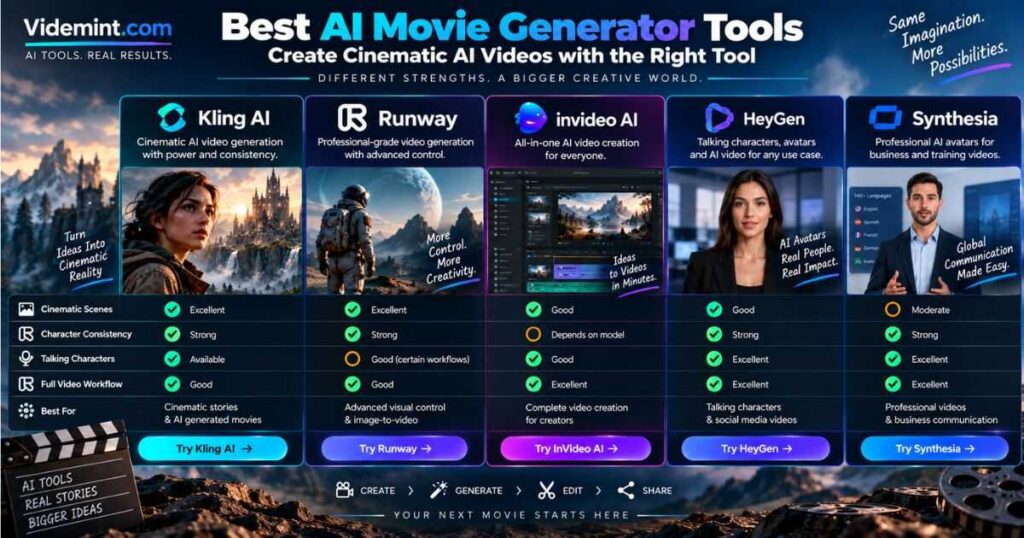
AI Movie Generator Tools Compared
| Tool | Cinematic Scenes | Character Consistency | Talking Characters | Full Video Workflow |
|---|---|---|---|---|
| Kling AI | Excellent fit | Strong | Available in relevant workflows | Good |
| InVideo AI | Good | Depends on model/workflow | Good | Excellent |
| Runway | Excellent fit | Strong with References | Good for certain workflows | Good |
| HeyGen | Good for B-roll | Strong for avatars | Excellent | Excellent |
| Synthesia | Better for professional scenes | Strong for avatars | Excellent | Excellent |
The important lesson is that choosing an AI Movie Generator should depend on the shot you need rather than simply choosing the platform with the longest feature list.
How to Make AI Generated Movies Look More Realistic
One of the biggest mistakes is trying to make every shot spectacular.
Real movies contain quiet moments.
A character walks.
A camera slowly moves.
Curtains react to the wind.
Dust floats through sunlight.
A person looks toward something outside the frame.
These small details often make an AI-generated scene feel more believable.
Use Natural Motion
Avoid excessive movement unless the scene requires it.
Instead of:
The character runs, jumps, spins, turns around, and waves dramatically.
Try:
The character walks slowly toward the doorway while looking cautiously to the left. His jacket moves gently in the wind.
The second instruction is easier for an AI Movie Generator to interpret and usually produces a more controlled shot.
Think About Physics
Ask:
- Does the character’s weight make sense?
- Does clothing respond naturally to movement?
- Does smoke move with the environment?
- Do shadows behave consistently?
- Does water react when an object enters it?
- Does the camera movement make physical sense?
AI-generated movies become much more convincing when environmental motion supports the action.
How to Create AI Movie Scenes With Multiple Characters
Multi-character scenes are harder because the model needs to understand:
- Who is speaking
- Who is moving
- Where each person is positioned
- Which character is the focus
- How the camera should frame them
Keep prompts simple.
For example:
The woman stands on the left side of the frame and looks toward the man. The man slowly turns toward her. The camera remains in a medium two-shot and moves gently forward.
Avoid giving both characters several complicated actions simultaneously.
For important dialogue scenes, generating shorter shots and editing them together can produce more reliable results.
Add Voice, Music, and Sound Effects
Visuals alone do not make an AI movie feel complete.
Sound is equally important.
You can use:
- Narration
- Character dialogue
- Ambient sound
- Footsteps
- Wind
- Rain
- Doors
- Vehicles
- Crowd noise
- Music
- Impact effects
A quiet environment can make a scene feel tense, while subtle ambient sound can make a digital environment feel alive.
If your AI Movie Generator produces native audio, test it carefully rather than assuming every generated sound will be usable.
For example, Kling VIDEO 3.0 currently supports native audio and character-referenced voice capabilities, which can be useful for scenes that combine visual action and dialogue.
Edit the Clips Into a Real Movie
The generation stage is not the final stage.
After creating your clips, arrange them according to the story.
A simple sequence might be:
Establishing shot → Character introduction → Action → Reaction → Close-up → Transition → New location
Cut anything that does not contribute to the story.
You can also use:
- Color correction
- Music
- Sound effects
- Subtitles
- Transitions
- Voiceover
- Speed adjustments
- Cropping
- Background ambience
The result should feel like a movie rather than a collection of AI demonstrations.
Common AI Movie Generator Problems
Character Changes Between Scenes
Solution: Use reference images and keep a detailed character identity block.
Faces Look Different
Solution: Use a stronger reference image and reduce unnecessary changes between generations.
Hands or Objects Become Distorted
Solution: Simplify the action and generate another version instead of adding dozens of instructions.
Camera Movement Looks Unnatural
Solution: Use one clear camera movement rather than combining several movements.
The Scene Looks Too Artificial
Solution: Improve lighting, environmental motion, depth, texture, and pacing.
Clips Do Not Match
Solution: Maintain the same references, visual style, character descriptions, and locations throughout the project.
The Story Feels Disconnected
Solution: Create a shot list before generation and make every clip serve a specific narrative purpose.
Can You Make AI Movies for YouTube?
Yes. You can structure an AI Movie Generator workflow specifically for YouTube.
For a faceless channel, the production pipeline could look like:
Idea → Script → Character References → Scene Images → AI Video → Voiceover → Sound Design → Editing → Thumbnail → YouTube
Shorter movies can also work well as:
- YouTube Shorts
- Instagram Reels
- TikTok videos
- Story-based social content
- Cinematic trailers
- Product storytelling
- Educational videos
For longer YouTube videos, generate the movie as multiple short scenes rather than trying to create one enormous generation.
This gives you more opportunities to fix weak scenes without rebuilding the entire project.
How to Use an AI Movie Generator More Efficiently
AI video generation can become expensive and time-consuming if you repeatedly generate scenes without a plan.
Use this workflow:
1. Write the story first
Know what happens before generating visuals.
2. Create references
Lock down characters, locations, and important objects.
3. Generate still images
Establish the composition before adding motion.
4. Generate low-cost drafts
Test the action and camera movement.
5. Keep successful generations
Turn successful frames into references for later scenes.
6. Generate final-quality shots
Spend more credits only after the shot direction works.
7. Edit everything together
Do not expect the AI model to solve pacing automatically.
This approach can dramatically reduce wasted generations.
AI Movie Generator Prompt Template
Use this structure when creating a cinematic shot:
[Subject] + [Action] + [Environment] + [Camera Movement] + [Lighting] + [Atmosphere] + [Visual Style]
Example
A young explorer walks slowly through an abandoned futuristic city at dawn. Massive ruined buildings surround the street while soft fog moves between them. The camera tracks backward in a smooth medium-wide shot as the character approaches. Warm sunlight breaks through the clouds, creating long shadows and subtle atmospheric haze. Realistic cinematic photography, natural movement, detailed environment, restrained color grading.
The goal is not to use as many adjectives as possible.
The goal is to tell the AI Movie Generator exactly what needs to happen.
Frequently Asked Questions
What is the best AI Movie Generator?
There is no single tool that is ideal for every type of movie. Kling AI and Runway are useful for cinematic generation and controlled visual workflows, while InVideo AI, HeyGen, and Synthesia can be more useful when the project also requires narration, avatars, editing, or complete video production.
Can an AI Movie Generator create a full movie?
Yes, but the most practical approach is to generate the movie as a series of individual scenes and shots. Creating separate clips gives you much more control over characters, camera movement, continuity, and editing.
Can I create AI generated movies from images?
Yes. Image-to-video technology can animate still images into moving scenes. This is particularly useful when you want more control over character appearance, composition, or visual style.
Can I make AI movies for YouTube?
Yes. AI-generated movies can be edited into YouTube videos, Shorts, trailers, stories, educational content, and other formats. Make sure the assets, voices, music, and AI tools used in the project have the appropriate commercial usage rights for your intended publication.
Do I need filmmaking experience?
No. An AI Movie Generator reduces many of the technical barriers involved in traditional filmmaking. However, understanding storytelling, composition, camera language, pacing, and editing will significantly improve the final result.
Should I use text-to-video or image-to-video?
Use text-to-video when you want the AI to create the scene from scratch. Use image-to-video when you already have a strong visual reference and want to animate it with controlled movement.
Final Thoughts: Building Better AI Generated Movies
An AI Movie Generator can dramatically simplify the process of creating cinematic video, but the best results rarely come from pressing Generate once and accepting the first output.
The real advantage comes from building a controlled workflow: start with a story, create consistent characters, design your scenes, generate strong reference images, write focused motion prompts, produce individual clips, and then bring everything together through editing and sound.
If the goal is cinematic storytelling, Kling AI and Runway offer powerful options for generating and controlling individual scenes. InVideo AI can help combine generation with a broader video-production workflow, while HeyGen and Synthesia are useful when presenters, avatars, narration, or professional communication are part of the project. Current tool capabilities continue to evolve quickly, so workflows and available models can change over time.
The key is to stop thinking of an AI Movie Generator as a magic button that creates an entire film and start treating it as part of a filmmaking pipeline.
When the story, references, prompts, camera movement, sound, and editing all work together, AI can become much more than a way to generate impressive clips—it can become a practical tool for creating complete cinematic stories.
Continue Learning
Ready to take your AI video creation skills further? Explore these practical guides to improve different parts of the cinematic AI video workflow:
- How to Make AI Videos — Learn the complete process of creating AI videos, from choosing an idea and writing a script to generating visuals, adding voiceovers, editing, and publishing.
- How to Write AI Video Prompts That Actually Work — Discover how to write clearer AI video prompts for better motion, camera control, realistic scenes, and more predictable results.
- How to Create Consistent Characters With AI — Learn practical techniques for keeping characters visually consistent across multiple AI-generated scenes.
- How to Make Realistic AI Videos — Explore techniques for improving realism through natural movement, lighting, physics, camera movement, and detailed prompting.
- AI Image to Video: How to Turn Images Into Videos — Learn how to transform still images into dynamic video scenes using image-to-video AI tools and effective motion prompts.
- AI Camera Prompts: 30 Camera Movements for Better AI Videos — Discover practical camera movements and copy-paste prompts to create more cinematic AI videos.
- Video Editing for Beginners: The Complete Guide to Editing Your First Video — Tools, Workflow & Tips — A practical beginner’s guide to choosing tools, editing your first video, and building an efficient workflow.
- AI Storyboard Generator: Turn Ideas Into Stunning Videos — Discover how AI storyboard tools transform ideas and scripts into organized, consistent video scenes.