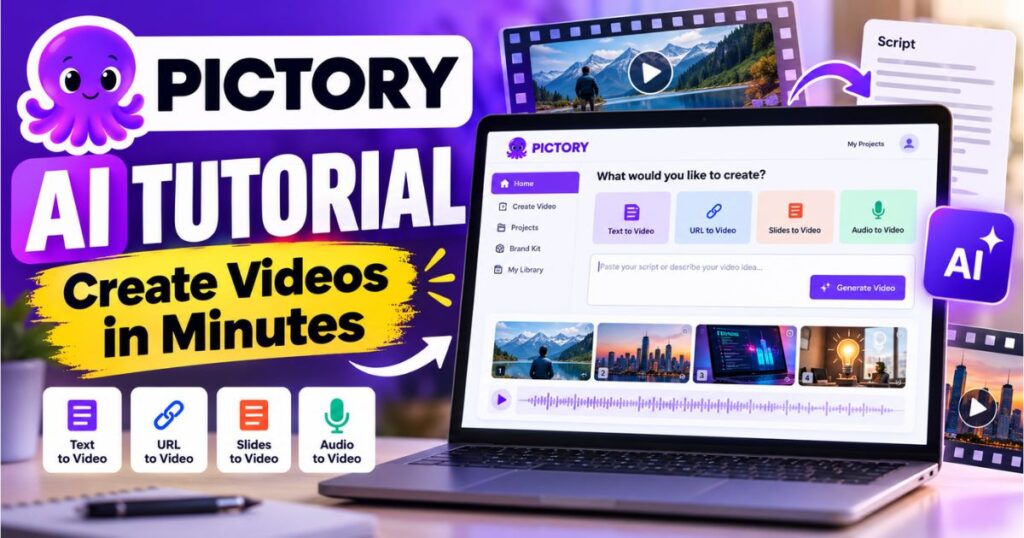
Pictory AI Tutorial: Create Videos in Minutes
Want to create professional-looking videos without spending hours editing footage? This Pictory AI Tutorial will show you how to turn ideas, scripts, blog posts, and other content into videos with AI. Whether you are a beginner, a marketer, or a creator building a faceless YouTube channel, you can use Pictory to simplify your video production workflow.
Throughout this Pictory AI Tutorial, the focus is on practical steps you can apply to a real video project.
You do not need to be an experienced video editor to get started. Pictory can help you prepare a script, organize scenes, select visuals, add narration, and produce a video you can refine before publishing. However, the quality of the final result still depends on your content, visual choices, and editing decisions.
In this step-by-step Pictory AI Tutorial, you will learn how to create your first video, choose the right creation workflow, customize scenes, improve voiceovers, and prepare your final video for YouTube and social media.
Ready to start creating? Try Pictory AI and follow the practical steps below to turn your first idea into a video.
What Is Pictory AI?
Pictory is an AI-powered video creation platform designed to help users transform written and recorded content into videos. Instead of building every scene manually from scratch, you can start with existing material and use AI to create an initial version that you can review and refine.
Depending on the workflow available in your account, you may be able to start with an idea, an approved script, a web page, documents, a PowerPoint presentation, or an audio recording.
Pictory also provides editing controls for working with scenes, visuals, audio, text, and branding. Its AI Studio tools can help you create custom visuals when the available footage does not fit your needs.
For creators, this can be particularly useful when producing educational videos, product explainers, list videos, tutorials, and faceless YouTube content.
A useful way to think about Pictory is as a production assistant rather than a replacement for every creative decision. It can handle much of the initial assembly, while you remain responsible for accuracy, pacing, storytelling, and the final viewing experience.
What Can You Create with Pictory?
| Video type | How Pictory can help |
|---|---|
| Faceless YouTube videos | Combine narration, captions, and relevant visuals without appearing on camera. |
| Tutorials | Explain a process using clear scenes and step-by-step narration. |
| Blog-to-video content | Repurpose an existing article into a visual summary. |
| Marketing videos | Present product benefits, offers, and brand messages. |
| Educational explainers | Organize information into understandable scenes. |
| Social media videos | Adapt suitable content to different aspect ratios and platforms. |
The best workflow depends on the content you already have and the type of video you want to produce.
Use this Pictory AI Tutorial as a checklist for choosing the workflow that fits your starting material.
Pictory AI Tutorial: What You Need Before Starting
Before opening Pictory, prepare a few basic things. Doing so will reduce unnecessary editing later and help the AI generate a more useful first draft.
This Pictory AI Tutorial works best when you start with a clear topic and a realistic goal for the finished video.
First, define your goal. Decide whether you want a short social media clip, a YouTube explainer, a product demonstration, or an educational video. Your goal affects the length, visual style, narration, and aspect ratio.
Second, prepare your source material. If you have a finished script, review it for accuracy before importing it. If you only have an idea, write a brief description of the topic, audience, and intended outcome.
Third, choose your audience. A video for beginners should explain concepts clearly, while a video for experienced viewers can move more quickly through familiar information.
Fourth, consider the format. Standard YouTube videos generally use a horizontal 16:9 layout. Vertical videos are more suitable for platforms such as TikTok, Instagram Reels, and YouTube Shorts.
Finally, prepare your branding if needed. A logo, consistent colors, and readable fonts can help make videos look more professional, particularly when you publish regularly.
You do not need to have everything ready to explore the platform. However, the more clearly you define the project, the less time you are likely to spend correcting an unsuitable first draft.
Start your first project with Pictory AI and use a simple topic that you can evaluate easily. A short tutorial or explainer is a practical first test.
Pictory AI Tutorial: Understand the Available Interface
Pictory has introduced Pictory 3, which uses an AI video agent to guide users from an initial brief to a script, scenes, and a preview. The platform also retains editing workflows for existing projects.
Your interface may therefore differ from older screenshots or tutorials. New users may see the newer guided workflow, while an older project may open in a more traditional editor. The exact options available can depend on the project and account experience.
The important point is to understand the underlying process: provide the source material, configure the project, review the generated story and scenes, refine the result, and generate the finished video.
This part of the Pictory AI Tutorial helps you recognize the same core process even when the interface looks different.
If your account displays the newer Pictory 3 experience, follow the guided workflow in the next section. If you are working in the classic Text to Video editor, use the alternative workflow below.
Pictory AI Tutorial: Create a Video from an Idea
Pictory’s guided workflow is useful when you know what you want to communicate but do not yet have a finished script.
In this Pictory AI Tutorial, starting with an idea is a practical option when you need help shaping the first draft.
Step 1: Describe the Video You Want
Open Pictory and locate the video agent input. Describe your topic, intended audience, purpose, and approximate length.
Avoid entering a vague request such as “make a video about marketing.” Instead, provide enough detail for the system to understand the direction.
For example, you could use this brief:
Create a beginner-friendly YouTube video explaining five practical ways to use AI for content creation. The audience consists of new creators who want to save time. Use a clear, conversational tone and a logical sequence, with examples and a short conclusion.
This brief gives the AI a topic, audience, structure, and tone to work from. You can adjust it to fit your niche.
A useful Pictory AI Tutorial prompt gives the tool enough context to produce a draft that is easier to review.
Step 2: Add Your Source Material
Depending on the workflow, you can start with your idea alone or provide supporting material. Pictory 3 supports sources such as scripts, web pages, documents, PowerPoint presentations, and audio recordings.
Adding a source can help when you want to preserve specific facts, key points, or an established message.
If you are converting an article, make sure it contains the information you actually want to include in the video. A long article may contain explanations that do not belong in a short video, so decide whether you need a summary, a tutorial, or a more comprehensive presentation.
Do not assume that an imported source will automatically produce a perfect script. Always check the generated content against the original material.
Step 3: Answer the Setup Questions
Pictory guides you through questions that configure the video. The available choices can include narration, visual sources, aspect ratio, layout, and branding.
Choose settings that match the intended platform. For a standard YouTube tutorial, a horizontal format and clear narration are sensible starting points. For a vertical short, prioritize large text, close visual framing, and a pace appropriate for mobile viewing.
If you are unsure about a setting and the interface offers an automatic choice, you can use it for the initial draft and adjust the result afterward.
Step 4: Review the Setup Summary and Create the Script
Before generating the story, check that the project is configured correctly. Confirm the topic, audience, output format, and any brand requirements.
Then create the script using the option provided by your interface.
Read the result before moving forward. Correct inaccurate statements, remove repetitive explanations, and make sure the opening communicates the video’s purpose quickly.
This review stage is one of the most important parts of the Pictory AI Tutorial because the first script may need editing.
For educational or commercial videos, factual accuracy is particularly important. Do not allow a generated script to introduce unsupported product claims, invented statistics, or outdated instructions.
Step 5: Review the Scenes and Preview
Pictory prepares scenes and a preview based on the script and selected settings. Examine the sequence from the opening through the conclusion.
Check whether the visuals match the narration, whether the scenes follow a logical order, and whether the video spends too much time on minor details.
You can refine the story through the controls offered in your workflow, including chat-based changes where available or direct editing in the editor.
Make focused changes rather than asking for everything to be rewritten at once. For example, request a clearer introduction, a shorter middle section, or more relevant visuals for a specific scene.
Step 6: Generate and Download the Final Video
Once you are satisfied with the script, scenes, narration, and overall pacing, select the final video generation option.
Review the finished video before publishing. A generated preview is not a guarantee that every transition, pronunciation, caption, or visual is correct.
When the output is ready, download it using the available export controls. The format and export options may depend on your account and current product settings.
Ready to turn an idea into a finished video? Explore Pictory AI and try the guided workflow with a topic you know well.
Pictory AI Tutorial: Turn a Script into a Video
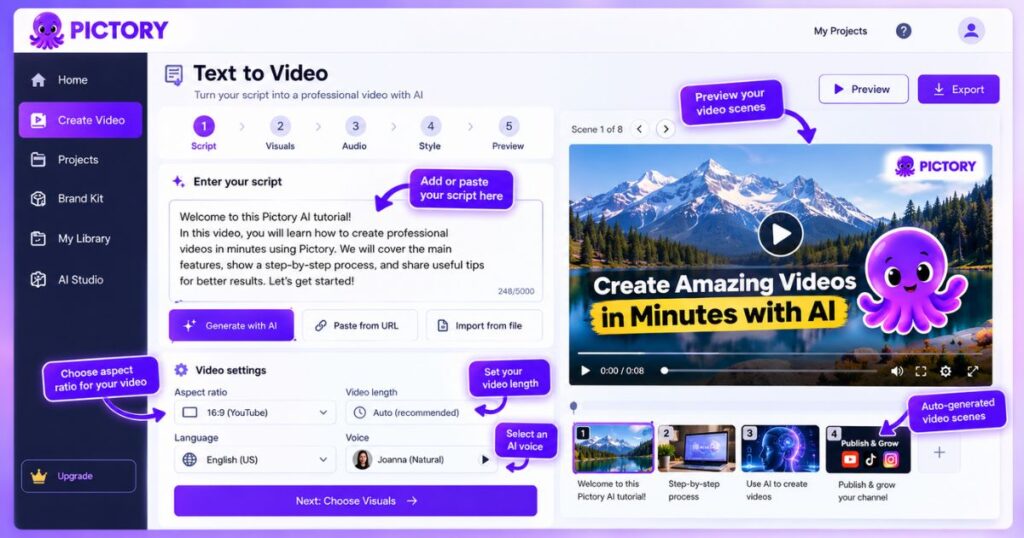
If you already have a finished script, the classic Text to Video workflow can be a straightforward route from text to an editable video.
Step 1: Open the Text to Video Workflow
In the traditional editor, begin with the Text to Video option and select the script-based workflow if it is available in your account.
You should see a place to enter or paste your script. The wording and placement of the controls may vary between versions, so use the options displayed in your account rather than relying entirely on an older screenshot.
Step 2: Enter and Organize Your Script
Paste the content you want to convert. For better pacing, organize the script into logical sections, with each paragraph communicating one main idea.
A long, unstructured block of text can produce scenes that are difficult to review. Short paragraphs and clear transitions make it easier to match visuals with the narration.
If you are producing a tutorial, organize the script into an introduction, numbered steps, useful tips, and a conclusion.
Step 3: Generate the Initial Scenes
Pictory analyzes your script and can divide it into scenes, match visuals to the content, and prepare narration and captions depending on the chosen settings.
Treat the initial output as a draft. Automatic visual matching is helpful, but it may select generic footage or imagery that does not accurately represent the sentence being narrated.
Review each scene and replace unsuitable visuals before generating the final video.
The Pictory AI Tutorial workflow is more effective when every selected visual supports the sentence being narrated.
Step 4: Edit the Storyboard
Use the editor to refine scene content, visuals, text, and audio. Remove unnecessary scenes, improve the order of ideas, and check that the transitions between sections make sense.
A short, focused video with accurate visuals is often more effective than a longer video filled with unrelated stock footage.
Try Pictory AI to test the script-to-video workflow if you already publish blog posts, tutorials, or other written content.
Pictory AI Tutorial: Choose the Right Visuals
Visual selection can make the difference between a video that feels polished and one that looks like a slideshow assembled automatically.
Pictory can select visual material based on your script, while the editor and AI Studio provide ways to replace or create visuals when available.
Use Relevant Stock Footage
Choose clips that illustrate the point being discussed. If the narration explains a video editing process, use visuals related to video creation rather than unrelated scenery.
Stock footage works particularly well for broad subjects, such as business, productivity, education, and lifestyle topics. However, repeatedly using similar generic clips can make a video feel repetitive.
For this Pictory AI Tutorial, treat automatic visual selection as a starting point rather than a final creative decision.
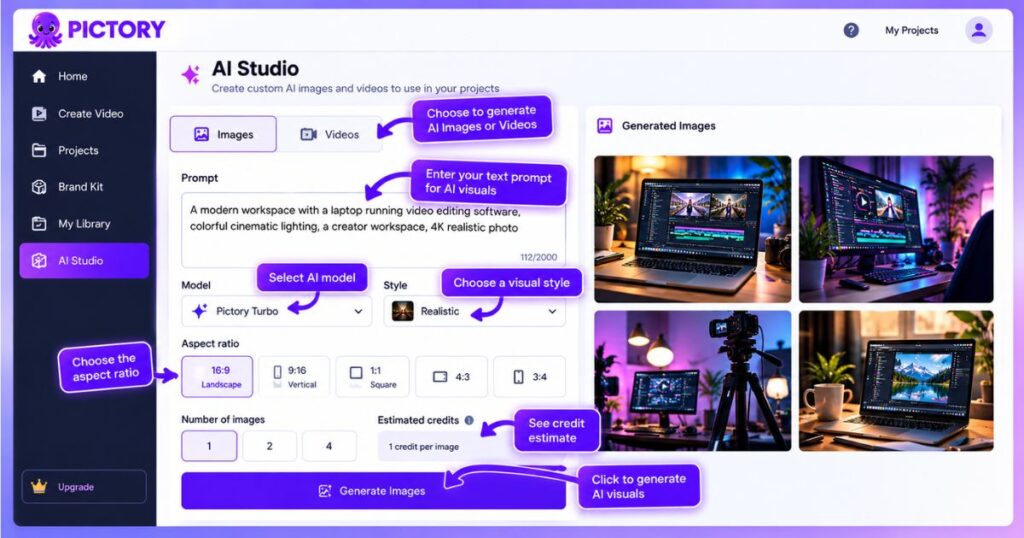
Create Custom Visuals with AI Studio
AI Studio can help when you need a visual that is not readily available in the existing media library. Depending on the available tools, you may be able to generate images or video clips from prompts and configure the visual style or aspect ratio.
When writing a prompt, describe the subject, setting, composition, lighting, and visual mood. Be specific about what the viewer should see.
For instance, instead of writing “AI technology,” describe a clean desktop workspace with a laptop displaying a video editing timeline, realistic lighting, and a modern creative studio.
Review any generated output carefully. AI-generated visuals can contain unrealistic details, inconsistent objects, or imagery that does not match the narration.
Pictory AI Tutorial: Add Voiceovers, Captions, and Branding
A video can contain relevant visuals and still feel unfinished if its narration is difficult to follow or its text is hard to read. Spend time refining these elements before exporting.
Choose a Suitable Voiceover
Select a voice that matches your content and audience. An educational video usually benefits from clear, natural-sounding narration rather than an overly dramatic delivery.
Listen to the voiceover with the visuals. Check pronunciation, pacing, pauses, and whether the audio sounds appropriate for the topic.
If your project allows you to upload your own narration, you can use a recorded voice instead. This can help establish a recognizable identity for your channel.
Improve Captions and On-Screen Text
Captions make video content easier to follow, particularly when viewers watch without sound. They should be readable on mobile screens and should not obscure important visual details.
Avoid placing too much text on a single scene. Highlight key phrases rather than reproducing every paragraph as an oversized block of text.
Always check captions against the narration because automatic transcription can make mistakes with product names, technical terminology, and unfamiliar words.
Apply Consistent Branding
If you regularly publish videos, use consistent fonts, colors, logo placement, and visual styles where appropriate.
A Brand Kit can help maintain a recognizable appearance across your content. Keep the branding restrained enough that it supports the message rather than distracting from it.
Another useful lesson from this Pictory AI Tutorial is to keep branding consistent without letting it overpower the story.
Explore Pictory AI if you want to build a repeatable video creation process with reusable branding and editing workflows.
Pictory AI Tutorial: Best Settings for Different Video Types
There is no single configuration that works for every platform. Your choice should reflect the viewing experience you want to create.
| Video purpose | Suggested format | Main priority |
|---|---|---|
| YouTube tutorials | Horizontal 16:9 | Readable demonstrations and clear narration |
| YouTube Shorts | Vertical 9:16 | Strong opening, large captions, and concise scenes |
| Instagram Reels | Vertical 9:16 | Mobile-friendly visuals and quick pacing |
| LinkedIn explainers | Usually 1:1 or 16:9 | Clear messaging and professional presentation |
| Training videos | Often 16:9 | Structured explanations and consistent branding |
These are general recommendations, not guarantees about every platform’s current requirements. Check the publishing platform’s specifications before exporting.
How Long Should Your Video Be?
Choose a length that suits the subject rather than stretching a short idea to fill a predetermined duration.
A simple tip may work well as a short video, while a software tutorial may need more time to demonstrate each step. Remove repeated explanations and unnecessary pauses before extending the runtime.
For YouTube videos, a strong introduction should tell viewers what they will learn and why the information matters. The middle should deliver the promised content, and the conclusion should provide a useful next step.
Pictory AI Tutorial for Faceless YouTube Channels
Pictory can be useful for faceless YouTube creators because it helps combine scripts, visuals, narration, captions, and branding without requiring the creator to appear on camera.
However, automation alone does not guarantee audience growth. A successful channel still needs useful topics, accurate information, good storytelling, and consistent publishing.
Consider this example workflow for a faceless educational video:
- Choose a focused topic that answers a real audience question.
- Write a script with an engaging opening and a clear sequence of points.
- Use Pictory to prepare the initial scenes and narration.
- Replace generic or irrelevant visuals with material that directly supports the explanation.
- Review captions, pronunciations, pacing, and transitions.
- Add a concise conclusion and a suitable call to action.
- Watch the entire exported video before uploading it.
You should also make sure you have appropriate rights to use your source material and any imported assets. Check the relevant licensing terms rather than assuming that everything found online is available for unrestricted commercial use.
For more ideas about building this kind of workflow, read our guide to the best AI tools for faceless YouTube channels.
Want to simplify your next faceless video? Try Pictory AI and test the workflow using a short, original script before committing to a larger project.
How to Get Better Results from Pictory
The most useful improvement is usually not adding more effects. It is making the video clearer and more relevant to the viewer.
Write for the ear, not just the page. Sentences that look good in a long article may sound awkward when narrated. Use natural phrasing, explain technical terms, and remove unnecessary wording.
Check every visual. Automatic selection saves time, but it cannot always interpret the exact meaning you intend. Watch for footage that contradicts the narration or shows an unrelated subject.
Keep each scene focused. A scene should communicate one central idea. If it contains multiple unrelated points, divide the content or shorten the text.
Review the sound. Voiceovers and background music should work together. Music must not overpower narration, and abrupt changes in volume can make the video feel unprofessional.
Watch the full export. Do not rely exclusively on individual scene previews. A complete viewing can reveal awkward transitions, missing context, inconsistent audio, or a weak ending.
Save your original material. Keep a copy of your script and source files so you can update a video later without rebuilding the entire project.
The goal of this Pictory AI Tutorial is not simply to show that you can generate a video quickly. It is to help you create an output that is accurate, visually coherent, and suitable for the audience you want to reach.
This Pictory AI Tutorial also emphasizes quality checks because speed alone does not make a video effective.
Pictory Pricing: Is It Worth Paying For?
Pictory offers different subscription options, and the value of each plan depends on your production needs, available features, and generation allowances. Pricing and credit allocations can change, so confirm the latest terms on the official Pictory pricing page before subscribing.
Do not compare plans by price alone. Consider how many videos you expect to produce, how often you will regenerate visuals, which editing features you need, and whether your preferred workflow is included.
If you are still learning, use the available trial or entry-level access to test the workflow first. If you already produce videos regularly, estimate your likely credit consumption before choosing a higher plan.

For a more detailed comparison of subscription costs and allowances, read our Pictory Pricing Guide.
Ready to compare the current plans? View Pictory’s available options and choose according to your actual video production needs rather than paying for features you may not use.
Common Pictory Problems and How to Fix Them
Even a straightforward video workflow can require a few adjustments. The following table covers common issues to check during editing.
| Problem | What to do |
|---|---|
| The selected visuals do not match the script | Replace the incorrect scenes with more relevant stock footage, uploaded assets, or suitable AI visuals. |
| The narration sounds unnatural | Review punctuation, sentence length, voice selection, and pronunciation. |
| Captions are difficult to read | Shorten on-screen text, improve contrast, and check the layout on a mobile screen. |
| The video feels too long | Remove repeated explanations and unnecessary scenes. |
| A generated visual looks unrealistic | Try a more specific prompt or select a different visual source. |
| The interface does not match a tutorial | Check whether your account uses Pictory 3 or a classic project editor, and follow the controls available in that workflow. |
| The video does not meet your expectations | Review the script first, then refine the scene selection and audio before generating another version. |
If generation fails or a tool is unavailable, check the platform’s help resources and the options shown in your account. Features, credit costs, and interface labels may differ between plans or product versions.
Frequently Asked Questions
Is Pictory AI easy for beginners?
Pictory is designed to simplify video creation through AI-assisted scripts, scenes, narration, visuals, and editing tools. Beginners can start with a short project and learn the workflow gradually. Reviewing the generated output remains important.
Can Pictory create videos from text?
Yes. Pictory supports workflows that turn scripts and other written content into videos. Depending on your account experience, you may use a guided AI video agent or a more traditional script-to-video editor.
Can I use Pictory for faceless YouTube videos?
Yes. It can help combine narration, visuals, captions, and other elements without requiring you to appear on camera. You still need to ensure that your content is original, useful, accurate, and appropriate for your audience.
Do I need video editing experience?
You do not need to be an experienced editor to begin. Pictory automates parts of the workflow, but learning to improve scene selection, pacing, captions, and audio will help you achieve better results.
Does Pictory offer free access?
Pictory’s available trial or free access terms can change. Check the current options on the official pricing page and confirm what is included before starting a project.
Is Pictory worth paying for?
It depends on how often you create videos and how much time the platform saves you. Test it with a representative project, estimate your production needs, and compare those needs with the available plans. Our detailed Pictory Review examines the platform’s features, benefits, and limitations in greater detail.
Use this Pictory AI Tutorial alongside the review and pricing guide to decide whether the workflow fits your budget and publishing goals.
Final Verdict: Is Pictory Worth Learning?
This Pictory AI Tutorial has covered the main steps involved in creating videos from ideas and scripts, choosing appropriate visuals, improving narration, and preparing content for YouTube and social media.
Pictory can simplify the production process, especially when you want to repurpose existing content or build a repeatable workflow for faceless videos. Its AI-assisted tools provide a useful starting point, but the strongest results still require thoughtful scripts, relevant visuals, and a final quality review.
Start with one simple project, compare the generated output with your original goal, and improve the workflow before moving to more ambitious productions.
Ready to create your first video? Try Pictory AI here and see whether its workflow fits your content goals.
Continue Learning
Keep improving your video creation workflow with these related guides from Videmint:
- Pictory Review: Is It Worth It? Features & Pricing — Explore Pictory’s features, advantages, limitations, and overall value.
- Pictory Pricing Guide — Compare the available plans, allowances, and subscription costs.
- Best AI Tools for Faceless YouTube Channels — Discover tools for building a video creation workflow without appearing on camera.
- InVideo AI Review — Explore another AI video creation platform and compare its approach with Pictory.
- Pictory Free Plan: 14-Day Trial & Watermark Limits — Discover the free trial’s features, credit limits, and watermark restrictions before subscribing.
- Pictory vs InVideo AI: Best for Faceless YouTube? — Compare features, pricing, and workflows to find the best AI video tool for your channel.
- Pictory Alternatives: 7 Best Tools in 2026 (Free & Paid) — Compare seven AI video tools, including InVideo AI, Kling AI, HeyGen, and Synthesia, to find the best free or paid alternative for your video creation needs.
Use these resources to compare tools, refine your process, and choose the workflow that best supports your video production goals.
Affiliate disclosure: Some links in this article are affiliate links. Videmint may earn a commission if you subscribe through them, at no additional cost to you.