
Pictory Review: Is It Worth It? Features & Pricing
If you want to turn scripts, blog posts, or written ideas into videos without spending hours editing footage, Pictory may be worth considering. But can it actually produce videos that are good enough for YouTube, social media, and faceless channels?
In this Pictory Review, we examine its main features, pricing plans, editing workflow, advantages, and limitations. We also tested its text-to-video workflow to see how it transformed a short script into a finished video draft.
Our test revealed an important distinction: Pictory can organize a script into scenes quickly, but automatic generation does not guarantee a visually consistent story. Understanding that difference can help you decide whether the platform fits your content strategy.
Whether you are a beginner, blogger, marketer, or faceless YouTube creator, this Pictory Review will help you evaluate the platform before committing to a subscription.
Ready to test Pictory yourself? Try Pictory here and explore its video creation workflow.
Pictory Review: At a Glance
This Pictory Review also considers how practical the workflow is for creators with different production goals.
| Category | Our assessment |
|---|---|
| Best for | Script-to-video creation and content repurposing |
| Main workflows | Text-to-video, idea-to-video, URL-to-video, and PowerPoint-to-video |
| Visual options | Stock media and supported AI-generated visuals |
| Narration | AI voices, AI avatars, or no narration |
| Editing | Scene-based editor, timeline, text, audio, visuals, and branding |
| Faceless YouTube | Useful for narration-led videos and explainers |
| Main limitation | Automatically selected visuals may not tell a consistent story |
| Pricing | Starter, Professional, Team, and Enterprise |
| Best next step | Test a short project before choosing a plan |
The key takeaway from this Pictory Review is that the platform focuses on helping creators turn existing content into videos. It is not necessarily the best fit for every type of animation or cinematic production.
What Is Pictory AI?
In this Pictory Review, the focus is on what the platform can help you accomplish, rather than on its feature list alone.
Pictory is an AI-powered video creation platform designed to help users transform written content and other supported inputs into videos.
Instead of manually building every scene from scratch, you can start with a script, configure your video preferences, and let the platform assemble an initial version. You can then review the scenes, adjust visuals, edit text, modify narration, and refine the result.
Common use cases include:
- Turning blog articles into narrated videos.
- Creating videos from scripts.
- Producing educational explainers and tutorials.
- Repurposing presentations into video content.
- Creating promotional videos for businesses.
- Making faceless YouTube videos.
- Generating visual assets through supported AI tools.
One of the main reasons to consider Pictory is content repurposing. If you already publish articles, tutorials, or educational material, you may be able to reuse that work to create videos for another platform.
For example, a blogger could adapt an article into a shorter script, generate scenes, add narration, and publish a video that complements the original post.
However, the result still needs human review. A video that contains relevant-looking footage is not automatically engaging, accurate, or ready to publish.
Want to see how it works? Explore Pictory and try its available creation options.
Pictory Review: Our Hands-On Test
To make this Pictory Review more useful than a simple feature list, we tested the text-to-video workflow using a fictional story about a cat named Bella who wants to make the world’s biggest pizza.
Our goal was to see how the interface handled the script, scene structure, visual selection, narration, themes, and final editing workspace.
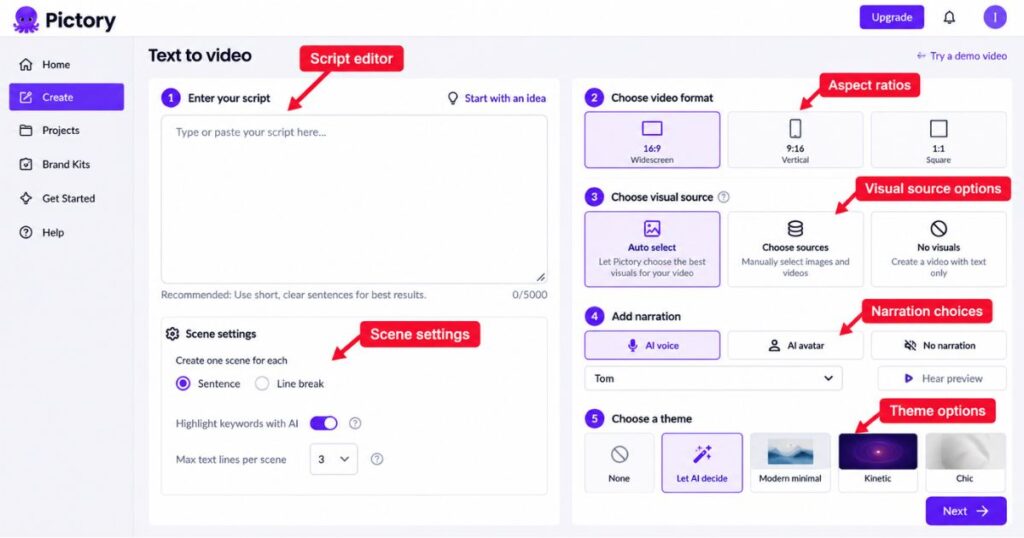
Step 1: Enter a script or start with an idea
For this Pictory Review, we paid attention to how much control the user has before generation begins.
The initial screen provides a script editor where you can paste your own text. It also offers a “Start with an idea” option for users who need help developing a concept.
The interface recommends using short, clear sentences. It also provides scene settings that control how the script is divided into the video.
During our test, we observed options for:
- Creating one scene per sentence.
- Creating one scene per line break.
- Highlighting keywords with AI.
- Setting the maximum number of text lines per scene.
These controls matter because scene structure affects pacing and readability. Long sentences may create crowded scenes, while very short sentences can result in too many cuts.
Step 2: Choose the video format
The interface offered three aspect ratios:
| Aspect ratio | Suitable use |
|---|---|
| 16:9 | Standard YouTube videos and widescreen presentations |
| 9:16 | YouTube Shorts, TikTok, and vertical videos |
| 1:1 | Square social media content |
Choose the format based on where you intend to publish. A vertical video may need a different visual composition from a widescreen tutorial.
Step 3: Configure visuals and narration
The next screen displayed three visual-source options: Auto select, Choose sources, and No visuals.
The interface explained that stock and AI Studio visuals could be used to illustrate the video. This means the final project may combine different kinds of media rather than generating every scene from scratch.
We also observed three narration options: AI voice, AI avatar, and No narration. The selected AI voice in our test was labeled Tom.
The theme selector included options such as None, Let AI decide, Modern minimal, Kinetic, and Chic. We selected Let AI decide to see how the platform would handle the initial design.
Step 4: Generate and inspect the video
This part of the Pictory Review highlights why checking the finished draft matters as much as starting generation.
After we started generation, the platform displayed a progress screen labeled “Crafting your scenes.”
The completed editor showed a storyboard with individual scenes, a video preview, and a timeline. Its navigation included Story, Visuals, Avatars, Audio, Text, Elements, Styles, and Branding.
Our generated video was approximately 41 seconds long. The opening scene showed a realistic cat image, and the script had been divided into separate scenes.
However, the result did not match our original expectation of a consistent cartoon-style story. The visible thumbnails did not clearly establish the continuous animated narrative we had imagined.
This does not prove that Pictory cannot produce better results with different settings. We did not test every visual source, AI Studio model, or theme.
It does show that automatically turning a script into scenes is not the same as generating a coherent animated story.
For narration-led explainers, list videos, and educational content, that trade-off may be acceptable. For recurring characters or cinematic storytelling, you may need more control over the visuals and additional editing.
Our recommendation: Try Pictory with a short script before committing to a longer project. Evaluate the generated visuals as carefully as the generation speed.
Pictory Features: What Can You Create?
This Pictory Review covers the major workflows that may help creators produce videos from different types of content. Feature availability and usage limits can depend on the current plan and interface.
1. Text-to-video
Text-to-video is the workflow we tested. You provide a script, configure scene settings, select visual and narration preferences, and let Pictory assemble a draft.
It can be useful for:
- Tutorials and educational explainers.
- Product overviews.
- Narrated list videos.
- Business presentations.
- Faceless YouTube content.
The important step is reviewing the relationship between the narration and each visual. A stock clip may look attractive without communicating the specific point in your script.
Want to see how Pictory works in practice? Follow our Pictory AI Tutorial: Create Videos in Minutes for a step-by-step guide to creating videos, editing scenes, choosing visuals, and adding voiceovers.
2. Idea-to-video
The platform also offers a way to begin with an idea instead of a finished script. This can help beginners who know their topic but have not yet prepared the narration.
For better results, provide a clear topic, target audience, video objective, and desired tone. Then review the generated script for factual accuracy, unnecessary wording, and a compelling opening.
3. URL-to-video
Pictory provides a workflow for creating videos from URLs. This can help publishers repurpose existing articles rather than starting every project from scratch.
For example, a website article explaining AI video tools could be adapted into a narrated video with supporting visuals and captions.
However, an article should not simply be read aloud without adaptation. Video scripts need a strong hook, concise explanations, logical pacing, and a conclusion that suits viewers watching on a screen.
If your goal is to create a faceless channel, see our guide to the best AI tools for faceless YouTube channels.
4. PowerPoint-to-video
Pictory’s supplied marketing materials show a PowerPoint-to-video workflow. This may be useful for educators, trainers, consultants, and businesses that already have presentation slides.
Turning slides into narrated videos can help repurpose training material, lectures, and business presentations. You should still review the pacing and visual transitions so the result does not feel like a static slideshow.
5. AI Studio: Generate images and video clips
A key question in this Pictory Review is whether custom visuals can address gaps left by automatic scene selection.
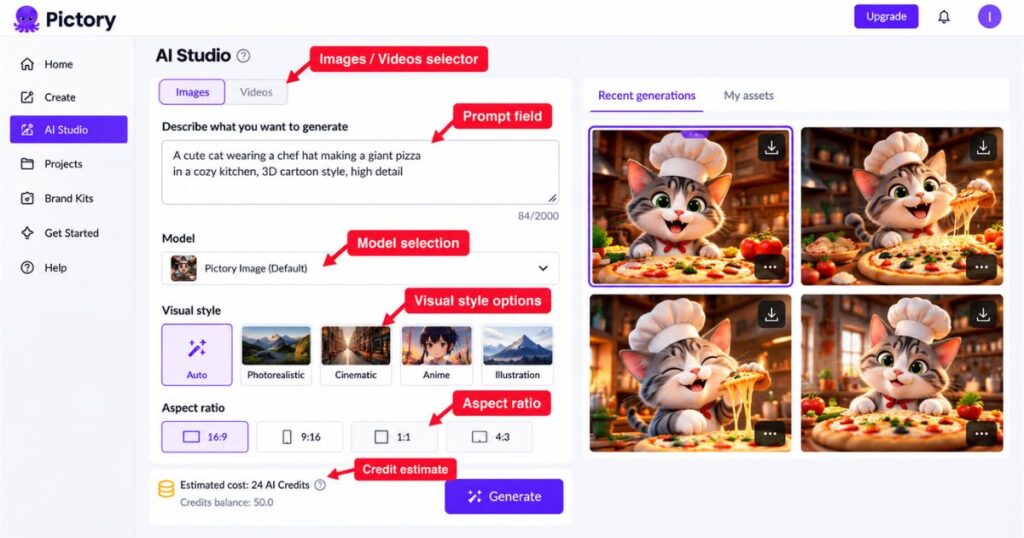
Pictory’s AI Studio provides tools for generating AI images and video clips. Its interface includes a prompt field, image or video selection, model options, visual styles, and aspect-ratio controls.
The available models and settings may differ. Some models offer different clip durations, reference-image support, or audio capabilities. Credit costs can also vary depending on the model and generation settings.
AI Studio may be useful when stock footage does not match the scene you need. For instance, you could generate a specific background or custom visual for an educational video.
Still, generated visuals require review. Images may contain inaccuracies, and separate clips may not preserve the same character appearance or setting.
6. AI voices and avatars
The interface we tested offered AI voice, AI avatar, and no-narration options. The supplied Pictory materials also showed avatar selections and voiceover settings.
AI narration can be useful for faceless creators who do not want to record their own voice. AI avatars may suit presenter-style videos, explainers, and certain business presentations.
However, the right option depends on your audience and content style. Do not assume every voice, avatar, language, or usage allowance is included in every subscription. Verify the current plan details before purchasing.
7. Editing, captions, and branding
The editor we observed included tools for visuals, audio, text, elements, styles, and branding. Pictory’s marketing materials also describe workflows involving captions, templates, voiceovers, and branded content.
These controls allow you to refine the first draft rather than accepting the automatically generated version unchanged.
For a professional result, check subtitle accuracy, text readability, audio levels, transitions, scene relevance, and the overall pacing.
Ready to explore these features? Visit Pictory and check which creation and editing options are available to you.
Pictory Pricing: How Much Does It Cost?
This Pictory Review treats the displayed plan prices as a reference point, since pricing and allowances may change.
Pricing is an important part of this Pictory Review because the value of a subscription depends on its allowances, features, and your intended workload.
The annual pricing screenshot supplied for this review showed the following prices:
| Plan | Monthly equivalent with annual billing | Intended audience |
|---|---|---|
| Starter | $25/month | Creators starting with video production |
| Professional | $35/month | Creators seeking professional-quality results |
| Team | $119/month | Teams working together on video projects |
| Enterprise | Custom pricing | Organizations with specific requirements |
These prices reflect the captured pricing page, not a guarantee of today’s price. Check the official Pictory website before subscribing.

Which Pictory plan should you choose?
Starter may suit individuals who want to begin creating videos and do not require a large production workflow.
Professional may be more appropriate for individual creators who produce videos regularly and need additional features or capacity.
Team is designed for collaborative work and may be worth considering when several people are involved in production.
Enterprise is intended for organizations that need customized arrangements. Contact Pictory for details relevant to your requirements.
The screenshots supplied for this review also displayed annual video-minute allowances of 2,400 for Starter, 7,200 for Professional, and 21,600 for Team. Verify these limits against the current pricing page because plan allowances can change.
Does Pictory offer a free trial?
Pictory’s help center has documented a free trial that allows users to explore premium features for a limited period. The current duration, download restrictions, watermark rules, and included allowances should be checked during signup.
A trial is useful because it lets you evaluate the actual workflow before committing to a paid subscription.
Want to understand exactly what you can do before paying? Read our Pictory Free Plan: 14-Day Trial & Watermark Limits for a detailed breakdown of the trial period, AI credits, video restrictions, and watermark limitations.
Understand video minutes versus AI Credits
Video-minute allowances and AI Credits are not interchangeable.
Video minutes relate to video usage limits, while AI Credits are used for eligible generative features such as AI image generation, AI video generation, and avatars. Credit consumption can depend on the feature, selected model, and other settings.
During our test, the interface displayed an estimated cost of 24 AI Credits and a balance of 50.0 before generation. This was the estimate we observed in our account, not a universal price for every video.
Before choosing a plan, consider:
- How many finished video minutes you expect to produce.
- Whether you will mainly use stock footage or generate AI visuals.
- Whether you need avatars or premium voice options.
- How frequently you will regenerate scenes.
- Whether annual billing makes sense for your workload.
Compare the current options before paying: Explore Pictory and confirm the latest allowances and credit costs.
Pictory Pros and Cons
A balanced Pictory Review should explain the limitations as clearly as the advantages.
| Pros | Cons |
|---|---|
| Converts scripts into a structured video draft | Automatic visuals may not match every scene |
| Supports multiple aspect ratios | Different formats may require layout adjustments |
| Offers AI voice and avatar options | Availability can depend on plan limits |
| Combines stock and AI visual workflows | AI-generated visuals require review |
| Includes editing tools in one workspace | Polished results still need human input |
| Can repurpose written content | Videos may feel generic without customization |
| Offers multiple creation workflows | Credit and video-minute limits need monitoring |
The main limitation we observed was the gap between generating scenes quickly and creating a visually consistent narrative.
If your priority is narrated educational content, that may be a reasonable trade-off. If you want tightly controlled animation or cinematic storytelling, test the visual-generation options before deciding.
Try it with a real project: Start with Pictory and compare the result with your quality requirements.
Is Pictory Good for Faceless YouTube?
For this Pictory Review, the most relevant use case is producing useful videos without appearing on camera.
Pictory can be useful for faceless YouTube creators who want to make narration-led videos without appearing on camera.
Potential use cases include:
- Educational explainers.
- Tutorials and how-to videos.
- List-based content.
- Software and business explainers.
- Narrated commentary.
- Training and presentation videos.
- Repurposing blog articles.
For example, you could adapt a written guide into a video script, generate scenes, add narration, and publish a video that complements your original article.
However, Pictory does not automatically solve the difficult parts of YouTube production. You still need a compelling topic, accurate research, a strong hook, relevant visuals, good pacing, and a reason for viewers to keep watching.
For original animation or recurring characters, inspect the generated output carefully before committing to this workflow.
If you are still comparing tools, read our guide to the best AI tools for faceless YouTube channels.
Want to test it for your channel? Try Pictory with one of your actual scripts rather than a generic sample.
Pictory Alternatives: InVideo AI and Kling AI
This Pictory Review compares alternatives by workflow and intended output, not by assuming one tool is best for everyone.
Pictory is not the only option for AI-assisted video production. The right alternative depends on whether you want an integrated production workflow, AI-generated footage, presenter-style videos, or more control over individual scenes.
Looking for more options beyond Pictory? Explore our detailed guide to the 7 best Pictory Alternatives in 2026, including free and paid AI video tools such as InVideo AI, Kling AI, HeyGen, Synthesia, Fliki, Lumen5, and VEED. Compare their features and use cases to find the right tool for your video creation needs.
1. InVideo AI
InVideo AI is worth comparing if you want an AI-assisted workflow that brings multiple parts of video creation together. It can help creators develop videos from ideas and scripts using AI generation, visuals, voice options, and editing tools.
The main difference is the workflow you want. Pictory is particularly relevant to script-based content and repurposing, while InVideo AI is worth exploring if you want a broader, prompt-driven video production process.
Want a closer look at how these platforms compare? Read our detailed Pictory vs InVideo AI comparison to compare their features, pricing, editing workflows, and suitability for faceless YouTube channels.
Read our detailed InVideo AI Review for its features, workflow, pricing, and limitations.
Want to try InVideo AI? Start creating with InVideo AI and compare the output using the same script you tested in Pictory.
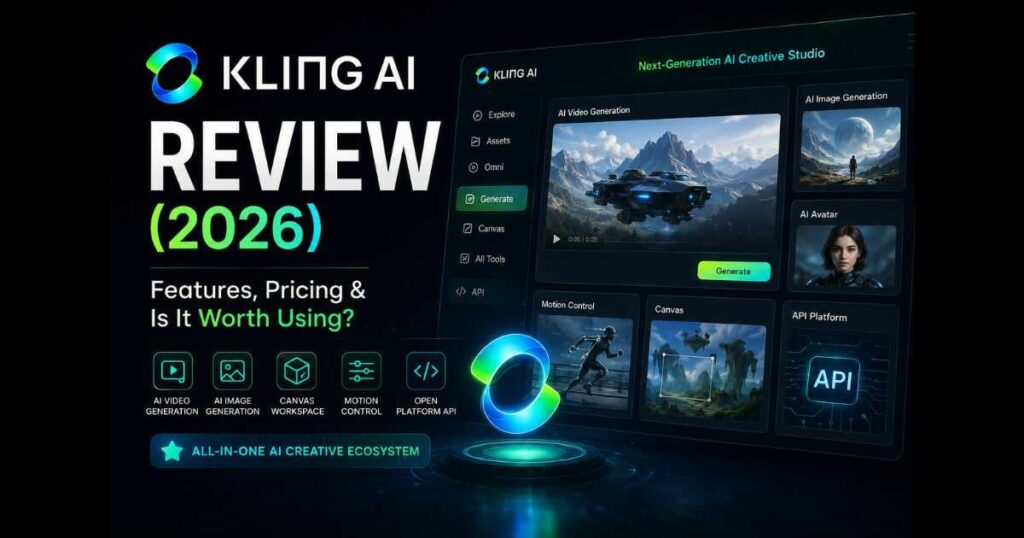
2. Kling AI
Kling AI is another alternative, particularly when your priority is generating AI video clips rather than mainly assembling a narrated video from existing content.
It offers AI video-generation workflows and other creative tools, but its approach differs from Pictory’s script-to-video process. If you need specific visual scenes, cinematic clips, or generative video capabilities, Kling AI is worth evaluating.
Read our full Kling AI Review to learn more about its generation tools, workflow, and plans.
Want to explore AI-generated footage? Try Kling AI here and test whether its output suits your project.
Quick comparison
| Tool | Consider it for | Main question to ask |
|---|---|---|
| Pictory | Script-to-video and content repurposing | Does it produce relevant scenes with minimal editing? |
| InVideo AI | An integrated, AI-assisted production workflow | Does it help you create a complete video efficiently? |
| Kling AI | Generating AI video clips and visual scenes | Does the generated footage match your creative vision? |
The best comparison is practical: use the same script or concept, set a similar target length, and evaluate the visual quality, editing time, export requirements, and total cost.
How to Get Better Results With Pictory
The practical advice in this Pictory Review is to judge the final video, not just the speed of generation.
A few practical habits can improve the production process.
Write for video. Use clear sentences, remove unnecessary details, and structure the script around a logical progression.
Review scene selection. Check whether each visual supports the sentence it accompanies. Replace generic or irrelevant footage where necessary.
Choose the correct format. Use widescreen for standard YouTube videos and vertical framing for Shorts or TikTok.
Check narration and captions. Correct awkward pronunciation, subtitle mistakes, and text that is difficult to read.
Use AI Studio selectively. If stock footage cannot communicate a specific idea, consider generating a custom visual. Check the model’s options and estimated credit cost first.
Watch the complete video. Individual scenes may look fine while the full video feels repetitive, rushed, or disconnected. Review it from beginning to end before publishing.
These steps matter more than simply choosing a more expensive subscription. A clear script and careful editing can improve a video more than features you do not need.
Frequently Asked Questions
Is Pictory worth it?
Pictory may be worth considering if you regularly turn scripts, articles, or other written content into narrated videos. Its value depends on how much time it saves after editing and whether the final output meets your quality requirements.
Can Pictory create faceless YouTube videos?
Yes. Its text-to-video workflow, narration options, and visual tools can support faceless video production. However, you remain responsible for script quality, visual relevance, editing, and originality.
Can Pictory create cartoon videos?
Pictory offers AI visual-generation capabilities, but our test did not establish that its automatic text-to-video workflow consistently creates coherent cartoon stories. If character consistency is essential, test AI Studio and inspect the results before committing.
Does Pictory have a free trial?
Pictory’s help center has documented a free trial. Check the current signup terms for the duration, download restrictions, watermark rules, and included features.
Does Pictory use AI Credits?
Yes. Eligible generative features can consume AI Credits. Costs depend on the feature and settings, so review the displayed estimate before generating content.
Is Pictory better than InVideo AI?
Neither tool is automatically better for every creator. Compare the same script in both platforms and evaluate visual relevance, narration, editing time, output quality, and total cost.
Is Pictory better than Kling AI?
They serve different needs. Pictory is worth considering for script-based video creation and content repurposing, while Kling AI is relevant when you want to generate AI video footage. Your ideal choice depends on the type of video you want to produce.
Can Pictory turn blog posts into videos?
Pictory supports workflows for creating videos from URLs and written content. Review the result and adapt it for video so that it feels natural rather than like an article being read aloud.
Final Verdict: Is Pictory Worth Trying?
Taken as a whole, this Pictory Review is most positive about content repurposing, provided creators review and refine the result.
This Pictory Review shows why the platform deserves consideration if you want to turn written content into narrated videos without building every scene from scratch.
Its text-to-video workflow, scene organization, narration options, editing workspace, and AI Studio provide several ways to create and refine video content. For bloggers, educators, marketers, and faceless YouTube publishers, these capabilities can make content repurposing more practical.
Our hands-on test also revealed an important limitation: generating a video draft quickly does not guarantee a visually consistent story. The first result we inspected used a realistic cat image and did not deliver the cartoon-style narrative we had imagined. Different settings may produce different results, but creators should inspect the output rather than assume it will be ready to publish.
Pricing deserves attention, too. Video-minute allowances and AI Credits serve different purposes, and the subscription price is only one part of the decision.
Our verdict: Pictory is worth testing if your priority is efficient, narration-led video production and repurposing written content. If you need highly controlled animation or cinematic storytelling, compare its results with specialized tools before choosing.
Ready to make your own assessment? Try Pictory here, test a short project, review the output, and confirm the latest pricing and feature limits before subscribing.
Affiliate disclosure: Some links in this article are affiliate links. If you purchase through them, Videmint may earn a commission at no additional cost to you. Our goal is to provide useful, honest information to help you choose the right tool.