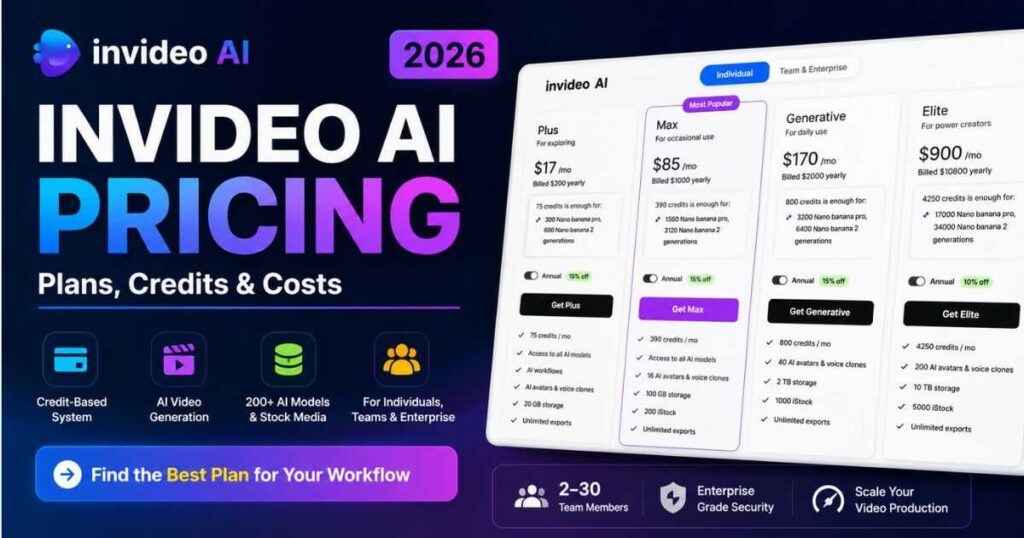
InVideo AI Pricing (2026): Plans, Credits & Best Value
If you’re comparing InVideo AI Pricing before subscribing, the monthly price is only part of the story. The more important question is how many credits you get, which AI models you can use, and whether the plan matches the amount of video you actually create.
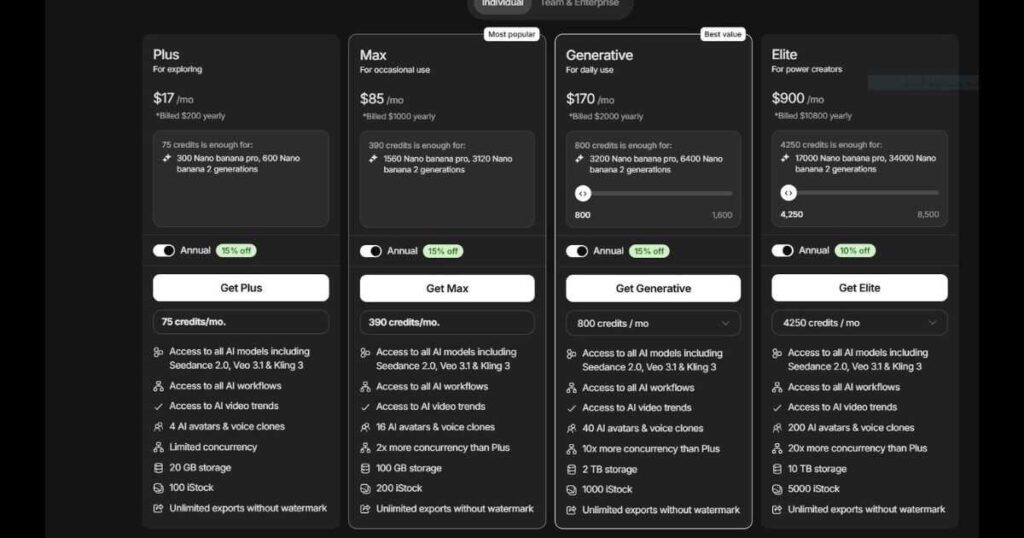
InVideo AI currently offers four individual plans — Plus, Max, Generative, and Elite — with annual-billing rates ranging from $17 to $900 per month. All paid plans provide access to InVideo’s broader AI model ecosystem, while the biggest difference between tiers is the amount of monthly credits and the resources available to you.
So, is InVideo AI worth the price? Which plan gives you the best value? And how far can your credits actually take you?
This InVideo AI Pricing guide breaks down the plans, credits, real generation costs, and the best option for different types of creators.
InVideo AI Pricing at a Glance
Before getting into the details, here’s the quickest way to compare the current individual plans.
| Plan | Annual-Billing Rate | Monthly Credits | Best For |
| Plus | $17/mo | 75 | Exploring and light use |
| Max | $85/mo | 390 | Regular creators |
| Generative | $170/mo | 800 | Daily AI production |
| Elite | $900/mo | 4,250 | High-volume production |
The pricing page currently shows these rates when billed annually: $200/year for Plus, $1,000/year for Max, $2,000/year for Generative, and $10,800/year for Elite.
Important: these are the annual-billing rates displayed by InVideo. Monthly billing can be higher, so check the billing option selected before subscribing.
What Do All Paid Plans Include?
InVideo’s current pricing page says paid plans include access to 200+ image, video, audio, and music models, along with major stock providers such as iStock and Storyblocks. The available model lineup includes tools such as Seedance, Veo, Kling, Nano Banana, and ElevenLabs Music.
That means you’re not simply paying for a fixed video editor.
You’re paying for access to a broader AI video-production ecosystem.
InVideo AI Pricing Plans Compared
The biggest difference between the plans is not simply the number displayed next to the dollar sign.
It’s how much production capacity you get for that price.
Plus — $17/month
Best for: Exploring InVideo AI
The Plus plan includes:
- 75 credits per month
- Access to available AI models
- Access to AI workflows
- Access to AI video trends
- 4 AI avatars and voice clones
- Limited concurrency
- 20 GB storage
- 100 iStock assets
- Unlimited exports without watermark
For someone who is trying InVideo AI for the first time, Plus is the easiest entry point.
The important limitation is the 75-credit allowance.
If you’re mainly experimenting, creating occasional videos, or learning how the platform works, that may be enough.
If you’re generating AI footage heavily, however, you’ll need to pay much closer attention to credit consumption.
Who Should Choose Plus?
Plus makes the most sense if you’re:
- New to AI video creation
- Testing InVideo AI for the first time
- Creating occasional content
- Using stock footage more heavily
- Producing short projects
- Not generating large amounts of AI footage
My take: Plus is a good starting point, but serious creators should calculate their expected credit usage before assuming it’s enough.
Max — $85/month
Best for: Regular creators
The Max plan increases the monthly allowance to 390 credits.
It also includes:
- 390 credits per month
- Access to available AI models
- AI workflows
- AI video trends
- 16 AI avatars and voice clones
- 2× more concurrency than Plus
- 100 GB storage
- 200 iStock assets
- Unlimited exports without watermark
For many individual creators, Max is the more interesting tier.
Why?
Because the jump from 75 to 390 credits is substantial.
If you’re creating content regularly rather than simply testing the platform, having more room for experimentation and regeneration can make a noticeable difference.
InVideo itself currently positions Max as a plan for more regular use, and its current pricing guidance identifies Max as the strongest fit for many AI video creators publishing regularly.
Who Should Choose Max?
Consider Max if you’re:
- Publishing YouTube videos regularly
- Running a faceless channel
- Creating social media content every week
- Producing marketing videos
- Frequently regenerating AI scenes
- Moving beyond experimentation
My take: For an individual creator who expects to use InVideo AI seriously but isn’t running a large production operation, Max deserves the closest look.
InVideo AI Pricing: Generative Plan
Generative — $170/month
Best for: Daily and high-volume AI production
The Generative plan provides:
- 800 credits per month
- Ability to scale the allocation up to 1,600 credits
- Access to available AI models
- AI workflows
- AI video trends
- 40 AI avatars and voice clones
- 10× more concurrency than Plus
- 2 TB storage
- 1,000 iStock assets
- Unlimited exports without watermark
This is where InVideo AI starts targeting users who are treating video creation as a serious production activity rather than an occasional task.
The 2 TB storage allowance is also significantly larger than the lower tiers.
Who Should Choose Generative?
This plan may make sense for:
- Daily content creators
- Video agencies
- Professional marketers
- High-volume YouTube creators
- Short-film creators
- Businesses producing large amounts of video
- Creators who regularly run out of lower-tier credits
The important word here is usage.
Don’t upgrade to Generative simply because it has more features.
Upgrade because your actual production volume justifies the additional capacity.
InVideo AI Pricing: Elite Plan
Elite — $900/month
Best for: Power users and large-scale production
Elite is dramatically more expensive than the other individual plans.
It provides:
- 4,250 credits per month
- Ability to scale up to 8,500 credits
- Access to available AI models
- AI workflows
- AI video trends
- 200 AI avatars and voice clones
- 20× more concurrency than Plus
- 10 TB storage
- 5,000 iStock assets
- Unlimited exports without watermark
This isn’t a plan designed for the average YouTube creator.
It’s aimed at users with substantial production requirements.
For example, it may make more sense for a production business creating content for multiple clients than for someone publishing one or two videos per month.
InVideo AI Pricing Comparison Table
Here’s the individual-plan comparison in a more detailed format:
| Feature | Plus | Max | Generative | Elite |
| Annual-billing rate | $17/mo | $85/mo | $170/mo | $900/mo |
| Annual payment | $200 | $1,000 | $2,000 | $10,800 |
| Monthly credits | 75 | 390 | 800 | 4,250 |
| Maximum credit allocation shown | 75 | 390 | 1,600 | 8,500 |
| AI avatars & voice clones | 4 | 16 | 40 | 200 |
| Storage | 20 GB | 100 GB | 2 TB | 10 TB |
| iStock assets | 100 | 200 | 1,000 | 5,000 |
| Concurrency | Limited | 2× Plus | 10× Plus | 20× Plus |
| Watermark-free exports | Yes | Yes | Yes | Yes |
Pricing and model availability can change. Always verify the current plan shown on InVideo before subscribing.
What Is the Best InVideo AI Plan?
There isn’t one plan that’s automatically best for everyone.
The right choice depends on how much you create and how heavily you use generative AI.
| If you’re… | Best starting point |
| Testing the platform | Plus |
| Creating occasional videos | Plus |
| Publishing regularly | Max |
| Running a faceless YouTube channel | Max |
| Creating videos daily | Generative |
| Producing short films | Generative |
| Running high-volume production | Elite |
| Producing content for multiple clients | Generative / Elite |
For most individual creators, I would not recommend jumping straight to Elite.
Start with the lowest plan that realistically fits your workflow.
If you consistently hit the credit limit, that’s when an upgrade becomes easier to justify.
InVideo AI Pricing Is Really About Credits
This is the part many pricing comparisons overlook.
Looking at:
$17 vs $85 vs $170 vs $900
doesn’t tell you what your actual video-production cost will be.
The more important question is:
How quickly will you use your credits?
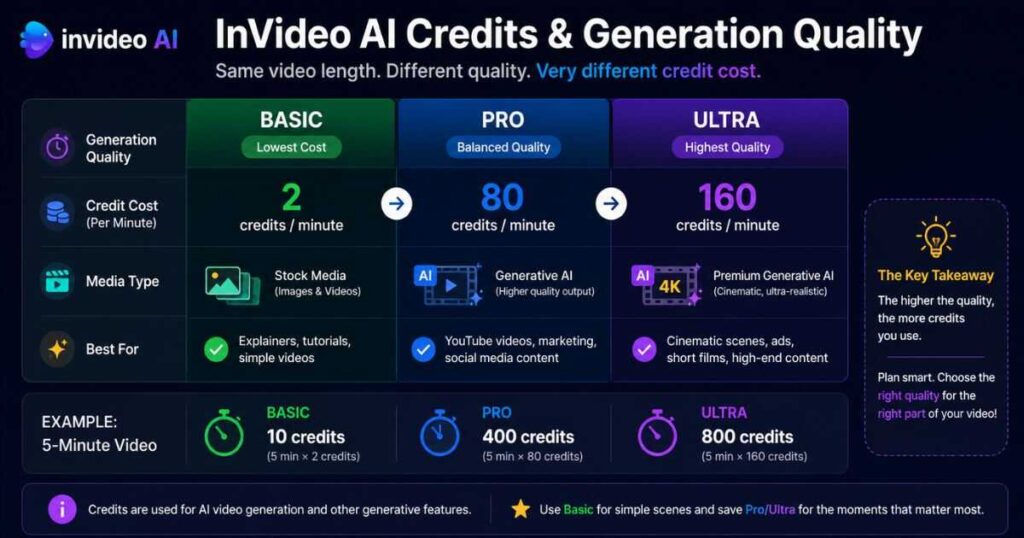
InVideo’s current generation system offers different quality levels with very different credit costs.
For Autopilot generation, the current options are:
| Generation Quality | Cost |
| Basic | 2 credits/minute |
| Pro | 80 credits/minute |
| Ultra | 160 credits/minute |
Basic uses stock media rather than generative media, while Pro and Ultra use generative models with significantly higher credit requirements.
And this changes the economics dramatically.
For example, a 5-minute video at the listed rates would require approximately:
- 10 credits using Basic
- 400 credits using Pro
- 800 credits using Ultra
That means a creator with 75 credits can potentially produce very different amounts of content depending on the generation quality selected.
This is why simply saying “Plus gives you 75 credits” doesn’t tell the whole story.
How Much Does InVideo AI Really Cost?
This is one of the most important questions to answer before subscribing.
Suppose you’re on the Plus plan with 75 credits.
If you use Basic generation at 2 credits per minute, your theoretical credit usage is very different from using Pro at 80 credits per minute.
And Ultra is more expensive still.
So the effective cost of a finished video depends on:
- Video length
- Generation quality
- AI model
- Number of generations
- Regenerations
- Images and other AI assets
- How much stock media you use
- How much of the generated footage actually makes the final edit
In other words:
Subscription price ≠ actual cost per finished video.
Your workflow determines the real value.
How to Use InVideo AI Without Wasting Credits
This is where smart production planning can make a major difference.
Don’t generate everything immediately.
Instead:
1. Plan Your Video First
Create the script and basic storyboard before generating expensive footage.
2. Decide Which Scenes Actually Need Generative AI
Not every scene needs cinematic AI footage.
Some sections can work perfectly well with stock media, screenshots, graphics, or images.
3. Review Before Generating
If you’re using InVideo’s agentic workflows, reviewing prompts and references before generation can help prevent unnecessary generations.
InVideo’s own current guidance recommends planning and approving work before spending video-generation credits.
4. Don’t Regenerate the Entire Video for One Bad Scene
If only one scene needs improvement, focus your iteration on that section rather than repeatedly rebuilding everything.
That can preserve credits for the parts that actually need them.
Learn How to Use InVideo AI
If you’re still learning the platform, our step-by-step guide can help you understand the workflow before deciding which plan you need:
How to Use InVideo AI: Step-by-Step Beginner Guide
And if you want a broader assessment of the platform’s features, strengths, weaknesses, and use cases, see our:
InVideo AI Review (2026): Is It Worth It?
Is InVideo AI Free?
Yes. InVideo AI currently offers a Free plan, so you can explore the platform without entering credit-card details. The free plan includes a limited amount of credits that can be used across InVideo’s features, including its Agents & Models workflows. The free quota resets weekly on Monday at 12:00 a.m. UTC.
However, the free plan should be viewed as a testing option, not a serious production plan.
It can help you answer questions such as:
- Does InVideo AI fit my workflow?
- Do I like the generated videos?
- Are the AI models useful for my projects?
- How quickly do I consume credits?
- Is the editing experience comfortable for me?
If the answer is yes, you can then move to a paid plan with substantially more capacity.
Is the Free Plan Enough for YouTube?
For regular YouTube production, probably not.
A serious channel can quickly require more credits than a limited free allowance provides, especially when you’re generating AI footage rather than relying primarily on stock media.
The free plan is therefore best used as a test drive before subscribing.
How Much Is InVideo AI?
If you’re asking “How much is InVideo AI?”, the answer depends on the plan and billing cycle.
Based on the current annual-billing prices shown for the individual plans, the entry point is $17/month for Plus, while Max is $85/month, Generative is $170/month, and Elite is $900/month.
The annual payment amounts shown are:
| Plan | Monthly Equivalent | Annual Payment |
| Plus | $17/mo | $200/year |
| Max | $85/mo | $1,000/year |
| Generative | $170/mo | $2,000/year |
| Elite | $900/mo | $10,800/year |
These prices reflect the annual-billing option shown in the pricing information used for this article. Monthly billing can be higher.
Don’t confuse the monthly equivalent with the amount charged at checkout.
For example, the Plus plan showing $17/month does not mean you necessarily pay $17 each month when choosing annual billing. The displayed annual total is $200.
That’s an important distinction when comparing InVideo AI Pricing.
InVideo AI Pricing: Monthly vs Annual Billing
If you already know that you’re going to use InVideo AI for several months, annual billing can make more sense because the monthly equivalent is lower.
But if you’re still testing the platform, paying monthly can give you more flexibility.
Annual Billing
Annual billing is generally more attractive when:
- You already use InVideo AI regularly.
- You know you’ll need the platform for the next year.
- You want the lower effective monthly rate.
- You have predictable video-production needs.
Monthly Billing
Monthly billing can make more sense when:
- You’re still experimenting.
- Your video-production volume changes frequently.
- You only need InVideo AI for a specific project.
- You don’t want a long-term commitment.
InVideo also states that users can switch plans during their billing cycle, with upgrades prorated so you pay the difference for the remaining period.
My Recommendation
If you’re completely new to InVideo AI, don’t start with an expensive annual commitment.
Test the platform first.
Once you know how many credits your actual workflow consumes, you can make a much more informed decision.
Do InVideo AI Credits Roll Over?
This is one of the questions you should check before choosing a plan.
Your subscription’s credit allowance is tied to the billing cycle, so you shouldn’t choose a plan assuming that unused monthly credits will accumulate indefinitely.
Instead, think about your credits as production capacity for your current billing period.
That’s why choosing the right plan matters.
If you consistently use only a small percentage of your allowance, you may be paying for capacity you don’t need.
On the other hand, if you’re constantly running out of credits, moving to a higher plan may be more economical than repeatedly restricting your workflow.
Always verify the current credit terms on InVideo’s pricing and help pages before purchasing, because credit policies and plan details can change.
What Happens If You Run Out of InVideo AI Credits?
Running out of credits doesn’t necessarily mean you have to wait until the next billing cycle.
InVideo currently offers on-demand credit top-ups on paid plans.
This gives you another option:
Upgrade your subscription if your normal monthly usage has increased significantly.
Or:
Buy additional credits if you only have an unusually large project that month.
This distinction can be useful for freelancers and businesses whose workloads aren’t consistent.
For example, imagine you normally create four videos per month but suddenly receive a large client project requiring significantly more AI generations.
Upgrading permanently might not be necessary if the extra usage is only temporary.
How Much Do InVideo AI Credits Cost?
There isn’t one universal “cost per video” because different generation methods consume credits at very different rates.
InVideo’s current Autopilot generation system offers three quality levels:
| Generation Quality | Credit Cost |
| Basic | 2 credits/minute |
| Pro | 80 credits/minute |
| Ultra | 160 credits/minute |
Basic uses stock media, while Pro and Ultra use generative AI models.
That creates a huge difference in potential credit consumption.
Example: A 5-Minute Video
| Quality | Approx. Credits |
| Basic | 10 credits |
| Pro | 400 credits |
| Ultra | 800 credits |
This example demonstrates why InVideo AI Pricing cannot be judged by subscription price alone.
A creator with 75 credits could potentially create considerably more stock-based content than generative content.
Meanwhile, a creator producing cinematic AI footage may consume hundreds of credits on a single project.
InVideo AI Pricing: How Much Does a Video Really Cost?
This is where things get more interesting.
Let’s say you’re considering the Generative plan.
If the plan gives you 800 credits and your workflow requires 400 credits for a particular project, you’ve used approximately half of the monthly allowance.
But that doesn’t necessarily mean you will finish the project with exactly 400 credits.
Why?
Because AI video production involves iteration.
You may generate a scene.
Then reject it.
Generate another.
Change the camera angle.
Change the character.
Change the lighting.
Try another model.
Generate another version.
Only some of those generations may appear in the final video.
That means the cost of production is affected by experimentation, not just final video length.
InVideo itself now recommends requesting a generation breakdown before rendering so users can see an estimated credit cost in advance.
That is an extremely useful feature for anyone trying to control their budget.
A Better Way to Think About InVideo AI Pricing
Instead of asking:
“How much does a 5-minute video cost?”
Ask:
“How many credits does my complete production workflow normally consume?”
Your workflow might look like:
Script → Images → Video generations → Regenerations → Voice → Editing → Final export
The actual credit usage can therefore vary considerably from one project to another.
For example:
| Project Type | Potential Credit Usage |
| Stock-based explainer | Low |
| Simple YouTube video | Low–Moderate |
| AI-generated YouTube video | Moderate–High |
| Cinematic short | High |
| AI commercial | High |
| Multi-scene production | Very High |
These aren’t fixed prices.
They’re a way to understand why two creators on the same InVideo AI plan can experience completely different levels of value.
InVideo AI Pricing for Teams
Individual plans aren’t the only option.
InVideo currently offers a Team plan for teams of 2–30 users, along with an Enterprise option for larger organizations.
Team Pricing
The current pricing information shows two seat types:
| Seat | Annual-Billing Rate | Credits / Seat / Month |
| Standard | $40/mo | 160 |
| Premium | $400/mo | 1,600 |
The Team plan also includes features such as:
- Access to AI models
- AI workflows and agents
- 80 GB storage
- 200 iStock assets per seat
- 20 AI avatars and voice clones per seat
- Unlimited exports without watermark
- Premium 24/7 customer support
- Mix-and-match seat types
The ability to mix and match seat types is particularly useful for teams.
You don’t necessarily have to give every employee the same level of access.
For example, a company could give standard seats to employees who occasionally create videos and premium seats to the people handling heavy production workloads.
InVideo AI Enterprise Pricing
Enterprise pricing is customized rather than displayed as a standard monthly subscription.
The current pricing information lists a minimum of 10 seats.
Enterprise features include:
- SOC2 & GDPR
- SSO & SCIM
- Custom solutions
- Model and agent access controls
- Role-based access
- Usage analytics
- Audit logs
- Data privacy agreements
- Spend controls
- Onboarding and training
- Technical support
- Dedicated success management
- Slack Connect
- Invoice and purchase-order billing
For an individual creator, this is unnecessary.
For a larger organization managing multiple users, clients, or sensitive production workflows, however, the additional administration and security features can justify considering Enterprise.
InVideo AI Pricing: Which Plan Is Best for You?
Now we can answer the question that actually matters.
Choose Plus If You…
- Are new to InVideo AI.
- Want to experiment.
- Create videos occasionally.
- Primarily use stock media.
- Don’t need heavy AI generation.
Best for: Beginners and light users.
Choose Max If You…
- Create content regularly.
- Run a YouTube channel.
- Produce faceless videos.
- Make marketing content.
- Need significantly more credits than Plus.
Best for: Regular individual creators.
Choose Generative If You…
- Generate AI footage frequently.
- Produce content every day.
- Create cinematic projects.
- Work with clients.
- Need much higher production capacity.
Best for: Professional and high-volume creators.
Choose Elite If You…
- Run large-scale production.
- Manage multiple projects simultaneously.
- Produce content for multiple clients.
- Need extremely high credit capacity.
Best for: Power users and production operations.
The Best InVideo AI Plan for YouTube Creators
For most YouTube creators, I wouldn’t automatically recommend the most expensive plan.
If you’re producing standard faceless videos using a mixture of stock footage, images, narration, and occasional AI-generated scenes, Plus or Max may be sufficient depending on your monthly output.
If your channel relies heavily on generative video, however, the calculation changes.
A creator producing cinematic AI scenes every day can consume credits much faster than someone using primarily stock media.
That’s why Max is often the most interesting starting point for a serious individual creator, while Generative becomes more attractive when production volume and AI generation increase.
InVideo itself currently identifies Max as its recommended fit for many creators publishing regularly.
InVideo AI Pricing for Faceless YouTube Channels
Faceless YouTube creators have a particularly interesting situation.
A typical production may include:
Research → Script → Voiceover → Stock Footage → AI Scenes → Captions → Editing
Not every part needs expensive generative AI.
That’s actually an advantage.
You can reserve your credits for the scenes where AI-generated footage adds genuine value and use stock media for supporting visuals.
This hybrid approach can stretch your credits much further.
For example:
Instead of:
100% AI-generated visuals
Try:
70% stock + images + screenshots
30% premium AI-generated scenes
That can produce a more varied video while reducing unnecessary credit consumption.
And if you’re building a faceless channel, our How to Use InVideo AI: Step-by-Step Beginner Guide can help you understand the workflow before committing to a larger plan.
InVideo AI Pricing vs. Buying Multiple AI Tools
There’s another way to evaluate the subscription.
Don’t compare InVideo AI only with other video editors.
Compare it with the total cost of the tools you would otherwise need.
A traditional AI video workflow might involve:
| Task | Separate Tool |
| Script | AI writing tool |
| AI images | Image generator |
| AI video | Video generator |
| Voiceover | AI voice platform |
| Stock footage | Stock library |
| Editing | Video editor |
| Captions | Captioning tool |
If you’re paying for several subscriptions, the total monthly cost can become significant.
InVideo’s appeal is that it brings many of these capabilities into one ecosystem, including access to 200+ image, video, audio, and music models and major stock providers.
That doesn’t automatically make InVideo cheaper.
But it does mean you should evaluate its price against your entire production stack, not just against another AI video generator.
Ready to See Which InVideo AI Plan Fits You?
Test the platform with a real project and measure your actual credit usage before committing to a higher-tier plan.
Try InVideo AI →Is InVideo AI Pricing Worth It?
The answer depends on what you’re buying it for.
If you’re only creating one short video every few weeks, a high-tier subscription probably doesn’t make sense.
But if you’re producing content every week — or every day — the calculation becomes different.
The real value comes from three things:
1. Time Saved
How much time does InVideo AI remove from your production process?
2. Production Capacity
How many usable videos can you produce with your available credits?
3. Tool Consolidation
How many other subscriptions can you avoid because InVideo AI already covers part of your workflow?
If the platform saves you several hours per project, the subscription can become considerably easier to justify.
InVideo AI Pricing: The Bottom Line So Far
There is no single answer to “Which InVideo AI plan is cheapest?”
The cheapest plan is Plus.
But the cheapest plan isn’t necessarily the best value.
For a beginner, Plus can be a sensible way to explore the platform.
For a regular creator, Max offers a much larger credit allowance and is worth serious consideration.
For heavy AI generation, Generative provides substantially more capacity.
And Elite is designed for users operating at a very different production scale.
The most important lesson is simple:
Choose your InVideo AI plan based on how much you generate, not simply how much you publish.
A five-minute video can consume very different amounts of credits depending on whether you’re using stock media, standard generative models, or the highest-quality generation options.
Continue Learning
If you’re still deciding whether InVideo AI is right for your workflow, these guides can help:
- InVideo AI Review (2026): Is It Worth It? — A deeper look at the platform’s features, strengths, weaknesses, and use cases.
- How to Use InVideo AI: Step-by-Step Beginner Guide — Learn how the platform works before choosing a plan.
- HeyGen AI Avatars — Compare InVideo AI’s broader workflow with a platform focused heavily on AI presenters.
- Invideo alternatives (2026): 7 Best AI Video Tools — Compare the best AI video tools and find the right InVideo alternative for your workflow.
- InVideo AI for YouTube: Create Better Videos Faster – Learn how to use InVideo AI to create high-quality YouTube videos faster, from scripting and visuals to editing and publishing.
InVideo AI Pricing: Credits, Real Costs & Which Plan Should You Choose?
InVideo AI Pricing: How Do Credits Work?
Understanding the credit system is just as important as understanding the monthly subscription price.
With InVideo AI, credits function as the usage currency for video creation and generative features. The number of credits included in your plan determines how much generation you can realistically do each month.
This is why comparing plans only by their monthly price can be misleading.
For example, paying less per month doesn’t necessarily mean you’re getting better value if you regularly run out of credits.
According to InVideo’s current pricing information, credits can be used across the platform, while different generative models can consume credits at different rates. InVideo also states that unused monthly credits do not roll over to the next month.
How Many Credits Do You Get With Each InVideo AI Plan?
Here’s the current individual-plan structure:
| Plan | Monthly Credits | Annual-Billing Price* | Best For |
| Plus | 75 | $17/month | Exploring and light use |
| Max | 390 | $85/month | Occasional or regular creation |
| Generative | 800 | $170/month | Daily AI production |
| Elite | 4,250 | $900/month | High-volume production |
*These are the effective monthly prices shown when billed annually. InVideo’s pricing page currently displays these annual-billing figures.
One important detail is that the plans don’t simply give you different amounts of storage or extra features.
The biggest practical difference for many AI video creators is how much generation they can afford to do each month.
How Much Is InVideo AI?
If you’re asking “How much is InVideo AI?”, the answer depends on the plan and billing cycle.
For individual users, the current annual-billing prices shown by InVideo are:
- Plus: $17/month
- Max: $85/month
- Generative: $170/month
- Elite: $900/month
The annual totals shown on the pricing page are approximately $200, $1,000, $2,000, and $10,800 respectively.
However, there’s an important distinction between the advertised monthly equivalent and what you actually pay.
For example, the Plus plan displayed at $17/month is billed at $200 annually, rather than being a simple $17 month-to-month subscription.
So when comparing InVideo AI Pricing, always check whether you’re looking at monthly billing or an annual-billing equivalent.
What About Monthly Billing?
InVideo’s official FAQ currently lists the monthly rates as:
- Plus — $20/month
- Max — $100/month
- Generative — $200/month
- Elite — $1,000/month
That means annual billing provides a lower effective monthly price.
Bottom line: if you already know you’ll use InVideo AI for an extended period, annual billing can reduce the effective monthly cost. If you’re still testing the platform, monthly billing gives you more flexibility.
Is InVideo AI Free?
This is one of the most important questions surrounding InVideo AI Pricing.
If you’re looking for a completely free way to use InVideo AI, you should distinguish between trying the platform and having the same capabilities as a paid subscriber.
The paid plans are where the larger credit allocations and full production capacity become relevant.
For anyone considering a subscription, the smarter approach is to test the workflow first and then decide whether the amount of content you can produce justifies paying for a plan.
The question isn’t simply:
“Can I use InVideo AI for free?”
It’s:
“Can the free experience give me enough capacity for the videos I actually want to create?”
If your goal is regular YouTube production or frequent AI video generation, you’ll likely care much more about the paid credit allocations than simply having access to the platform.
InVideo AI Pricing: What Does a Video Really Cost?
This is where the pricing becomes more interesting.
A common mistake is to calculate value like this:
Monthly price = cost of the video
That’s not how a credit-based AI video platform works.
Your actual cost depends on how efficiently you use your credits.
Imagine two creators using the same Max plan.
Creator A
Creates a short video, plans the scenes carefully, reviews prompts before generating, and avoids unnecessary regeneration.
Creator B
Generates dozens of variations, changes direction constantly, and regenerates scenes repeatedly.
Both creators pay the same subscription price.
But Creator B may get significantly fewer finished videos from the same credit allocation.
This is why InVideo AI Pricing should be evaluated based on cost per useful finished video, rather than simply cost per month.
How to Make Your InVideo AI Credits Go Further
If you’re concerned about running out of credits, there are several ways to make your plan more efficient.
1. Plan Before You Generate
Don’t start generating video scenes before you know what the video should look like.
Define:
- The topic
- Target audience
- Video length
- Visual style
- Main scenes
- Narration
- Overall structure
A better plan can reduce unnecessary generations.
2. Review Your Prompt Before Generating
If you’re using a generative model, don’t treat every generation like a free experiment.
Think about what you actually want first.
InVideo itself recommends workflows where users can review prompts and references before generation, helping reduce unnecessary credit consumption.
3. Storyboard Before Generating Expensive Video
This can be particularly useful for larger projects.
Instead of immediately generating expensive video footage, establish the visual direction first.
Once you’re happy with the composition, characters, and overall sequence, move into video generation.
This approach can dramatically reduce wasted generations.
4. Don’t Regenerate an Entire Project for One Bad Scene
If only one scene doesn’t work, focus on fixing that scene.
Regenerating everything can consume credits unnecessarily.
5. Choose the Right Plan for Your Actual Usage
Don’t buy Elite simply because it has the most credits.
Likewise, don’t choose Plus if you already know you’ll be generating content every day.
Your goal should be to find the lowest plan that comfortably supports your actual workflow.
Which InVideo AI Plan Is Best?
There isn’t one answer for everyone.
The best InVideo AI plan depends on how frequently you create videos and how heavily you rely on generative AI.
Plus — Best for Testing
Plus is the logical starting point if you’re still exploring InVideo AI.
With 75 credits per month, it’s designed more for experimentation and lighter usage than large-scale production.
It can make sense for:
- Beginners
- Occasional creators
- People testing AI video workflows
- Users who aren’t sure how frequently they’ll use the platform
If you’re simply asking whether InVideo AI fits your workflow, this is where I’d start.
Max — Best for Most Regular Creators
Max increases the allocation to 390 credits per month and provides significantly more capacity than Plus.
This makes it more appropriate for creators who have moved beyond experimentation.
It can be a good fit for:
- YouTube creators
- Freelancers
- Social media creators
- Small businesses
- Regular content production
InVideo’s own current guidance identifies Max as a strong fit for many creators publishing regularly, while Plus is positioned more toward testing and light use.
My take: If you’re creating content consistently but aren’t running a high-volume production operation, Max is probably the first plan I’d seriously consider.
Generative — Best for Daily AI Production
Generative provides 800 monthly credits, with the ability to scale the allocation higher according to the current plan interface.
This is where the economics start making more sense for creators who generate frequently.
It may be appropriate for:
- Daily creators
- Professional content producers
- AI filmmakers
- Agencies
- Businesses producing frequent video content
The higher credit allowance gives you considerably more room for experimentation and iteration.
Elite — Best for High-Volume Production
Elite is in a completely different category.
With 4,250 monthly credits and the ability to scale the allocation higher, it is designed for users with substantial production requirements.
This could include:
- Production companies
- Large content teams
- Agencies
- High-volume creators
- Commercial productions
- Episodic AI video projects
For the average YouTube creator, however, $900/month on annual billing is difficult to justify unless you’re genuinely producing at a high volume.
InVideo AI Pricing: Which Plan Should You Choose?
Here’s the simplest way to think about it:
| If You Are… | Best Starting Point |
| Just testing InVideo AI | Plus |
| Creating videos regularly | Max |
| Producing AI content daily | Generative |
| Running high-volume production | Elite |
| Working with a small team | Team |
| Running a large organization | Enterprise |
My recommendation is simple:
Start one level below what you think you need.
Use the platform for a real project.
Track your credit consumption.
If you’re consistently running out of credits and the tool is genuinely saving you time, upgrade.
That’s a much smarter approach than paying for the most expensive plan from day one.
Test InVideo AI Before Committing to a Bigger Plan
Not sure which plan fits your workflow?
Start with a real project and see how far your credits actually go.
InVideo AI Team Pricing
Individual creators aren’t the only users who may be interested in InVideo AI Pricing.
InVideo also offers Team and Enterprise options for larger production environments.
The current Team pricing shown by InVideo includes two seat types:
| Team Seat | Credits per Seat | Annual-Billing Price |
| Standard Seat | 160/month | $40/month |
| Premium Seat | 1,600/month | $400/month |
The Team plan is designed for organizations with 2 to 30 users and supports mixing different seat types depending on each person’s workload.
Team users also receive features such as shared storage, AI model access, AI workflows and agents, stock assets, avatars and voice clones, unlimited exports without watermarks, and premium customer support.
This makes the Team option considerably more relevant to agencies and businesses than to individual YouTubers.
InVideo AI Enterprise Pricing
Enterprise is designed for larger organizations that need more than additional credits.
Instead of a fixed public price, InVideo lists custom pricing with a minimum of 10 seats.
Enterprise features include:
- SOC 2 & GDPR
- SSO & SCIM
- Role-based access control
- Usage analytics
- Audit logs
- Custom solutions
- Spend controls
- Model and agent controls
- Dedicated success management
- Onboarding and technical support
- Invoice and purchase-order billing
In other words, Enterprise isn’t simply “Elite with more credits.”
It’s designed around organizational control, security, administration, and larger-scale production.
What Happens If You Need More InVideo AI Credits?
Running out of credits doesn’t necessarily mean you have to immediately change your subscription.
InVideo currently supports on-demand credit top-ups, and users on Generative or Elite can increase their credit allocation without necessarily changing to another plan.
This can be useful if your usage changes temporarily.
For example, you might normally create a few videos per month but suddenly need to produce a larger campaign.
Instead of permanently moving to a much more expensive subscription, additional credits can provide more flexibility.
Is InVideo AI Pricing Worth It?
After looking at the plans, credits, and real-world usage, the biggest question isn’t simply how much InVideo AI costs.
It’s whether the plan you choose gives you enough production capacity to justify the subscription.
That depends heavily on how you use the platform.
A creator making a few simple videos each month has very different needs from someone generating AI footage every day.
InVideo AI Pricing: Which Plan Should You Choose?
Here’s the simplest way to think about the plans:
| Your situation | Best starting point | Why |
| Just testing InVideo AI | Free | Explore the platform before paying |
| Occasional creator | Plus | Lowest-cost paid option |
| Regular content creator | Max | More credits and concurrency |
| Daily AI video production | Generative | Much larger credit allocation |
| High-volume professional creator | Elite | Maximum individual capacity |
| Small production team | Team | Multiple seats and collaboration |
| Large organization | Enterprise | Security, controls, and custom support |
The Plus plan makes the most sense if you’re still figuring out whether InVideo AI fits your workflow.
If you’re producing videos frequently, however, the additional credits available with Max or Generative can become much more important.
And if you’re running a serious high-volume production operation, Elite is aimed at a completely different usage level.
Is InVideo AI Pricing Good for YouTube Creators?
For YouTube creators, the answer depends on how often you publish and how heavily you rely on generative AI.
If you’re creating a few videos each month using a mixture of stock footage, AI-generated images, narration, and occasional generative video, a lower-tier plan may be sufficient.
If you’re producing videos every day and generating lots of AI footage, you’ll likely need considerably more credits.
This is especially important for faceless YouTube channels.
A typical production workflow might involve:
Research → Script → Voiceover → Visuals → AI footage → Editing → Captions → Export
The more of those steps you automate inside InVideo AI, the more valuable the platform can become.
However, automated production can also increase credit consumption if you’re constantly regenerating scenes.
How to Save Credits With InVideo AI
Understanding InVideo AI Pricing isn’t enough.
You also need to understand how to use your credits efficiently.
Credits are consumed for generative features, and different models can have dramatically different costs. InVideo’s current documentation explains that generative models are priced according to factors such as the model, resolution, duration, and other generation settings.
Here are some practical ways to stretch your allocation.
1. Plan Your Video Before Generating
Don’t start generating random scenes and hope they eventually fit together.
Before you generate, decide:
- What the video is about
- Who will watch it
- How long it should be
- What visual style you want
- Which scenes are actually necessary
- Which sections can use stock footage
Better planning means fewer unnecessary generations.
2. Check the Credit Cost Before Generating
One of the most useful habits is checking the expected credit cost before committing to an expensive generation.
InVideo’s documentation explains that model costs vary, and the platform provides the ability to view the cost for a particular configuration before generation.
This is particularly important when experimenting with premium models.
3. Don’t Use Generative Video for Everything
Not every scene needs expensive AI-generated footage.
For example, an educational YouTube video could combine:
- Stock footage
- AI-generated images
- Screen recordings
- Text animations
- AI-generated video
- Voiceover
Using generative video only where it actually improves the content can make your credits last considerably longer.
4. Avoid Regenerating the Entire Video
If one scene doesn’t work, don’t automatically rebuild everything.
Identify the problem.
Maybe the character looks wrong.
Maybe the camera movement is unnatural.
Maybe the scene doesn’t match the narration.
Fix the specific problem instead of repeatedly generating unrelated versions.
5. Choose the Right Generation Quality
InVideo’s current Autopilot workflow offers Basic, Pro, and Ultra generation options.
Basic uses stock media and costs 2 credits per minute, while Pro and Ultra use substantially more expensive generative workflows. The current help documentation lists Pro at 80 credits per minute and Ultra at 160 credits per minute.
That difference is huge.
For a simple informational section, Basic may be perfectly adequate.
For a cinematic hero shot, Ultra may be worth the additional cost.
The smart approach is to use quality where it matters rather than using the most expensive option everywhere.
What Happens If You Run Out of InVideo AI Credits?
Running out of credits doesn’t necessarily mean you have to wait for your next billing cycle.
InVideo currently offers additional credit purchases, and users can also upgrade to a plan with a larger allocation.
This gives you two main options:
Option 1: Buy additional credits
Useful if you only occasionally exceed your allocation.
Option 2: Upgrade your plan
More appropriate if you’re consistently running out of credits every month.
If you’re repeatedly buying extra credits, that’s usually a sign that your current plan may no longer match your workload.
Do InVideo AI Credits Roll Over?
This is one of the most important questions to understand before choosing a plan.
Your regular monthly plan credits do not roll over to the next billing period. They reset on your renewal date. Separately purchased extra credits have different expiration rules and currently last 12 months from purchase, subject to the subscription terms.
That means you shouldn’t choose a plan simply because it gives you a large number of credits.
Choose a plan based on what you realistically expect to use.
If you’re consistently leaving a large percentage of your monthly allocation unused, you may be paying for capacity you don’t need.
Is InVideo AI Free?
Yes. InVideo AI currently offers a free option that can be used without entering card details. The free plan provides limited credits for exploring the platform, and its quota resets weekly.
The free option is useful if you’re unsure whether the platform fits your workflow.
You can test the interface, experiment with AI features, and get a feel for how the generation process works before committing to a paid subscription.
However, serious content production will generally require more capacity than the free allocation provides.
Should You Start With the Free Plan?
If you’ve never used InVideo AI before, I think that’s the smartest place to start.
Don’t buy a $170 or $900 plan simply because it has more credits.
Create an actual project first.
See how many credits your workflow consumes.
Then decide whether you need a paid plan.
InVideo AI Pricing vs. Value: What Are You Really Paying For?
It’s easy to look at a price such as $17, $85, $170, or $900 per month and decide whether it “sounds expensive.”
That’s not the best way to evaluate an AI video platform.
Instead, ask:
How much time does InVideo AI save me per finished video?
Imagine you normally spend four hours creating a video.
If InVideo AI reduces that process to one hour of AI-assisted production plus editing and review, you’ve potentially saved three hours.
Now multiply that across 10, 20, or 30 videos.
That’s where the economics become much more interesting.
The value isn’t simply the number of credits.
It’s the combination of:
Credits + AI models + workflows + stock media + editing + time saved
That is the real value proposition.
InVideo AI Pricing: My Recommendation
If I were choosing a plan based purely on usage, I would approach it like this:
Choose Free If You’re Curious
Use Free to understand the platform and test whether you actually like the workflow.
Choose Plus If You’re Experimenting Seriously
Plus is the logical starting point for someone who wants a paid plan without immediately committing to high-volume production.
Choose Max If You’re Publishing Regularly
Max becomes more interesting once InVideo AI becomes part of your regular content workflow.
Choose Generative If AI Video Is Central to Your Production
If you’re generating AI footage frequently, the larger credit allocation becomes much more relevant.
Choose Elite Only for High-Volume Production
Elite isn’t something most individual creators need.
At the pricing shown in the plan information supplied for this article, it is designed for users operating at a significantly higher production volume.
Choose Team or Enterprise for Organizations
If multiple people need access, collaboration, administration, security controls, or organization-level support, the individual plans aren’t the right comparison. InVideo’s current documentation confirms that Team supports 2–30 seats, while Enterprise is designed for larger organizations.
Frequently Asked Questions About InVideo AI Pricing
How much is InVideo AI?
The price depends on the plan and billing option you choose.
The individual pricing shown in the plan information used for this article includes Plus, Max, Generative, and Elite, with significantly different monthly credit allocations.
Because InVideo can change pricing and model costs, check the current pricing page before subscribing.
Is InVideo AI free?
Yes. InVideo currently provides a free plan with limited credits, and you can start without entering card details.
Which InVideo AI plan is best?
For most beginners, starting with Free or Plus is the safest approach.
Regular creators may get more value from Max, while heavy generative-video users may need Generative or Elite.
Do InVideo AI credits expire?
Monthly plan credits reset at the renewal date and do not roll over. Purchased extra credits currently have a separate 12-month validity period.
Can I buy more InVideo AI credits?
Yes. InVideo currently offers on-demand credit top-ups, and users can also upgrade to a higher plan when they need more capacity.
Is InVideo AI worth paying for?
It can be, particularly if the platform saves you significant production time.
The best way to determine this is to compare your normal production time and cost with the amount of time and effort required using InVideo AI.
Final Verdict: Is InVideo AI Pricing Worth It?
InVideo AI Pricing makes the most sense when you evaluate the platform based on your actual production workload rather than simply choosing the plan with the biggest credit number.
The Free option is useful for testing.
Plus is a reasonable entry point for paid users.
Max makes more sense for regular creators.
Generative is aimed at heavier AI production.
Elite is designed for high-volume users.
And Team and Enterprise are built around organizational requirements rather than individual creators.
The most important thing to remember is that credits are only part of the equation.
Different AI models consume credits at different rates, and premium generative workflows can use them much faster than basic stock-based production.
So don’t ask:
“Which InVideo AI plan has the most credits?”
Ask:
“Which InVideo AI plan gives me enough capacity for the videos I actually want to create?”
That’s the question that will lead you to the right subscription.
Ready to Test InVideo AI?
If you’re still unsure, start with a real project instead of buying the most expensive plan.
Create one video.
Track how many credits you use.
Measure how much time you save.
Then decide whether upgrading makes financial sense for your workflow.
You can also compare the platform with our [InVideo AI Review] to see how its features, workflow, AI models, strengths, and limitations compare beyond pricing.
For creators specifically interested in building automated channels, our [How to Use InVideo AI] guide walks through the platform’s workflow step by step.
Bottom Line
InVideo AI Pricing isn’t really about finding the cheapest plan. It’s about finding the plan that gives you enough credits and capabilities to produce content efficiently without paying for capacity you don’t use.
For most individual creators, starting small and upgrading based on actual usage is the safest strategy.
And if InVideo AI genuinely reduces the time it takes you to turn an idea into a finished video, the subscription can be much more valuable than the monthly price alone suggests.