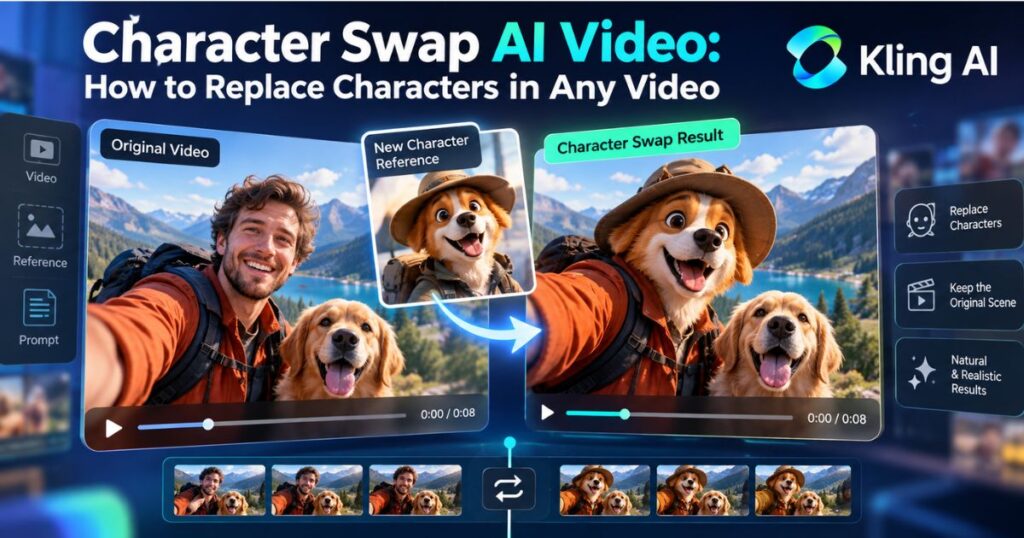
Character Swap AI Video: How to Replace Characters in Any Video
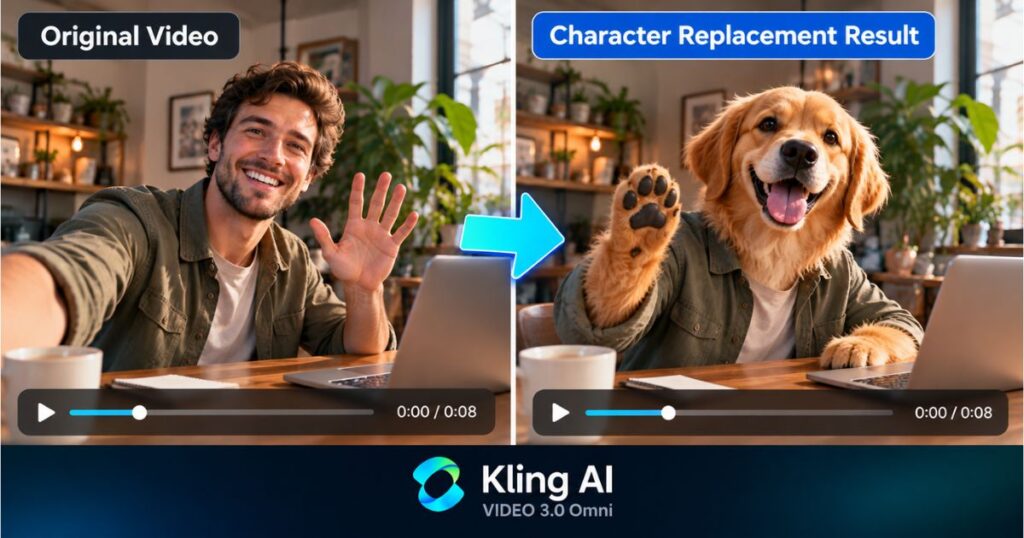
Have you ever wanted to replace a person in an existing video with a different face, a new character, or even an entirely different visual identity without recreating the entire scene? With modern AI video editing, this is becoming possible without manually rebuilding every frame.
A Character Swap AI Video workflow allows you to change a character in existing footage while attempting to preserve the original action, background, camera movement, lighting, and timing. Whether you are creating YouTube Shorts, social media videos, advertisements, comedy clips, or cinematic content, the right AI workflow can save considerable editing time.
One tool worth exploring is Kling AI, particularly its VIDEO 3.0 Omni model. Unlike a workflow focused only on transferring movement to a new character, VIDEO 3.0 Omni supports video editing with image references and text instructions. This makes it relevant when you want to replace a specific person while keeping the rest of a scene as consistent as possible.
In this guide, you will learn how Character Swap AI Video works, how to approach character replacement using Kling AI, which prompts to try, how to improve facial consistency, what limitations to expect, and how to estimate the cost before generating a video.
Ready to try character replacement? Explore Kling AI here and look for the VIDEO 3.0 Omni workflow.
What Is Character Swap AI Video?
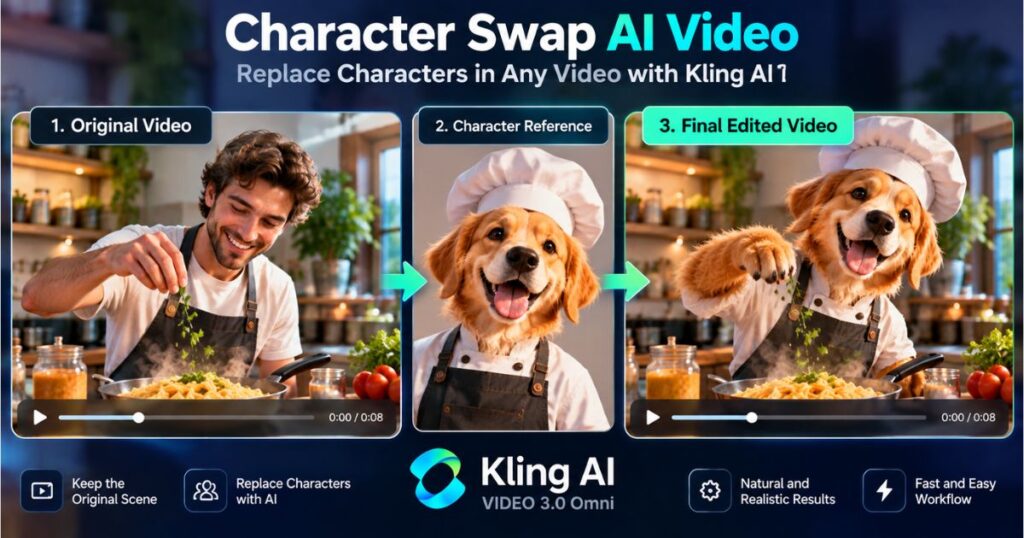
Character Swap AI Video refers to using artificial intelligence to replace a person or character in existing video footage with another character while retaining as much of the original scene as possible.
For example, imagine a 10-second clip showing two people talking in a studio. You want to replace one person with a different character but keep the second person, studio background, camera angle, gestures, and timing.
Instead of manually masking the original person and compositing a replacement frame by frame, an AI video editing model can use the original footage, reference images, and written instructions to generate an edited version.
The result depends on the model, source footage, reference quality, and complexity of the scene. Character replacement is not always perfect, especially when faces turn away from the camera, hands cover facial features, or several people overlap.
What Can You Do With Character Swap AI Video?
Here are some practical applications:
- Face replacement: Replace a person’s facial identity while retaining much of their original appearance and performance.
- Full character replacement: Change the visible person or character, potentially including the face, hair, and other defining features.
- Creative storytelling: Replace actors with fictional characters, stylized characters, or other suitable visual identities.
- Social media content: Adapt a short performance into a new creative concept.
- Marketing videos: Test alternative character concepts for promotional footage.
- Comedy and entertainment: Reimagine a scene with different characters while keeping its original structure.
These are possible use cases rather than guarantees that every model can replace every part of a character equally well. Face replacement and full-body replacement are different tasks, and you should evaluate the output according to your specific goal.
Character Swap AI Video: Why Choose Kling AI?
Kling AI is worth considering because its VIDEO 3.0 Omni model supports reference-based video creation and editing. You can provide visual references and instructions to guide how a character or other element should appear in the result.
The official Kling VIDEO 3.0 Omni documentation describes a multimodal workflow that can combine images, video references, and text prompts. Kling also provides separate Motion Control functionality, which is useful for understanding how movement can be transferred to a new character.
The distinction matters: if your goal is to replace someone in existing footage, start by investigating the Omni video-editing workflow rather than assuming that Motion Control alone will preserve the original scene.
What Makes Kling AI Relevant to Character Replacement?
| Capability | How it helps |
|---|---|
| Video input | Provides existing footage as the starting point for an editing workflow. |
| Image references | Gives the model visual information about the replacement character or face. |
| Text instructions | Explains which person to replace and what should remain unchanged. |
| Reference-based generation | Helps guide the appearance of the replacement character. |
| Motion Control | Provides a separate workflow for transferring movement from a reference video to a character image. |
| Character Elements | Helps maintain a reusable character identity across supported creative workflows. |
These capabilities are documented in Kling’s official guides, but their availability and exact behavior can vary by model and workflow.
For a broader overview of the platform, read our Kling AI Omni Complete Guide.
Want to experiment with these capabilities? Open Kling AI and explore the available video models before choosing a generation mode.
How to Replace Characters in a Video Using Kling AI
The following workflow focuses on replacing a character in existing footage rather than simply creating a new video from a text prompt.
Kling’s official guide to face replacement describes using a short source clip, adding facial references, identifying the target character, and reviewing the full result for identity consistency.
The exact interface labels may change, so use the available controls in your account rather than relying on a fixed sequence of buttons.
Step 1: Choose the Right Source Video
Start with a clip that clearly shows the person you want to replace.
For your first Character Swap AI Video attempt, choose footage with:
- One clearly identifiable target character.
- A face that remains visible for most of the clip.
- Moderate head movement rather than constant rapid rotation.
- Minimal overlap between the target and other people.
- Consistent lighting and a relatively uncluttered background.
A short clip is generally easier to evaluate than a long scene. Kling’s official face-replacement guide recommends source footage between 3 and 10 seconds for that workflow.
If the original video contains multiple people, make sure you can describe the intended target clearly. Clothing, position in the frame, and other visible details can help distinguish one person from another.
Step 2: Prepare the Replacement Character Images
Choose a clear reference image of the person or character you want to introduce.
A good reference should show the facial features clearly, with enough detail to distinguish the eyes, nose, mouth, hairstyle, and overall appearance.
For a moving subject, additional reference angles may help. For example, a front-facing portrait may provide useful information for a close-up, while a three-quarter view can offer additional guidance when the character turns their head.
Kling’s official guidance describes using facial references and, where appropriate, multiple images. However, do not assume that adding more images automatically improves the result. Use the number and format supported by the workflow you select.
Reference image checklist
| Reference detail | Why it matters |
|---|---|
| Clear facial features | Gives the model better visual information about the intended identity. |
| Similar viewing angle | Helps when the face turns or appears in profile. |
| Suitable lighting | Reduces the difference between the reference and the original scene. |
| Consistent appearance | Helps avoid conflicting information across references. |
| High-quality image | Makes defining facial details easier to interpret. |
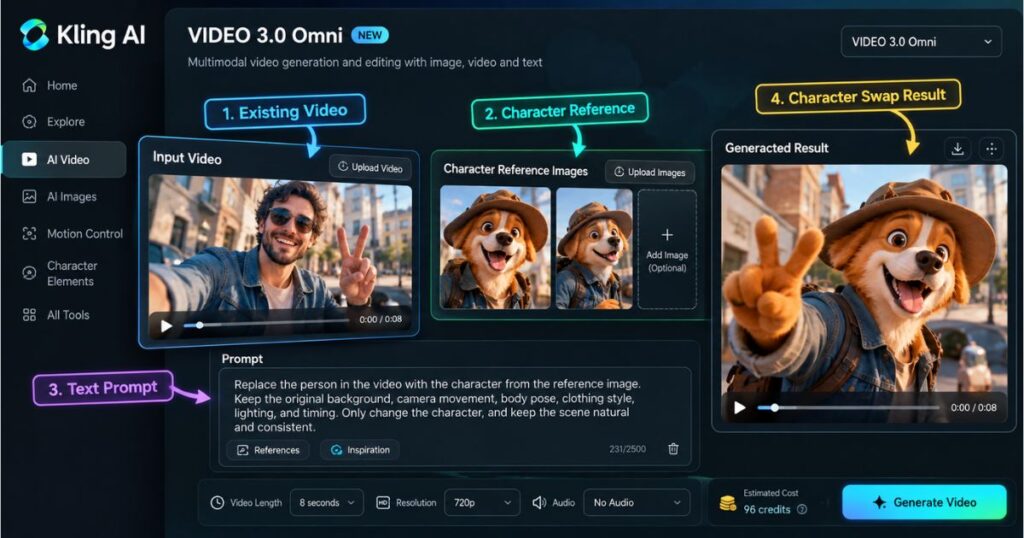
Step 3: Open the VIDEO 3.0 Omni Workflow
Open Kling AI and locate the available VIDEO 3.0 Omni creation or editing workflow.
If you are presented with several video models, distinguish between the model used for editing existing footage and the Motion Control option.
For a Character Swap AI Video task, your intended workflow should use the existing video as an input and provide reference images for the character you want to introduce.
Do not select Motion Control automatically just because the task involves a character. Motion Control is designed around transferring a performance or movement pattern to a character. Omni’s reference-based video editing is the more relevant starting point when the original scene itself needs to remain recognizable.
Before generating, check the model name, resolution, audio setting, estimated credit cost, and any input restrictions displayed in your account.
Step 4: Identify the Character You Want to Replace
Your instructions should make it clear which person in the original video must change.
For a scene containing one person, a simple instruction may be enough. For a scene with several people, describe the target using its position, clothing, or another visible characteristic.
For example:
“Replace the person standing on the left, wearing a blue jacket, with the character shown in the reference image.”
This is more specific than simply writing “replace the person,” which may be ambiguous when several people appear in the footage.
If you want to replace two people, specify each replacement separately and identify the corresponding reference images.
Step 5: Write a Focused Character Replacement Prompt
A useful prompt describes both the requested change and the details you want to preserve.
Here is a starting point for a single-person replacement:
Example Character Swap AI Video prompt
“Replace the target person’s face in @Video with the face shown in @Image1. Preserve the original clothing, facial expressions, body movements, camera movement, background, lighting, and timing as closely as possible. Maintain consistent facial identity during head turns and changes in expression. Integrate the replacement naturally into the existing scene.”
Replace the reference labels with the actual video and image references supported by the interface. If the model does not recognize a particular reference syntax, use its available reference-selection controls instead.
Notice that this prompt does not ask the model to redesign the entire scene. It focuses on the target identity and the elements that should remain unchanged.
For a full-character replacement, adjust the instruction to identify the complete person or character rather than only the face. Be specific about whether clothing, hairstyle, and body appearance should also change.
Step 6: Generate and Review the Result
Once the inputs and prompt are ready, review the estimated cost and generate the video if you are comfortable with the credit requirement.
Do not judge the output from a single frame. Watch the entire clip, especially the moments where the face turns, expressions change, or the subject moves through different lighting.
Use this checklist to evaluate your Character Swap AI Video result:
- Does the replacement resemble the intended character?
- Does the face remain consistent throughout the clip?
- Do facial features look natural during head turns?
- Does the body movement follow the original performance?
- Has the background changed unexpectedly?
- Are the other people still recognizable?
- Do lighting, shadows, and skin tones look plausible?
- Are there visible distortions around the face, hair, or hands?
If the result is unsatisfactory, revise the reference images or clarify the prompt before trying another generation. Changing several variables at once can make it harder to determine what improved the result.
Face Swap vs. Full Character Replacement vs. Motion Control
These terms are related, but they do not describe exactly the same operation. Understanding the difference helps you choose the right workflow and avoid spending credits on the wrong model.
| Workflow | Primary purpose | Best starting point |
|---|---|---|
| Face swap | Change a person’s facial identity while retaining much of the original performance. | Existing video and clear face references. |
| Full character replacement | Replace a larger part of the visible character, potentially including the face and appearance. | Existing video, character references, and precise instructions. |
| Motion Control | Transfer movement from a reference performance to a character image. | Motion video and replacement character image. |
| Character Elements | Reuse a character reference across supported creative projects. | Consistent character images or a supported character video. |
Kling’s official face-replacement guide specifically describes using VIDEO 3.0 Omni to work with existing character footage and facial references. Its separate Motion Control workflow is useful when the primary goal is to recreate a performance with a different character.
If you are not sure which one you need, start with the desired output. If the original scene should remain largely unchanged, investigate the video-editing workflow. If you want to transfer a dance, gesture, or performance to a new character, investigate Motion Control.
You can learn more in our dedicated Kling AI Motion Control guide.
How to Improve Facial Accuracy in Character Swap AI Video
Facial consistency is often the most noticeable quality issue in a character replacement. A result can look convincing in one frame but become less consistent when the subject turns their head or changes expression.
No prompt can guarantee perfect facial identity in every frame. However, several practical steps can improve the information you give the model.
Use References That Match the Scene
If the source video contains side profiles, a front-facing reference alone may not provide enough information about the character from every angle.
Where the workflow supports multiple references, consider using images that show the front, a three-quarter view, and a side profile. Keep the references visually consistent so the model does not receive contradictory information.
Keep the First Test Simple
Start with a short, relatively simple shot rather than a crowded scene with several moving subjects.
This makes it easier to identify whether the problem comes from the reference image, the prompt, the camera angle, or the source footage.
Tell the Model What Must Stay the Same
Explicitly mention the original background, clothing, body movements, camera movement, lighting, and timing if you want to preserve them.
The model may still alter some of these details. Treat preservation instructions as guidance, not a guarantee.
Review Difficult Frames Carefully
Pay particular attention to:
- Fast head turns.
- Side profiles.
- Strong shadows across the face.
- Hands covering facial features.
- Hair moving across the face.
- Reflections and glass surfaces.
- Scenes with several overlapping people.
If identity consistency is critical to your project, test the most difficult part of the footage before investing in a long sequence.
Common Character Swap AI Video Problems and How to Fix Them
Even a capable AI model can produce imperfect results. The best response is to identify the specific failure and adjust the relevant input.
| Problem | Possible cause | What to try |
|---|---|---|
| The face changes between frames | Limited reference information or difficult angles | Add suitable angle references if supported and clarify identity preservation. |
| The wrong person changes | The target was not identified clearly | Specify the person’s position, clothing, or another visible feature. |
| The background changes | The model interprets the prompt as a broader scene transformation | Emphasize that only the target character should change. |
| The face looks unnatural | Reference and source lighting or angles differ | Use a better-matched reference and simpler footage. |
| Other characters become distorted | Subjects overlap or interact closely | Test a simpler segment and identify each person explicitly. |
| The output does not preserve the original movement | The selected workflow or prompt does not sufficiently prioritize the original performance | Reassess whether Omni editing or Motion Control better matches the task. |
| The result looks good only in a still frame | Problems appear during movement | Review the entire clip, not just a thumbnail or opening frame. |
Do not assume every problem can be fixed by making the prompt longer. Sometimes the source video itself is too complex, the reference is unsuitable, or the selected workflow is not designed for the desired transformation.
Is Character Swap AI Video Free in Kling AI?
Kling AI’s pricing and credit requirements can change, and the cost of a character replacement depends on the model, resolution, video length, audio settings, and reference inputs.
The platform may offer free access or credits for some activities, but that does not mean every advanced video-editing workflow is available at no cost.
According to Kling’s published VIDEO 3.0 Omni guide, the model’s listed pricing varies according to the input configuration. For example, the guide lists different per-second rates for 720p and 1080p generation, with separate rates depending on whether video input and native audio are used.
These figures are model-level pricing information, not a promise that every account will see the same available features or final cost.
How to Estimate Your Character Replacement Cost
Before generating, check the price displayed in your account.
A useful estimate is:
Estimated generation cost = displayed credits per second × video duration in seconds
For example, if a particular configuration costs 12 credits per second and you generate an 8-second video, the estimated cost would be 96 credits. This is an illustration based on that rate, not a universal price for every character replacement.
The actual configuration may cost more or less. Confirm the exact amount displayed before submitting your generation.
If you are comparing subscription plans, consider how many clips you expect to create each month rather than choosing a plan based only on its headline price.
For a detailed breakdown, read our Kling AI Pricing Guide.
Ready to check your options? Explore Kling AI and its available plans. Review the current model access and credit cost before upgrading.
Kling AI vs. InVideo for Character Replacement
Kling AI is the main focus of this guide because its VIDEO 3.0 Omni workflow supports reference-based editing of existing video.
InVideo is also worth knowing about because its Cast Swap feature is presented as a way to replace characters in existing footage. However, the two workflows should not be assumed to behave identically.
| Consideration | Kling AI | InVideo AI |
|---|---|---|
| Relevant feature | VIDEO 3.0 Omni | Cast Swap |
| Main approach | Video editing guided by reference images and instructions | Character replacement through a dedicated feature |
| Important distinction | Also offers Motion Control for transferring movement | Broader AI video creation and editing platform |
| What to verify | Model access, input limits, and generation credits | Cast Swap availability, plan requirements, and usage cost |
| Best next step | Test a short clip using the intended Omni workflow | Confirm access to Cast Swap in your account |
The most useful comparison is not which platform has the most features overall. It is which one produces the best result for your particular footage, identity requirements, and budget.
For more information about the broader platform, see our Kling AI Review.
Who Should Use Kling AI for Character Swap AI Video?
Kling AI is worth exploring if you already have video footage and want to experiment with replacing a character using reference images and written instructions.
It may be particularly relevant for:
- YouTube creators who want to create alternative character-based scenes.
- Short-form video creators who produce TikTok, Reels, and YouTube Shorts.
- Creative marketers testing different visual concepts for promotional content.
- Storytellers adapting existing footage into new creative scenarios.
- AI video enthusiasts experimenting with character references and identity consistency.
It may be less suitable if you need guaranteed pixel-perfect preservation, frame-by-frame manual control, or flawless facial identity in every shot without additional editing.
If the video is for a client or commercial campaign, generate a test first and inspect the output before promising a specific result.
Important Considerations Before Using Character Replacement
Use footage and reference images that you own or have permission to edit. If the replacement involves a real person’s face, consider consent, privacy, and how the resulting video could be interpreted by viewers.
Avoid presenting an altered video as authentic footage of a person doing or saying something they never did. For advertising, public communications, or sensitive contexts, transparency may be especially important.
A technically convincing result is not automatically appropriate for every use.
Frequently Asked Questions About Character Swap AI Video
What is the best AI tool for character replacement in video?
The best tool depends on the task. Kling AI VIDEO 3.0 Omni is worth testing when you want to edit existing footage using character references and instructions. Other tools may suit different workflows, so compare actual results using the same source clip.
Can Kling AI replace a face in an existing video?
Kling’s official guide describes using VIDEO 3.0 Omni to replace faces in existing character footage with reference images. The consistency of the result depends on the source video, references, and editing instructions.
Can Kling AI replace a full character instead of just the face?
VIDEO 3.0 Omni supports editing video elements using references and prompts, including changing subjects. The extent of the replacement depends on the requested transformation and the result generated. Test whether the output changes only the face or the wider character appearance as intended.
Does character replacement preserve the original background?
The prompt can instruct the model to preserve the background, camera movement, lighting, and timing. However, AI-generated edits may introduce changes, so inspect the entire result before using it.
Is Kling AI Motion Control the same as character replacement?
No. Motion Control focuses on transferring movement from a reference video to a character image. VIDEO 3.0 Omni is the more relevant workflow to investigate when you want to edit an existing video and replace a specific person or character.
How many reference images should I use?
Start with a clear, high-quality image. If the character turns their head or appears from different angles, additional references may help when the selected workflow supports them. Follow the current input limits shown in Kling AI.
How much does Kling AI character replacement cost?
There is no single price for every character replacement. Costs depend on the selected model, resolution, duration, audio settings, and available plan. Check the credit estimate displayed before generating.
Can I use character replacement for YouTube Shorts?
Yes, it can be a useful creative technique for short-form content, provided the footage and references are suitable. Test a short segment first and review facial consistency, movement, and background preservation before building a longer edit.
Final Verdict: Is Character Swap AI Video Worth Trying With Kling AI?
Character Swap AI Video offers creators a way to experiment with new identities and visual concepts without rebuilding every scene manually. The key is choosing a workflow that matches the intended edit.
If you want to replace a person in existing footage, Kling AI VIDEO 3.0 Omni is a strong candidate to test because it supports video editing guided by reference images and text instructions. If your primary goal is to transfer a performance to a new character, Kling Motion Control may be more appropriate.
Neither workflow guarantees a perfect face, unchanged background, or flawless result in every frame. The most reliable approach is to start with a short clip, use clear reference images, identify the target character precisely, and review the complete output before spending more credits.
If you are ready to explore the workflow, visit Kling AI here. Check the available models, review the credit cost for your intended settings, and test a short video before committing to a larger project.
For further guidance, continue with our Kling AI Omni guide, Kling AI Motion Control guide, and Kling AI Pricing guide.
With the right source footage, suitable references, and careful review, Kling AI can become a useful part of your character-based video creation workflow.