Video Editing for Beginners: The Complete Guide to Editing Your First Video — Tools, Workflow & Tips
Shooting a video is usually the easy part. The real work begins after you stop recording. For Video Editing for Beginners, the first project can feel overwhelming: Which clips should you keep? Where should you cut? How do you fix bad audio? What should you do with long pauses, mistakes, captions, music, and transitions?
The good news is that your first video does not need advanced effects or complicated cinematic techniques. Video Editing for Beginners is mainly about learning a clear, repeatable workflow.
A simple process can take you from raw footage to a finished video: import your clips, organize your footage, create a rough cut, improve pacing, clean the audio, adjust the visuals, add the necessary text or B-roll, and export the final version.
This guide explains that process step by step and compares four different approaches to Video Editing for Beginners: Invideo Editor, DaVinci Resolve, Adobe Premiere Pro, and CapCut.
If you’re also interested in creating videos without appearing on camera, you can learn more in our guide to how to make faceless YouTube videos with AI.
Ready to edit your first video faster?
Try InVideo to create and edit videos with AI, simplify your workflow, and turn your ideas or raw footage into polished videos without a complicated editing process.
How Video Editing Works for Beginners
Most video editors follow a workflow that has remained relatively consistent for years. The software may change, but the basic decisions are similar.
Imagine that you recorded a 10-minute YouTube tutorial using a camera and an external microphone. You have 45 minutes of total footage because you recorded multiple takes.
The first step is to import the files and create your project timeline.
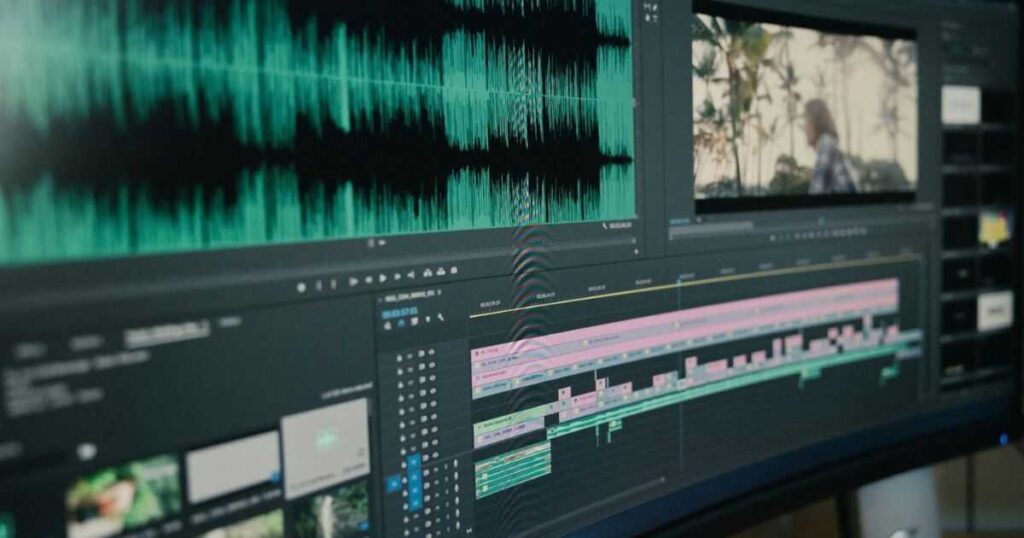
Next comes the assembly cut. You remove unusable takes, long pauses, mistakes, and sections where you repeat yourself. For a beginner, simply creating this first version can take 60–90 minutes.
After the rough cut, Video Editing for Beginners becomes a process of refinement:
- Trim unnecessary gaps.
- Add B-roll where it improves the story.
- Adjust music levels.
- Improve dialogue clarity.
- Add titles or captions.
- Correct colors.
- Export the finished video in the required format.
Professional editors may describe these stages as the assembly cut, rough cut, fine cut, and final cut. The workflow can also include audio mixing, color correction, timeline organization, and preparing final deliverables.
For a simple five-minute social media video, a beginner may spend several hours learning the workflow and completing the first edit. Much of that time comes from making decisions rather than simply clicking the export button.
A Simple Video Editing Workflow for Beginners
If you’re completely new to editing, use this basic sequence:
- Import your footage
- Organize your clips
- Create an assembly or rough cut
- Remove mistakes and unnecessary pauses
- Improve pacing
- Clean and balance the audio
- Add B-roll, captions, titles, or music
- Adjust color and visuals
- Review the complete timeline
- Export the final video
You don’t need to master every feature before completing your first project. The goal of Video Editing for Beginners is to learn the workflow first and add more advanced techniques as your projects become more demanding.
Where Modern Video Editing Tools Fit In
The video editing landscape now includes traditional desktop editors, lightweight social media tools, and browser-based editors with AI assistance.
Invideo Editor takes a different approach by combining browser-based timeline editing with AI-assisted workflows. Users can create timelines, upload footage, work with AI agents, and export editable projects for use in other professional editors.
Other tools focus on different priorities:
- DaVinci Resolve focuses on professional editing, color grading, and finishing workflows.
- Adobe Premiere Pro focuses on industry-standard editing workflows and broad creative control.
- CapCut focuses on fast social media editing.
There is no single winner for every person. The right choice depends on whether your priority is speed, professional control, social content creation, or a beginner-friendly workflow.
If you’re specifically evaluating InVideo before choosing an editor, our detailed InVideo AI review covers its broader AI video creation workflow and features.
Why Video Editing for Beginners Has Changed
1. The First Edit No Longer Has to Start From an Empty Timeline
Traditional editing requires manually reviewing footage and building a sequence from scratch.
AI-assisted editors can now help create an initial structure. Invideo Editor, for example, allows users to create AI agents that can analyze footage, remove unwanted sections, restructure videos, and assist with editing tasks.
That does not mean the editor should simply accept every automated decision. Human review remains important, particularly when the final video needs a specific story, tone, or pacing.
For Video Editing for Beginners, however, having assistance with the first version can make the learning process less intimidating.
2. Beginners Now Have Access to Professional Editing Concepts
Modern beginner-friendly tools include features that were once associated mainly with professional workflows.
These can include:
- Timeline editing
- Color adjustments
- Audio controls
- Aspect ratio changes
- Captions
- Export workflows
Invideo Editor also includes timeline editing and tools for areas such as color, audio, and 3D capabilities.
This means Video Editing for Beginners no longer has to mean using an extremely basic editor. Beginners can start with simpler workflows and gradually learn more advanced controls.
3. Editing Speed Depends on the Type of Video
Not every video requires the same editing workflow.
A travel montage, podcast clip, gaming video, and client advertisement can require completely different approaches.
For example, someone creating a 30-second Instagram Reel may mainly need fast trimming and captions. A filmmaker editing a short documentary may need extensive media organization, color grading, and audio control.
That is why choosing the right software matters as much as learning the basic editing process.
Video Editing for Beginners: Tools Covered in This Guide
This guide compares four different video editing approaches:
Invideo Editor — Browser-based editing combined with AI-assisted timeline workflows.
DaVinci Resolve — Professional editing with advanced color grading and post-production capabilities.
Adobe Premiere Pro — Professional production workflows with detailed timeline and creative control.
CapCut — Fast editing designed particularly around short-form and social media content.
Beginner Video Editing Software Compared
| Feature | Invideo Editor | DaVinci Resolve | Adobe Premiere Pro | CapCut |
|---|---|---|---|---|
| Browser-based editing | ✓ | ✗ | ✗ | ✓ |
| Beginner-friendly timeline | ✓ | ~ | ~ | ✓ |
| AI-assisted editing workflow | ✓ | ~ | ~ | ✓ |
| Professional color tools | ✓ | ✓ | ✓ | ~ |
| Advanced audio workflow | ✓ | ✓ | ✓ | ~ |
| Motion graphics depth | ~ | ✓ | ✓ | ~ |
| Easy social exports | ✓ | ~ | ~ | ✓ |
| Export editable projects | ✓ | ✓ | ✓ | ~ |
| Best for beginners | ✓ | ~ | ~ | ✓ |
The comparison shows why the best choice depends on the type of project. Some editors prioritize professional control, while others focus on accessibility, speed, or AI-assisted workflows.
Want a simpler way to create and edit videos? Try InVideo AI and turn your ideas into polished videos with AI—without a complicated editing workflow.
👉 Try InVideo AI Free
Detailed Video Editing for Beginners Tool Breakdown
Invideo Editor
Invideo Editor is designed for users who want a modern editing workflow without immediately dealing with the complexity of a professional desktop interface.
The workflow begins with the timeline editor. You can create a blank timeline, upload footage, and organize clips directly in your browser.
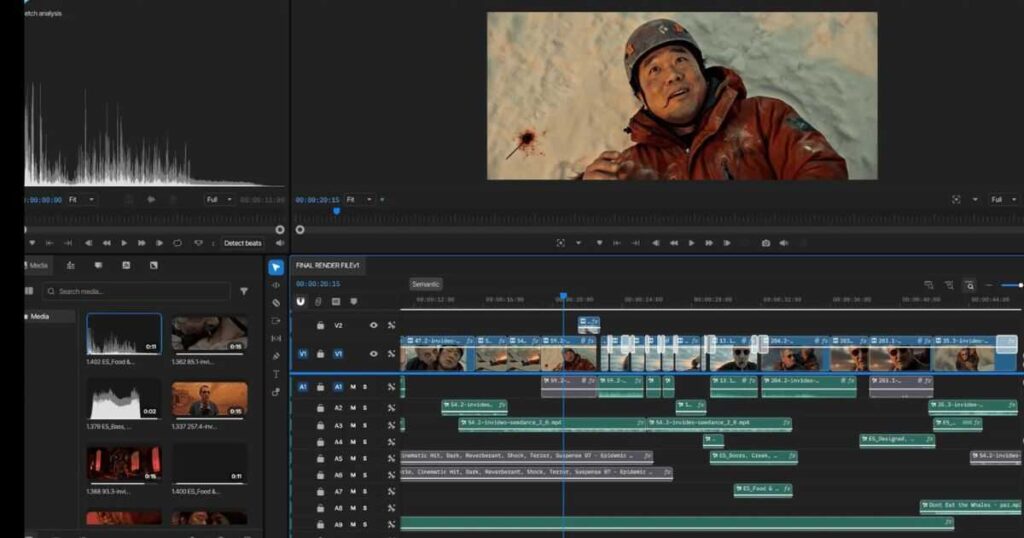
Its main difference is its AI-assisted editing approach. Users can create an agent, describe the editing task, and allow the agent to analyze footage. Instructions can include removing mistakes, cutting empty spaces, improving pacing, adjusting color, or helping prepare the structure of a video.
For someone learning Video Editing for Beginners, this can provide a faster way to create an initial version before making manual refinements.
Want a simpler way to edit your first video?
Try InVideo and use AI-assisted editing to speed up your workflow, organize your footage, and create polished videos without a complicated editing setup.
The editor also supports exporting projects for professional tools. This means a beginner can use AI assistance for the first version and continue refining the project manually later.
Invideo Editor is not necessarily the best choice for every professional workflow. Editors working on complex films, advanced VFX, or highly specialized sound mixing may still prefer dedicated desktop software with deeper manual controls.
Why Try Invideo Editor?
If you want to learn Video Editing for Beginners without installing heavy desktop software, Invideo Editor is worth testing because it combines browser-based editing with AI-assisted workflows.
Try Invideo Editor and see how quickly you can turn your raw footage into a usable first edit.
For users who want to explore the broader platform before subscribing, check our InVideo AI pricing guide for current plan information.
DaVinci Resolve
DaVinci Resolve is built around a professional post-production workflow.
Beginners can use it to edit clips, add transitions, adjust audio, and export videos. As their skills develop, they can move into detailed color grading, visual effects, and professional finishing.
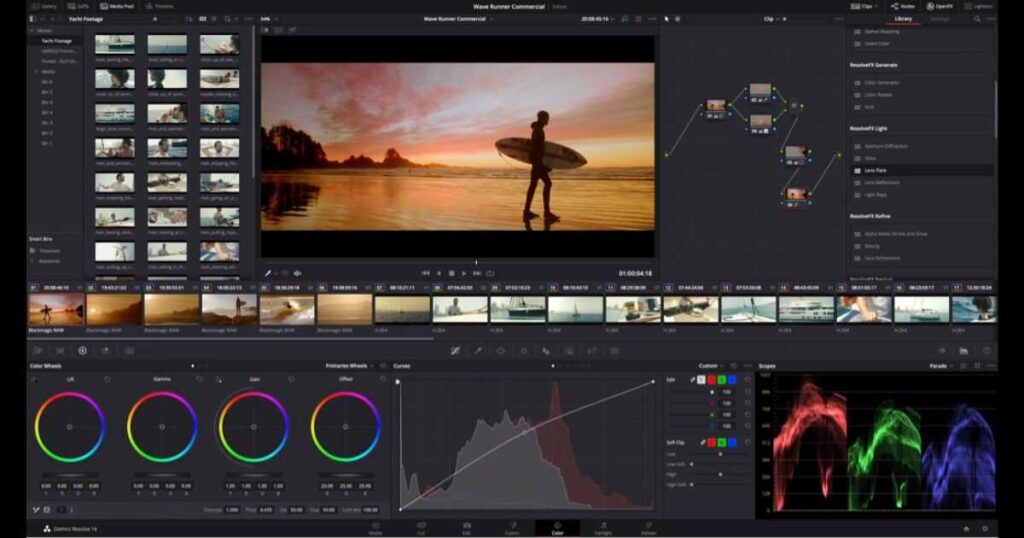
Its strongest area is color. The software provides detailed grading controls, scopes, and professional finishing tools, making it particularly powerful for users interested in cinematic color correction.
The trade-off is the learning curve. A beginner opening Resolve may see more panels and options than necessary for a simple first video.
Best for: Beginners who want to learn professional editing workflows and eventually move into advanced post-production.
Adobe Premiere Pro
Adobe Premiere Pro is one of the most established professional video editors.
It provides detailed timeline control, media management, audio editing, effects workflows, and integration with other Adobe applications.
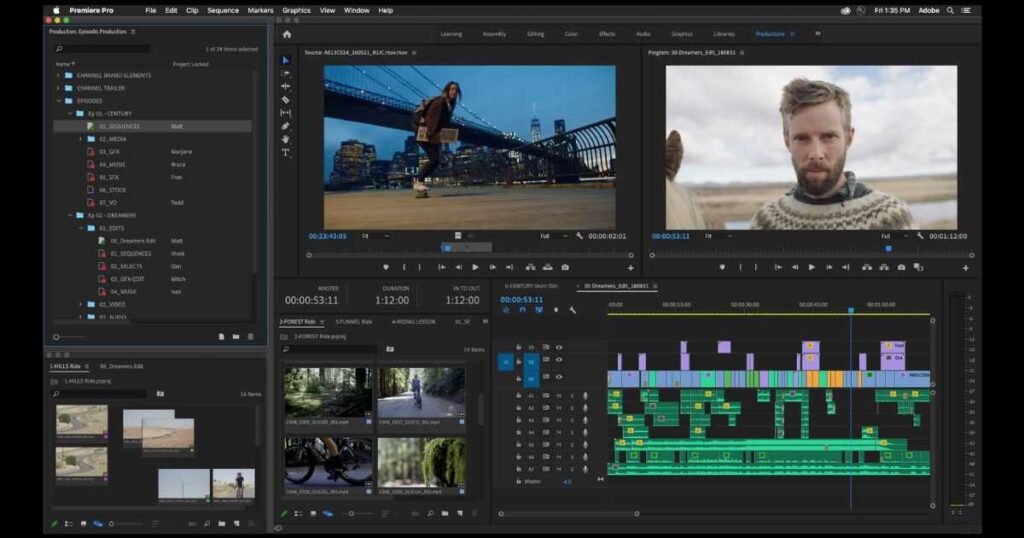
Its strength is flexibility. Creators working on commercials, YouTube channels, documentaries, and agency projects can use Premiere across many production styles.
The downside for beginners is complexity. New users may need additional time to understand project organization, effects, and workflow settings.
Best for: Creators who want an industry-focused editor and are willing to spend time learning it.
CapCut
CapCut focuses on fast editing for short-form content.
It provides quick trimming, templates, captions, effects, and social media-friendly workflows. For TikTok, YouTube Shorts, and Instagram Reels, it can reduce the time between recording and publishing.
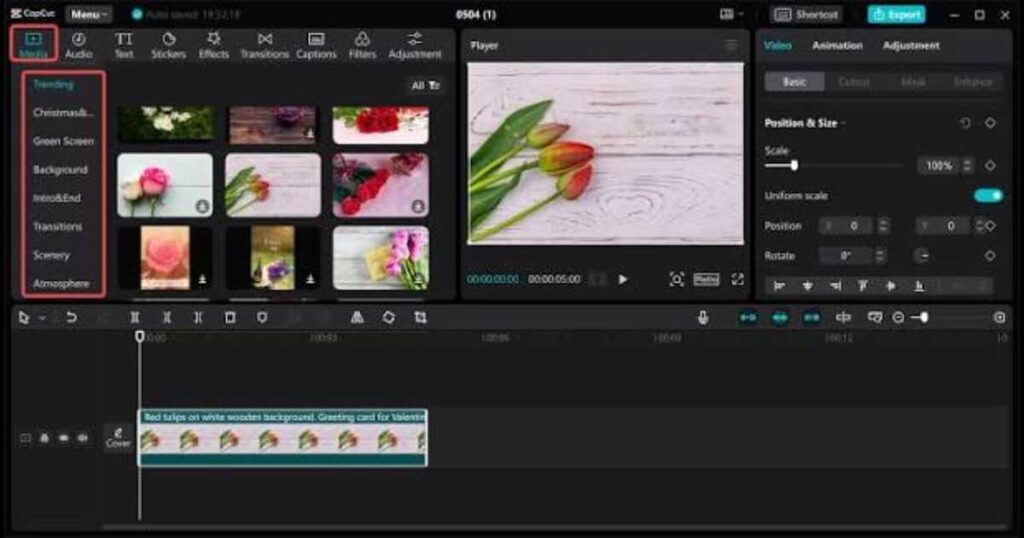
Its limitation is advanced production control. Editors working on long projects or complex post-production may eventually need more specialized software.
Best for: Quick social content creation, especially when speed matters more than advanced production controls.
Video Editing for Beginners: Which Tool Should You Choose?
There is no reason to choose the most complicated editor simply because it has the most features. Your first editing tool should match the kind of videos you actually want to make.
Choose Invideo Editor if:
- You are editing your first video and want guided assistance.
- You want browser-based editing without installing heavy software.
- You want AI help creating an initial timeline.
- You want to export and continue editing elsewhere.
If that sounds like your workflow, try Invideo Editor and see whether its AI-assisted approach makes your first editing projects faster and easier.
Choose DaVinci Resolve if:
- You want to learn professional editing.
- You care about advanced color grading.
- You plan to work on films, documentaries, or detailed projects.
Choose Adobe Premiere Pro if:
- You want an industry-standard editing environment.
- You already use Adobe Creative Cloud.
- You need advanced timeline and workflow control.
Choose CapCut if:
- You mainly create TikTok, Shorts, or Reels.
- You want fast edits with templates and effects.
- You prioritize speed over advanced controls.
These differences are why Video Editing for Beginners should focus on finding the right workflow rather than simply choosing the software with the longest feature list.
How to Make Your First Video Easier to Edit
One of the easiest ways to make Video Editing for Beginners less frustrating is to make better decisions before you start editing.
Record with the final video in mind. Keep your takes organized, avoid unnecessary duplicate files, and know what you want the finished video to communicate.
When you begin editing, do not try to perfect every shot immediately. Start with the story and structure. Remove mistakes and unnecessary sections first, then work on pacing, audio, visuals, captions, and finishing.
This approach prevents beginners from spending too much time polishing footage that may eventually be removed from the final cut.
If you create content for YouTube without appearing on camera, you can also combine these principles with an AI-based workflow. Our guide on how to make faceless YouTube videos with AI explains how the broader production process works.
FAQ: Video Editing for Beginners
What should I learn first when editing a video?
Start with importing footage, trimming clips, arranging a timeline, fixing audio levels, and exporting the final video. These fundamental skills apply across almost every editing tool.
Is Video Editing for Beginners difficult?
The basics are easier than professional editing. A beginner can learn cutting, arranging clips, and making simple improvements relatively quickly. More advanced color, audio, and effects work requires additional practice.
What is the best video editing software for beginners?
The answer depends on your workflow. Invideo Editor is designed for beginners who want browser-based editing and AI-assisted help, while DaVinci Resolve and Premiere Pro are better suited to users who want deeper professional controls. CapCut is particularly useful for fast social content.
Can AI edit my first video automatically?
AI can help with tasks such as creating rough cuts, removing unwanted sections, and organizing footage. Human review is still important for storytelling decisions and final creative choices.
Is Invideo Editor free?
Invideo Editor provides free manual timeline editing, while AI agent work and certain generated features may use credits depending on the task and plan. Pricing and included features can change, so check the current plan details before subscribing.
Can beginners edit videos without professional software?
Yes. Beginners can start with browser-based or simpler editing tools and learn the fundamental workflow before moving to more advanced professional software. The best starting point is the tool that matches the type of videos you plan to create.
How long does it take to learn video editing?
You can learn the basic workflow relatively quickly, but becoming comfortable with professional editing takes longer. Start by mastering cutting, timeline organization, audio, pacing, and exporting before moving into advanced effects and color work.
Final Verdict: Video Editing for Beginners
Your first video does not require you to master every editing feature. The goal of Video Editing for Beginners is to develop a workflow that helps you cut footage, improve audio, organize your timeline, and create a clear story.
Start with the fundamentals: import your footage, remove mistakes, arrange the clips, improve the pacing, clean the audio, add only the visual elements you need, and export the finished project.
Invideo Editor is designed for beginners who want a faster path from raw footage to a usable edit. DaVinci Resolve and Adobe Premiere Pro provide deeper control for users who want to develop professional editing skills, while CapCut focuses on quick social publishing.
If your priority is a simple browser-based workflow with AI assistance, try Invideo Editor and see whether it fits the way you want to edit.
Continue Learning
Want to improve your video creation skills and get more from AI-powered tools? Explore these related guides from Videmint:
- How to Make Faceless YouTube Videos With AI — Learn how to build a complete faceless YouTube video workflow using AI.
- AI Camera Prompts: 30 Camera Movements for Better AI Videos — Discover camera movement prompts that can make AI-generated videos look more cinematic.
- InVideo AI Review (2026): Is It Worth Using? — Explore InVideo AI’s features, editing workflow, pricing, and use cases in more detail.
- Runway AI Review (2026): Is It Worth Using? — Compare another popular AI video platform and see where it fits different video-creation workflows.
- AI Storyboard Generator: Turn Ideas Into Stunning Videos — Discover how AI storyboard tools transform ideas and scripts into organized, consistent video scenes.